
Have you ever walked into a meeting room and spent the first ten minutes trying to get the camera, the microphone and the TV to work together?
Communicating well over video has become essential for businesses, schools, and even social groups, and a bad setup wastes everyone’s time.
Microsoft Teams is one of the leading platforms for this, and it offers a full set of tools for chat, meetings, and teamwork. However, to get the most out of it, having the right video conferencing equipment is crucial.
In this guide, you’ll find the basics of Microsoft Teams and Teams Rooms, what a Teams Room needs, and the best Teams-certified equipment you can buy in 2026!
From a simple webcam for your desk to video bars, ceiling microphones, room PCs, touch consoles, booking panels, displays, and whiteboard cameras for a complete meeting room. Don’t worry, I’ll keep it simple.
So, let’s get started.
What is Microsoft Teams?
Microsoft Teams is Microsoft’s app for chat, video meetings, calling, and file sharing. It’s part of Microsoft 365, so it works closely with Outlook, Word, Excel, OneDrive, and SharePoint. You can use it on Windows, Mac, the web, iPhone, and Android.
There’s a free version for personal use and paid business plans. If you’re curious about what the free version can and can’t do, read our guide to Microsoft Teams free features and limitations.
For most people, Teams runs on a laptop with its built-in webcam and microphone. That’s fine for one person. But once several people join from the same room, you need proper equipment, and that’s where Teams Rooms comes in.
What are Microsoft Teams Rooms?
Microsoft Teams Rooms is Microsoft’s system for meeting rooms. Instead of someone plugging in their laptop, the room has its own Teams device with a camera, microphones, speakers, a display, and a small touch console on the table. You walk in, tap Join on the console, and the meeting starts.

Teams Rooms comes in two main types:
- Teams Rooms on Windows: A small Windows computer runs the Teams Rooms app, connected to a certified camera, audio device, display, and touch console. It’s flexible and has the most features, which is why it’s popular for medium and large rooms.
- Teams Rooms on Android: An all-in-one video bar with the computer built in, like the Logitech Rally Bar or Poly Studio X52. It’s simpler to install and usually cheaper, so it’s great for small and medium rooms.
Both types need a Teams Rooms license. Teams Rooms Basic is free for up to 25 rooms with core meeting features, and Teams Rooms Pro costs $40 per room per month (paid yearly) and adds things like dual screens, AI features, and remote management.
What’s the Difference Between Teams and Teams Rooms?
The easiest way to think about it: Microsoft Teams is for people, and Teams Rooms is for rooms.
| Microsoft Teams | Microsoft Teams Rooms | |
|---|---|---|
| Who uses it | One person on their own device | A shared meeting room |
| Runs on | Laptop, desktop, phone, or browser | A dedicated certified room device |
| Sign-in | Your personal Microsoft account | A room (resource) account |
| How you join | Click Join in the app or calendar | Tap Join on the table console |
| License | Free or a Microsoft 365 plan per user | Teams Rooms Basic (free) or Pro per room |
| Equipment | Webcam, headset, or speakerphone | Video bar or camera, room mics, display, console |
So if you work from home or at your own desk, you only need good personal Teams equipment. If you’re setting up a shared conference room, you need a Teams Rooms system.
What are the Essential Hardware & Equipment Needed For Microsoft Teams?
Whatever room size you have, a Teams setup is made from the same few pieces. Here’s what each one does:
Camera
For a personal setup, a 1080p webcam is enough. For a room, you need a wide-angle conference camera or a video bar with auto-framing, so everyone around the table fits in the picture and the camera follows whoever is speaking.
Placement matters as much as the camera itself. Microsoft recommends putting it at the front of the room, below the screen and above the table, so it captures people as close to eye level as possible.
In bigger rooms, a second camera in the middle of the table, like the Logitech Sight, shows faces instead of the side of people’s heads. Keep in mind that using more than one camera needs a Teams Rooms Pro license.
Microphones
Audio matters more than video. If people can’t hear you, the meeting fails, even with a great picture. Video bars have built-in microphone arrays for small rooms. Bigger rooms need extra table mics, a tabletop camera with its own mics, or ceiling microphones connected through an audio processor.
As a rule of thumb, Microsoft recommends keeping people within about 1.5 m (5 ft) of a microphone in a small focus room and within about 3 m (10 ft) in a large room. If some seats are farther away, add a mic pod or ceiling mic for that area.
Speakers
Remote voices must be clear at the back of the room. Most video bars have good built-in speakers. At your desk, a headset or speakerphone is better than laptop speakers.
Put the speakers at the front of the room, near the display, so remote voices come from where their faces are. Keep them away from table mics too, which helps echo cancellation do its job.
In large rooms, ceiling speakers connected to an audio processor spread the sound evenly, so people at the back don’t have to lean forward to follow the meeting.
Display
A TV or monitor big enough for everyone to see faces and shared content. For a small room, a 55-inch screen is a good start. For larger rooms, go bigger or use two screens.
If you want dual screens or the Front Row layout, plan for a Teams Rooms Pro license. Dual displays should be two matching 16:9 screens, and an ultra-wide 21:9 display works as a single screen on Teams Rooms on Windows only. If you use a consumer TV, make sure it supports HDMI-CEC so the room can wake it up automatically.
Touch Console or Controller
Teams Rooms uses a small touch screen on the table to join meetings, share content, and adjust volume. Some Android video bars can also use a remote control.
On Windows, the console connects to the room PC by USB, or over the network with IP controllers like the Lenovo ThinkSmart IP Controller. If you want dual screens, the console is required, because Microsoft doesn’t support dual display mode without one.
Place it in the middle of the table where anyone can reach it, and leave a little slack in the cable so people can turn it toward them.
Compute
Teams Rooms on Windows needs a certified mini PC. Android video bars have the computer built in, so you can skip this.
Microsoft certifies the PC together with its console, so you can’t use a random office PC. Current kits like the Lenovo ThinkSmart Core Gen 2 and HP Poly Studio 5 and 7 Room Compute use Intel Core Ultra 5 or 7 processors with 16 to 32 GB of RAM.
Mount the PC behind the display or in a table box with some airflow, and connect it to wired Ethernet rather than Wi-Fi.
Scheduling Panel
A small touch screen outside the door shows if the room is free and lets people book it on the spot. Teams panels usually run on PoE, so plan a network port at the door. One Teams Rooms Pro license covers both the room system and its panel, but Basic can’t be used for panels. A room with only a panel can use a Teams Shared Device license.
Content Camera
If your team uses a physical whiteboard, a content camera points at the board and shares it as a clean, readable image for remote people.
It’s mounted on the wall or ceiling facing the board. Teams uses intelligent content capture to make the person writing semi-transparent, so remote people can still read what’s behind them.
Certified options include the Logitech Scribe, Yealink UVC30, and AVer CAM130. Sharing a whiteboard with a content camera is a Teams Rooms Pro feature, so plan for a Pro license in that room.
Content Sharing and Cabling
People need an easy way to share their screen. Teams Casting works on both Windows and Android rooms, while Miracast works on Windows only. Proximity join and QR code join also let people bring their laptop or phone into the room meeting. I still recommend an HDMI input on the table for guests, wired Ethernet for every device, and PoE switches for panels and ceiling mics.
I recommend always choosing Teams-certified devices. Certified devices are tested by Microsoft, get firmware updates, and work with the Teams admin center. Many also have a dedicated Teams button. You can check any product on Microsoft’s Teams devices store.
What are the Basic Requirements for Microsoft Teams Rooms?
Before you buy anything, make sure you have these basics in place:
A Microsoft 365 Tenant
Teams Rooms signs in to Microsoft 365, so your company needs a Microsoft 365 tenant with Teams and Exchange Online. The room reads its calendar from Exchange, and that’s how the Join button shows up on the console for every booked meeting.
If you still run Exchange on your own servers, Microsoft says you need an Exchange hybrid setup so the room can read its calendar. A free personal Teams account won’t work here.
You also need someone with the right admin roles (Teams admin, Exchange admin, and a billing or license admin) to buy the licenses and set up the room accounts. In a small company, that’s usually the person who already manages your Microsoft 365.
A Teams Rooms License for Each Room
Every Teams Rooms device needs its own room license, and Microsoft offers two. Teams Rooms Basic is free, but you can assign it to a maximum of 25 rooms. It covers the core things: one-touch join, content sharing, Whiteboard, and joining Zoom or Webex meetings with Direct Guest Join.
Teams Rooms Pro costs $40 per room per month, paid yearly. It adds Front Row, dual-screen support, meeting chat, multi-camera support, AI noise suppression, Teams Phone, and remote management in the Pro Management Portal.
I recommend trying the free 60-day Pro trial (up to 25 licenses) before you decide. And don’t be surprised when the admin center asks for payment details for Basic. You won’t be charged for it.
A Resource Account
A resource account is a Microsoft 365 account with its own mailbox, made just for the room (for example, [email protected]). The Teams Rooms device signs in with it, and people invite it to meetings in Outlook or Teams like any colleague, so the room books itself automatically.
You can create it in the Microsoft 365 admin center under Resources > Rooms & equipment, or with Exchange Online PowerShell. Then reset its password, untick the option to change the password at first sign-in, and assign the Teams Rooms Basic or Pro license.
Two small settings cause big problems later, so don’t skip them: set the password to never expire, and change the account’s time zone (it defaults to Pacific Time) to match the room. Microsoft’s resource account guide walks through every step.
Certified Hardware
Microsoft only supports devices on its certified Teams Rooms hardware list. Don’t buy a random camera and hope it works.
Certification covers the whole system, not just single parts. On Windows, check that your exact PC and touch console bundle is listed, then choose the camera, mics, and speakers from the certified peripherals list. On Android, the video bar is certified together with its touch console, so buy them as a matching set.
Also look at the firmware and End of Service columns on that page. Microsoft lists the certified firmware for each device, and it marks older kits, like the first Lenovo ThinkSmart One, as end of life. That matters if you’re tempted by a cheap used system.
A Display
You need at least one TV or monitor at the front of the room, connected to the PC or video bar over HDMI. Teams Rooms supports up to two front-of-room screens, and dual screens need Pro (the Display section above covers aspect ratios and HDMI-CEC).
To choose the size, Microsoft’s meeting room guidance starts with the distance to the farthest seat. Its reference table suggests a 65-inch screen for seats up to about 15 feet (4.5 m) away, 75 inches at 18 feet, 85 inches at 20 feet, and 98 to 110 inches at 25 feet.
Mount the screen so the camera can sit just below or above it, close to eye level, and plan the wall mount and power outlet before installation day.
A Good Network
Microsoft’s Teams bandwidth guide recommends about 2.5 Mbps up and 4 Mbps down per endpoint for HD video in meetings. For a full Teams Room, the Teams Rooms network guide suggests planning about 10 Mbps up and down per room, which leaves headroom for content sharing and dual screens.
A wired Ethernet connection is much more reliable than Wi-Fi for a room device. If Wi-Fi is your only option, Microsoft suggests using 5 GHz, turning on band steering, and keeping a signal of -60 dBm or better between the device and the access point.
Ask your IT team to open the Teams ports and URLs and set up QoS. Also exempt the room from proxy authentication, because Teams Rooms doesn’t support it.
Power and Cabling
Plan power outlets behind the display for the screen and the PC or video bar, and at the table if the console or table mics need local power. Microsoft’s Teams Rooms planning guide also reminds you to check that the room has enough power for the screens and the system before you start.
Panels, IP touch consoles, and ceiling mics often run on PoE (Power over Ethernet), so count how many PoE ports you need and check your switch’s total power budget. For USB devices, Microsoft notes that a USB 2.0 extender limits you to USB 2.0 speeds, so it isn’t recommended for USB 3.0 cameras.
I recommend running cables through the table or wall, or at least under a cable cover. A loose HDMI cable on the floor is usually the first thing that breaks.
If you want to check your basic internet speed and equipment needs first, read our guide to video conferencing requirements.
Best Video Conferencing Equipment For Microsoft Teams
Let’s start with your own desk. If you join Teams meetings from a laptop at home or in the office, these two devices will make a bigger difference than you might expect.
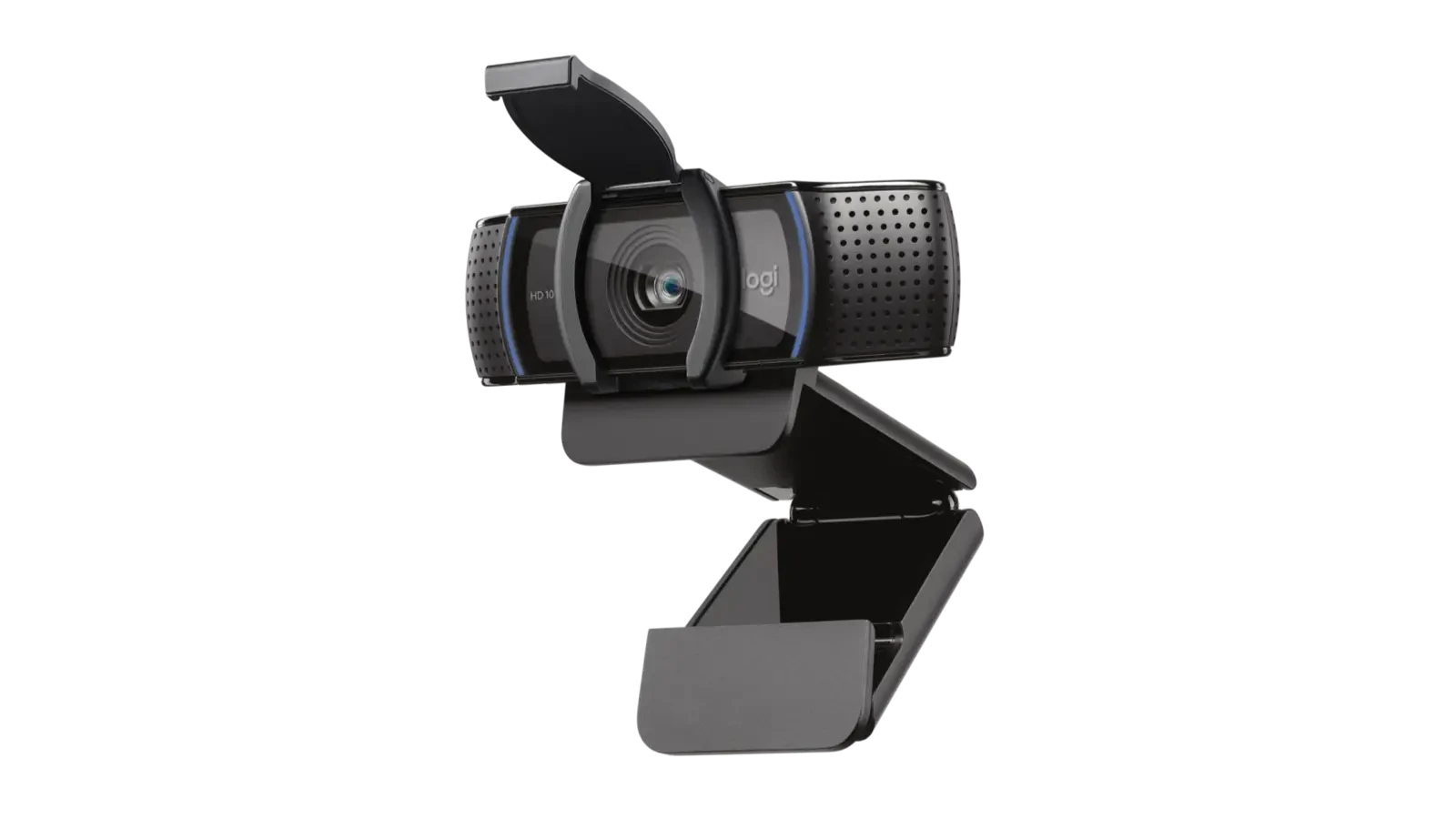
Logitech C920e
Specifications
Brand: Logitech | Model: C920e Business Webcam | Part Number: 960-001360 (TAA compliant) | Camera: 3 MP | Lens: Glass | Max Resolution: 1080p at 30 fps (1920 x 1080) | Other Resolution: 720p at 30 fps (1280 x 720) | Field of View: 78 degrees diagonal, fixed | Digital Zoom: 1x (Full HD) | Focus: HD autofocus, manual focus in Logi Tune | Light Correction: RightLight 2 auto light correction | Microphones: Dual omnidirectional mics (standard model) | Mic Range: Up to 3 ft (1 m) | Connection: USB-A plug and play | Cable: 5 ft (1.5 m), attached | Software: Logi Tune (zoom, color, focus, firmware updates) | Certifications: Certified for Microsoft Teams, Zoom, and Google Meet; TAA compliant | Works With: Webex, BlueJeans, GoTo Meeting, Pexip, RingCentral, Microsoft DirectShow | Operating Systems: Windows 8 or later, macOS 10.10 or later, ChromeOS | Privacy: Attachable privacy shutter | Mounting: Universal clip for laptops, LCDs, and monitors | Tripod: 1/4-inch thread (tripod not included) | Dimensions: 1.7 x 3.7 x 2.8 in (43.3 x 94 x 71 mm) with clip | Weight: 5.71 oz (162 g) | In the Box: Webcam with attached USB-A cable, privacy shutter, user documentation | Warranty: 3-year limited hardware warranty | Launch Price: $69.99
Why We Picked the Logitech C920e?
The Logitech C920e is the business version of the famous C920. It gives you sharp 1080p video, good autofocus, and a privacy shutter you can slide closed when you’re not on a call. It’s certified for Microsoft Teams, so IT teams like it too.
Just note that this Amazon version has its microphone disabled, which many companies want for privacy. So pair it with a headset or the speakerphone below.
The field of view is fixed at 78 degrees, so it frames one person nicely but won’t widen if a colleague squeezes in beside you. It plugs into USB-A only, so on a USB-C-only laptop you’ll need an adapter or a dock. I recommend installing Logi Tune, because that’s where you get manual focus, zoom, and firmware updates.
Who It’s For?
We recommend the Logitech C920e if you join Teams calls from your own desk and want a certified, no-fuss 1080p webcam that IT can roll out in bulk. If two people often share your camera, a wider webcam will suit you better.
- Low price
- Sharp 1080p video
- Teams certified
- Privacy shutter
- Mic disabled here
- No 4K or AI framing
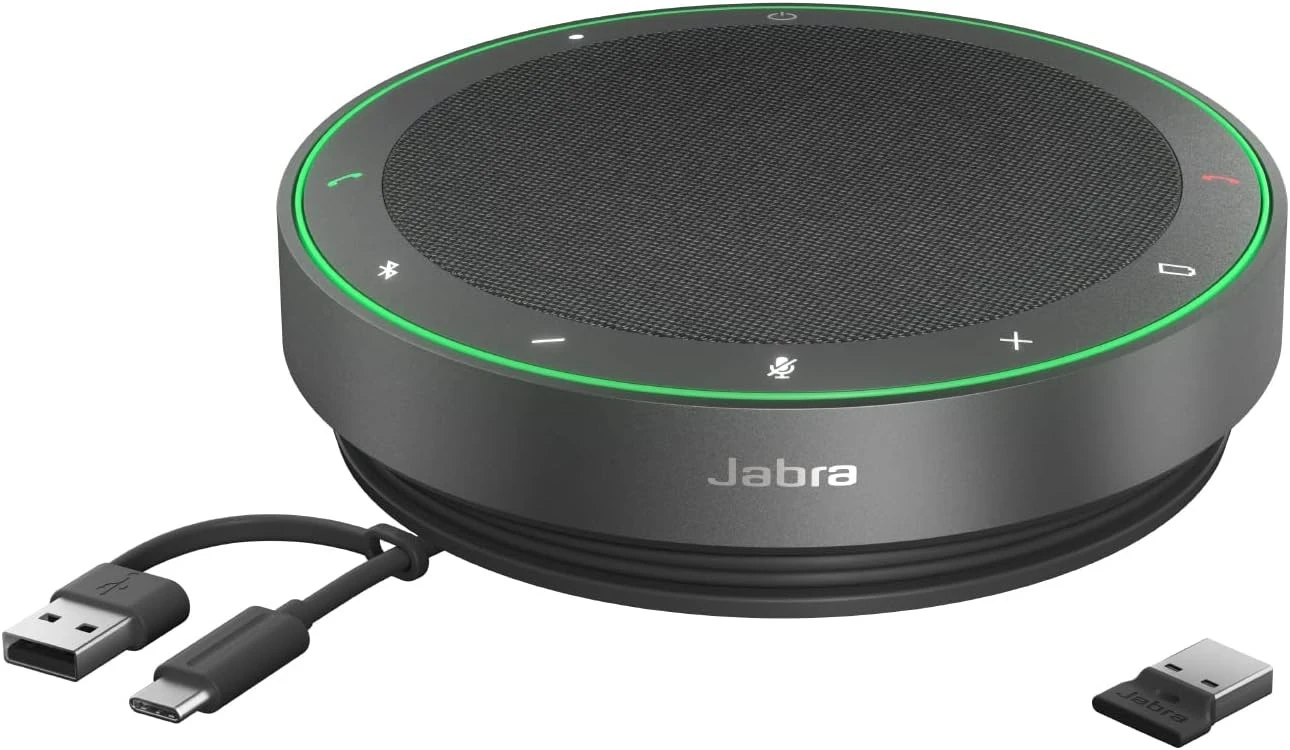
Jabra Speak2 75
Specifications
Brand: Jabra | Model: Speak2 75 | Ideal Room Size: Up to 4.5 x 4.5 m (14.76 x 14.76 ft) | Variants: Microsoft Teams or UC versions, with or without the Link 390 adapter | Microphones: 4 digital MEMS beamforming mics | Mic Frequency Range: 150 Hz to 14 kHz | Mic Pickup Range: Up to 2.5 m (8.2 ft) | Signal-to-Noise Ratio: 72 dB | Full Duplex: Yes | Speaker: 65 mm (2.6 in) full-range | Peak Output: 88 dBSPL at 0.5 m | Speaker Bandwidth: 80 Hz to 20 kHz (music), 150 Hz to 14 kHz (calls) | Super-Wideband Audio: Up to 16 kHz (needs app and device support) | Echo Cancellation: Yes | Reverberation Reduction: Yes | Voice Level Normalization: Yes, incoming and outgoing audio | Noise Reduction: Yes, on calls | Microphone Quality Indicator: Yes | Bluetooth: 5.2, range up to 30 m (98 ft) | Cable: Integrated USB-C cable with USB-A adapter | Pairing: Microsoft Swift Pair and Google Fast Pair | Linking: Pair two Speak2 75 units for bigger rooms | Battery: Rechargeable lithium-ion, 4,700 mAh | Talk Time: Up to 32 hours | Charging Time: Up to 2.5 hours (1 A) or 5 hours (0.5 A) | Software: Jabra Direct, Jabra Sound+, Jabra Xpress, Jabra Plus management | Certifications: Microsoft Teams and Teams Rooms (variant dependent), Google Meet, Amazon Chime, Cisco, Avaya, Alcatel-Lucent, Unify, MFi | Dimensions: 5.22 x 1.38 in (132.5 x 35 mm) | Weight: 16.44 oz (466 g) | Durability: IP64 dust and water protection | Operating Temperature: 32 to 104 F (0 to 40 C) | Storage Temperature: -4 to 113 F (-20 to 45 C) | Sustainability: Over 33% sustainable materials | In the Box: Speakerphone, Link 390 Bluetooth adapter (variant dependent), carry pouch, safety and warranty information | Warranty: 2 years | Launch Price: $369
Why We Picked the Jabra Speak2 75?
The Jabra Speak2 75 is a portable speakerphone for one person or a small group around a desk. Its four microphones pick up voices clearly while cutting background noise, and the full-duplex audio means people can talk at the same time without cutting each other off.
It has a Teams button, connects by Bluetooth or USB, and runs on battery, so you can carry it to a small huddle space. If you prefer a headset, look for one with the Teams certification logo. Our guide to video conference webcams also covers more camera options.
Jabra rates it for rooms up to about 4.5 x 4.5 m, and the mics reach about 2.5 m, so keep everyone close to the table center. For a longer table, you can link two Speak2 75 units with the smart button. Just know that super-wideband audio only kicks in when your meeting app supports it.
Who It’s For?
We recommend the Jabra Speak2 75 if you take calls at your desk, in a small huddle space, or on the move and want certified audio without installing anything. It’s not a room system, so for a fixed meeting room, I’d pick one of the video bars below.
- Clear, natural sound
- Up to 32h battery
- Teams certified
- Link two units
- Pricey for a speakerphone
- Small groups only
Recommended Video Conferencing Equipment For Microsoft Teams Rooms
Now for meeting rooms. I’ve grouped these picks so you can equip a full Teams Room in 2026: four video bars first, then a center-of-table camera, a ceiling microphone, a Windows room kit, a touch console, a booking panel, an all-in-one display, and a whiteboard camera. Every product here was on Microsoft’s certified Teams Rooms or Teams panels lists when we checked. The prices in the spec boxes are the manufacturers’ launch prices, and street prices for room gear vary a lot by seller, so compare before you buy.
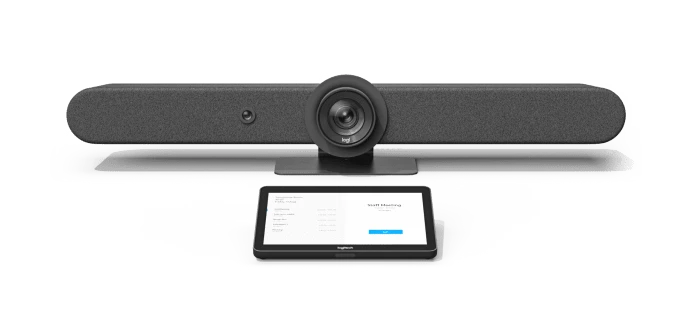
Logitech Rally Bar
Specifications
Brand: Logitech | Model: Rally Bar | Room Size: Medium (Microsoft lists it for rooms about 4.5 x 6 m) | Teams Rooms: Android appliance mode or USB mode with a Windows Teams Rooms PC | Built-in: 6 beamforming mics, PTZ camera, 2 speakers, AI Viewfinder, CollabOS | Displays Supported: 2, up to 1080p | Camera Resolution: 4K, 1440p, 1080p, 900p, 720p, and SD at 30 fps | Pan and Tilt: Motorized, +/-25 degrees pan and +/-15 degrees tilt | Zoom: 15x HD (5x optical, 3x digital) | Field of View: 90 degrees diagonal, 82.1 degrees horizontal, 52.2 degrees vertical | Total Room Coverage: 132.1 x 82.2 degrees with pan and tilt | AI Features: RightSight framing, Grid View, RightLight, RightSound | Speakers: 2 x 70 mm drivers, 8W rated power | Speaker Sensitivity: 92 dB SPL at 1W, 99 dB SPL at 8W | Mic Frequency Response: 90 Hz to 16 kHz | Mic Pickup Range: Up to 7 m (23 ft) | Beamforming: 6 digital MEMS mics forming 5 adaptive beams | Audio Processing: Echo cancellation, voice activity detection, AI noise suppression | Add-on Mics: Up to 4 Rally Mic Pods and 2 Mic Pod Hubs | HDMI: 2 out (up to 1080p), 1 in | USB: 3 x Type-A, 1 x Type-C | Network: 10/100/1G Ethernet | Wi-Fi: 802.11a/b/g/n/ac | Remote: Bluetooth Low Energy remote (not on No-Radio model) | Touch Controller: Logitech Tap or Tap IP | Management: Logitech Sync | Security: AES-128 full disk encryption, device attestation, Arm TrustZone | Power: Auto-sensing 100-240V supply, 19V 4.74A | Operating Temperature: 0 to 40 C | Heat Output: 57 BTU/hr idle, 64 in a meeting | Dimensions: 6.46 x 35.83 x 5.14 in (164 x 910 x 130.5 mm) | Weight: 15.61 lb (7.08 kg) | Mounts: Optional wall mount and TV mount | No-Radio Version: Available without Wi-Fi, Bluetooth, or remote | In the Box: Rally Bar, power supply, AC cord, 2 m HDMI cable, 2.2 m USB cable, remote, lens caps, documentation | Warranty: 2-year limited, with extended warranty available | Launch Price: $3,999
Why We Picked the Logitech Rally Bar?
The Logitech Rally Bar is one of the most popular video bars for Teams Rooms. It has a motorized pan-tilt-zoom camera, so it can zoom in on people sitting far from the screen, which most video bars can’t do well.
You can run it as an Android Teams Rooms device with no PC, or connect it by USB to a Windows Teams Rooms computer. It also works with Logitech’s Tap touch controller and Sync management software. For bigger rooms, you can add Rally Mic Pods.
It weighs about 15.6 lb (7 kg), so use Logitech’s wall or TV mount instead of balancing it on a slim TV. The built-in mics reach about 7 m, which is roughly where those Mic Pods start to earn their place (it takes up to four). If your security team doesn’t allow wireless in meeting rooms, there’s a No-Radio version without Wi-Fi, Bluetooth, or the remote.
Who It’s For?
We recommend the Logitech Rally Bar if you have a medium room with a long table and people sit far from the screen, because the optical zoom keeps faces sharp at the back. For a small huddle room, it’s more camera than you need.
- Optical zoom PTZ camera
- Loud, clear speakers
- Android or Windows
- Expandable with Mic Pods
- Expensive
- Heavy, needs a mount
Poly Studio X52
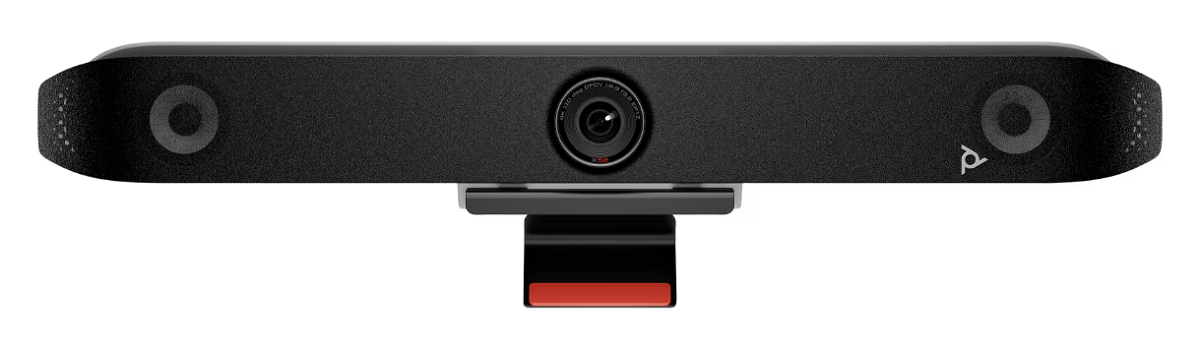
Specifications
Brand: Poly (HP) | Model: Studio X52 All-In-One Video Bar | Product Number: 7200-87620 | Room Size: Medium (Microsoft lists it for rooms about 4.5 x 6 m) | Teams Rooms: Android | Certifications: Microsoft Teams, Zoom, and Google Meet | Camera: 20 MP single lens, 4K UHD (3840 x 2160) | Field of View: 95 degrees horizontal, 110 degrees diagonal | Zoom: 5x digital | Smart Camera: DirectorAI people, group, and speaker framing, DirectorAI perimeter | People Video: 4K at 30 fps from 2,048 kbps; 1080p at 60 fps from 1,740 kbps | Video Standards: H.264 AVC, H.264 High Profile, H.265, H.239 | Lens Cover: Attachable | Microphones: Two MEMS mics and two second-order mics | Mic Pickup Range: Up to 20 ft (6.09 m) | Expansion Mic: Optional | Speakers: Stereo, 79 dB sensitivity (1 W/1 m) | Audio Features: Full duplex, echo cancellation, NoiseBlockAI, Acoustic Fence, automatic gain control | Audio Standards: Polycom Siren 22, G.719, G.722.1C, G.711, G.728, G.729A | Content Sharing: HDMI input, Apple AirPlay, Miracast | Ports: 1 HDMI-in 2.0, 2 HDMI-out 2.0, 1 USB-C (5 Gbps), 2 USB-A (5 Gbps), 1 RJ-45, 1 line-in | Network: IPv4, IPv6, 10/100/1G Ethernet, H.323 and SIP in Poly Video mode | Wireless: Wi-Fi 6 (802.11ax) and Bluetooth 5.0 (not on no-radio versions) | Other Modes: Native Dialpad, GoToRoom, RingCentral, and StarLeaf apps; USB device mode | Touch Control: Poly TC8 or TC10 | Management: HP Poly Lens | Security: AES 128 and 256-bit encryption, H.235.6 | Power: External auto-sensing; 25 W heavily loaded, 8 W idle | Operating Temperature: 32 to 104 F (0 to 40 C) | Dimensions: 30.3 x 4.5 x 4 in (769.5 x 115.2 x 103 mm) | Weight: 5.6 lb (2.54 kg) | In the Box: Studio X52, AC adapter, power cable, HDMI cable, Ethernet cable, monitor clamp | Warranty: Poly standard one-year limited warranty | Launch Price: $4,300
Why We Picked the Poly Studio X52?
The Poly Studio X52 is an all-in-one Teams Rooms on Android bar with a sharp 4K camera. Poly’s DirectorAI framing finds people automatically and can switch between speakers like a TV director.
Poly’s NoiseBlockAI and Acoustic Fence also help a lot in open offices, because they block noise from outside the meeting area. It’s a strong choice for small and medium rooms where video quality matters.
Microsoft lists it for medium rooms of about 4.5 x 6 m, and Poly rates the mics at around 20 ft, which fits that size well. The 5x zoom is digital, so it can’t match a motorized PTZ camera for people at the far end of a long table. Poly also lists AirPlay and Miracast, but check which sharing options your Teams Rooms setup allows before you promise them to guests.
Who It’s For?
We recommend the Poly Studio X52 if you want a sharp 4K picture and strong noise blocking in a small or medium room, especially next to an open office. If your room is long and narrow, the Rally Bar’s optical zoom is a better fit.
- Sharp 4K video
- Smart speaker framing
- Great noise blocking
- Pricey
- Digital zoom only
Yealink MeetingBar A40
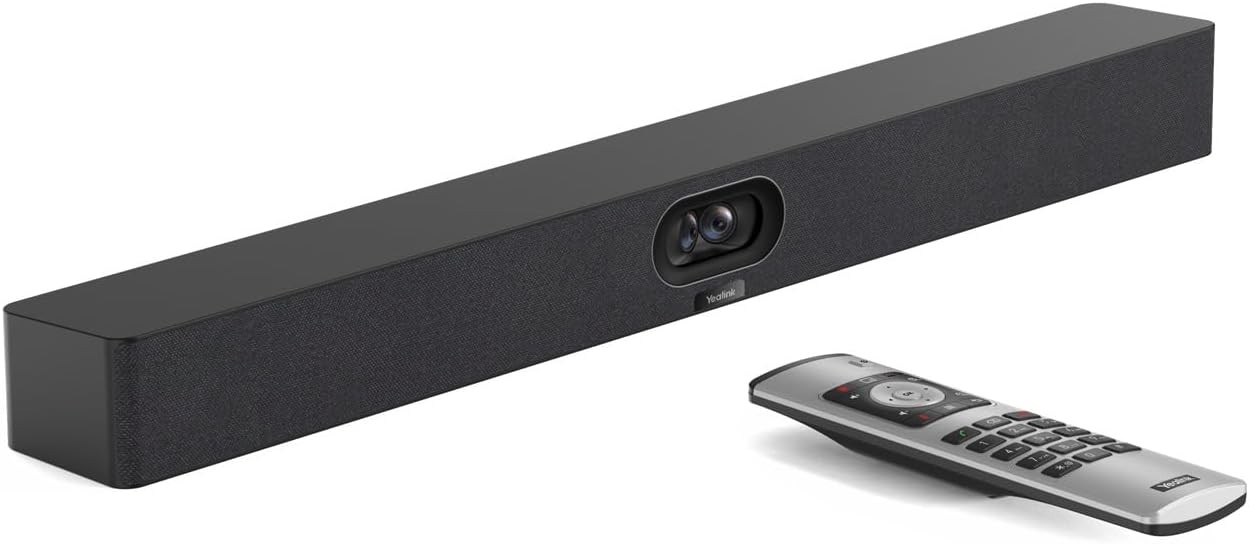
Specifications
Brand: Yealink | Model: MeetingBar A40 | Room Size: Small to medium (Microsoft lists it for rooms about 4.5 x 6 m) | Operating System: Android 13 on Microsoft Device Ecosystem Platform (MDEP) | Bundle: A40-031 adds the CTP25 touch console | Cameras: 2 x 48 MP lenses, stitched | Field of View: 120 degrees diagonal, 110 degrees horizontal, 54 degrees vertical | Max Resolution: 4K (3840 x 2160) at 30 fps, 1080p at 60 fps | Zoom: 6x digital, 9 presets | Aperture and Focal Length: F/2.2 to F/2.4, 4.2 mm | Minimum Illumination: 0.5 lux | AI Features: IntelliFocus (up to 4 people), auto framing, speaker tracking, people counting, picture-in-picture | Privacy: Electric lens cap | Microphones: 8 MEMS mic array | Pickup Range: 6 m, with 4 m high-quality pickup | Mic SNR: 72 dB at 1 kHz | Mic Frequency Response: 100 Hz to 20 kHz | Audio Processing: Full duplex, echo cancellation, AGC, AI noise suppression | Expansion Mics: Supports 2 | Speakers: 2 x 10W (12W max), 92 dBSPL at 1 m | Speaker Frequency Response: 100 Hz to 16 kHz | Content Sharing: Teams: 1080p30 in meetings, 4K30 local sharing | Ports: 1 USB-A 2.0, 2 USB-C 2.0, 1 USB-C 3.0, 2 HDMI-out with HDMI CEC, 1 Gigabit Ethernet, 1 VCH port, 3.5 mm line-in/out | Wireless: Wi-Fi 6 dual-band 2×2 MIMO, Bluetooth 5.0 | Management: Teams Admin Center, Intune, Yealink Management Cloud Service, Zoom Device Management | Security: AES-128 and AES-256 encryption | Operating Temperature: 0 to 40 C | Heat Output: 38 BTU/hr idle, 58 in a meeting | Dimensions: 650 x 80 x 62 mm (W x D x H) | Mounting: Wall mount and TV clip mount included | In the Box: MeetingBar A40, power adapter, 2 x 1.8 m HDMI cables, 3 m network cable, TV clip mount, wall mount, cable cover, quick start guide | Warranty: 2-year limited hardware warranty | Launch Price: $2,349 (A40 with VCR11 remote kit)
Why We Picked the Yealink MeetingBar A40?
The Yealink MeetingBar A40 gives you a lot for the money. It’s an Android Teams Rooms bar with two cameras, AI auto-framing, speaker tracking, and an eight-microphone array.
It comes with a remote, and you can add Yealink’s touch panel for a full Teams Rooms experience. For a small or medium room on a tighter budget, it’s hard to beat.
The mics reach about 6 m, but Yealink rates high-quality pickup at about 4 m, so for a bigger table, I’d add its expansion mics. Content shared into a Teams meeting goes out at 1080p, even though local sharing runs at 4K. The wall and TV mounts come in the box, which saves a separate purchase.
Who It’s For?
We recommend the Yealink MeetingBar A40 if you need to equip several small or medium rooms on a budget and still want dual cameras and Teams Rooms on Android. Pick the A40-031 bundle if you want the CTP25 touch console included.
- Great value
- Dual 48 MP cameras
- Mounts in the box
- Fewer Amazon reviews
- Touch panel may cost extra
Jabra PanaCast 50
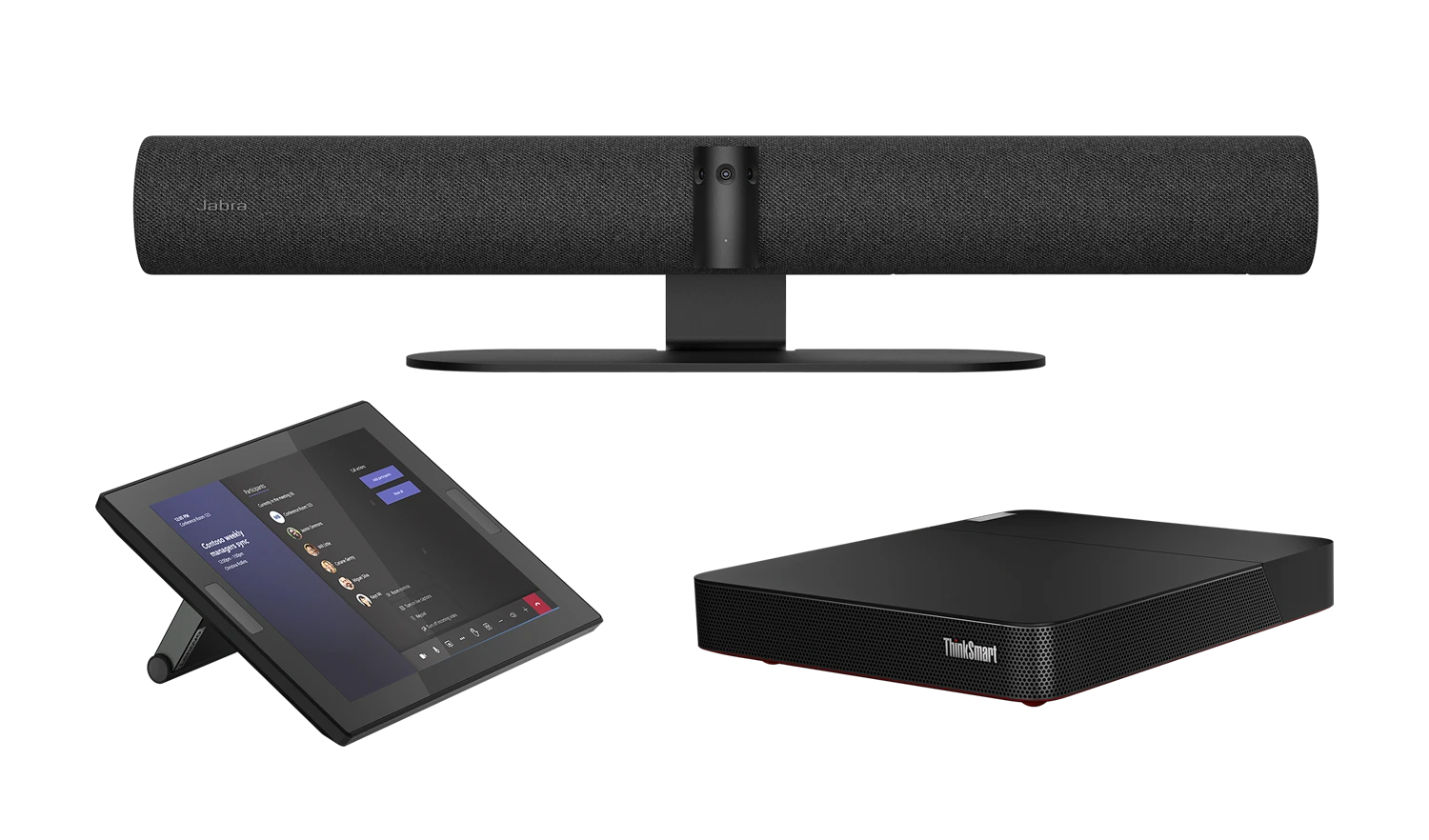
Specifications
Brand: Jabra | Model: PanaCast 50 | Room Size: Certified for Teams in rooms up to 4.5 x 6 m (15 x 20 ft) | Teams Rooms: Windows via USB; Android with the PanaCast 50 VBS version | Certifications: Microsoft Teams, Microsoft Teams Rooms, Zoom, Zoom Rooms | Cameras: 3 x 13 MP | Video Resolution: Panoramic 4K: 3840 x 1080 at 30 fps | Field of View: 180 degrees horizontal, 54 degrees vertical (adjustable) | Zoom: Up to 6x lossless digital zoom | Video Features: Intelligent Zoom, Virtual Director, Vivid HDR | Whiteboard: Whiteboard sharing support | Manual PTZ: Yes | Speakers: 2 x 50 mm woofers, 2 x 20 mm tweeters | Speaker Frequency Range: 80 Hz to 20 kHz | Microphones: 8-mic beamforming array | Mic Sensitivity: -37 dBFS | Mic Frequency Range: 100 Hz to 8 kHz | Accessibility: Aux-out for hearing augmentation transmitters | Connectivity: USB-A, USB-C, Ethernet (RJ45) | USB: USB 2.0 and 3.0, 2 m (6.5 ft) cable | Wireless: Bluetooth Low Energy | System Requirements: Windows 10, macOS 10.15 and later | Software: Jabra Direct, Jabra Sound+, Jabra Xpress, SDK, PeopleCount | Operating Temperature: 41 to 95 F (5 to 35 C) | Dimensions: 25.6 x 3.1 x 4.9 in (650 x 80 x 125 mm) | Weight: 77.6 oz (2,200 g) | Mounting: Wall mount included | In the Box: PanaCast 50, power supply, wall mount, 2 m USB-C to USB-A cable | Warranty: 2 years | Launch Price: $1,195
Why We Picked the Jabra PanaCast 50?
The Jabra PanaCast 50 uses three cameras stitched together for a 180-degree view, so even people sitting right beside the screen are in the picture. That’s great for small rooms where people sit close to the TV.
This version connects over USB to a Windows Teams Rooms PC or a laptop. If you want an Android all-in-one, look for the PanaCast 50 Video Bar System (VBS), which has the computer built in.
Microsoft certifies it for rooms up to about 4.5 x 6 m, so it handles more than a tiny huddle room. It also supports whiteboard sharing, and the aux-out port is handy if your room needs a hearing augmentation system.
Who It’s For?
We recommend the Jabra PanaCast 50 if you run Teams Rooms on Windows and want a USB video bar for a small or medium room where people sit close to the screen. If you’d rather skip the PC, choose the PanaCast 50 VBS version instead.
- Wide 180-degree view
- Lower price
- Strong audio for its size
- Needs a PC (USB version)
- Some edge distortion
Logitech Sight
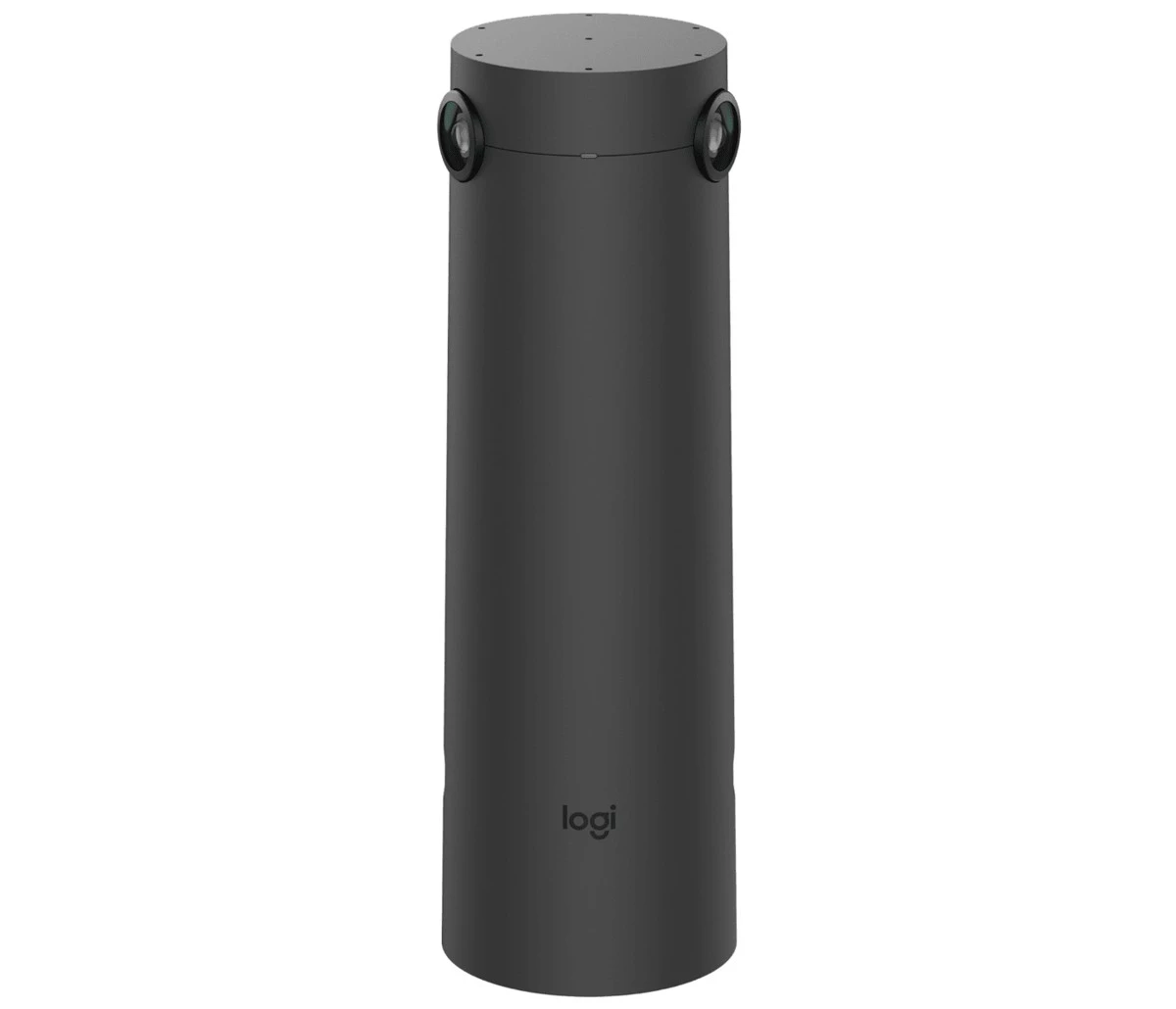
Specifications
Brand: Logitech | Model: Sight | Part Numbers: 960-001510 (graphite), 960-001503 (white) | Type: Tabletop companion camera for Rally Bar, Rally Bar Mini, and Rally or Rally Plus | Teams Rooms: Certified with Rally Bar and Rally Bar Mini on Teams Rooms on Windows | Built-in: 7 beamforming mics and a dual-lens 4K camera | Sensor Resolution: 4K | Frame Rate: Up to 60 fps | Field of View: 315 degrees horizontal, 97 degrees vertical, 180 degrees diagonal | Focal Length: 1.87 mm | Depth of Field: 50 cm to 5 m (19.69 in to 16.41 ft) | Zoom: 1x | Microphones: 7 digital MEMS mics forming 6 adaptive endfire beams | Pickup Range: 7.5 ft (2.3 m) radius | Mic SNR and AOP: 72 dB SNR, 130 dB AOP, IP57 dirt and water resistant | Frequency Response: 90 Hz to 16 kHz | Audio Processing: Echo cancellation, machine learning voice detection, AI noise suppression | Mic Pod Support: Rally Bar: up to 3 Mic Pods and 2 hubs; Rally Bar Mini: up to 2 Mic Pods and 2 hubs | Cabling: Cat6a or better | Max Cable Length: 40 m (131.2 ft) between Sight dongle and Sight | USB Mode: Windows 10, Windows 11, and the two latest macOS versions | Appliance Mode: Room software license required (not included) | Management: Logitech Sync | Dimensions (Table): 11.77 x 6.65 x 6.65 in (299 x 169 x 169 mm) | Dimensions (Grommet): 11.46 x 3.68 in (291.2 x 93.4 mm), needs a 25 mm or larger hole | Weight: 3.31 lb (1.5 kg) | Operating Temperature: 0 to 40 C | Storage Temperature: -40 to 70 C | In the Box: Sight camera, Sight dongle, mic pod dongle, privacy shade, grommet mount, table mount, tripod mount, documentation | Warranty: 2-year limited, with 1- and 3-year extensions | Launch Price: $1,999
Why We Picked the Logitech Sight?
The Logitech Sight is a tabletop companion camera that sits in the middle of the table and works alongside a Rally Bar or Rally Bar Mini. The front camera sees faces from the screen end, while Sight catches the people who usually end up as side profiles.
It also adds seven microphones right where people sit, which helps in long rooms. Plan the cabling first: it needs Cat6a or better, up to 40 m to the Sight dongle, and a 25 mm hole if you use the grommet mount. Keep in mind that multi-camera features need a Teams Rooms Pro license.
Who It’s For?
We recommend the Logitech Sight if you already have, or plan to buy, a Rally Bar for a medium or large room and people at the sides of the table end up as profiles on screen. It isn’t a standalone camera, so skip it if your room uses another brand’s video bar.
- Shows side-seated faces
- Adds 7 table mics
- Clean grommet mount
- Needs a Rally Bar
- Cat6a install planning
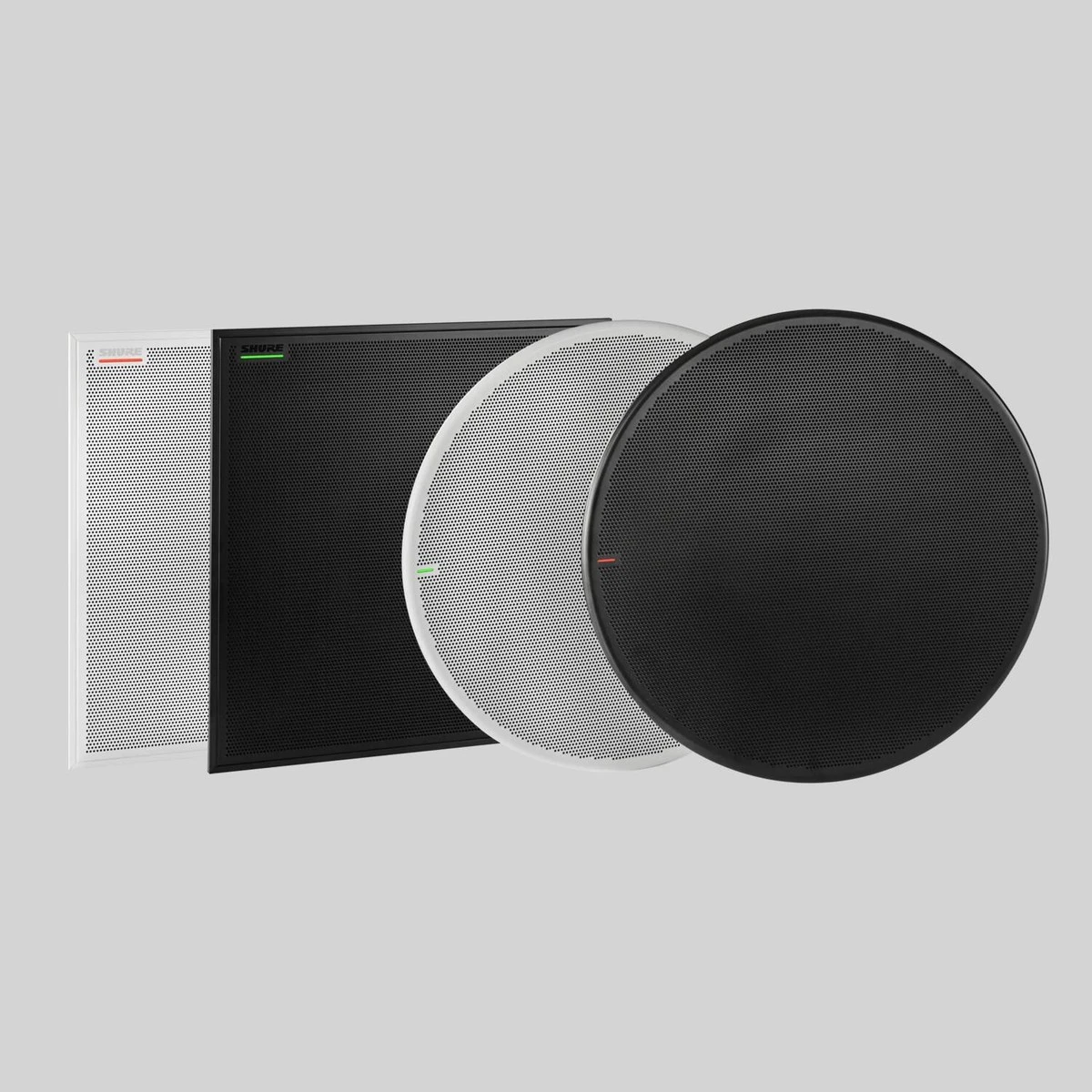
Shure MXA925
Specifications
Brand: Shure | Model: MXA925 Ceiling Array Microphone (successor to the MXA920) | Teams Rooms: Certified as part of the Shure Microflex Ecosystem with a P300, ANIUSB-MATRIX, or ANIUSB-C plus Shure speakers | Coverage: Automatic Coverage, 30 x 30 ft (9 x 9 m) by default, up to 8 coverage areas | Versions: Square 24 in, square 60 cm, or round; white or black (paintable) | Microphone Elements: 113 MEMS | Frequency Response: 125 Hz to 20 kHz | Sensitivity: -1.74 dBFS/Pa at 1 kHz | Maximum SPL: 95.74 dBSPL | Signal-to-Noise Ratio: 75.76 dB A-weighted | Self Noise: 18.24 dB SPL-A | Dynamic Range: 77.5 dB | Latency: 13 ms direct outputs; 47 ms automix with AI echo cancellation | DSP: Automixing, AI echo cancellation, AI denoiser, AI deverb, noise reduction, AGC, compressor, delay, 4-band EQ | Digital Audio: Dante or AES67, 48 kHz / 24-bit | Channels: 2 with Automatic Coverage on; 10 with it off | Network Ports: Two RJ45 (primary with PoE, secondary without) | Power: PoE Class 0, 12.5 W maximum | Cable: Cat5e or higher, shielded recommended | Security: 802.1X and Shure Audio Encryption | Control Software: Shure Designer, web app, and ShureCloud | Status Light: LED bar | Plenum Rating: UL2043 (square); round not rated | Dust Protection: IP5X | Operating Temperature: 20 to 104 F (-6.7 to 40 C) | Storage Temperature: -20 to 165 F (-29 to 74 C) | Weight: 11.8 lb (5.4 kg) square, 12.7 lb (5.8 kg) round | Size (Square): 23.77 in (603.8 mm) edge to edge, 2.15 in tall | Mounting: Works with MXA920 mounting accessories | In the Box: MXA925 ceiling array, 8 cable ties, 3 strain relief tabs, rubber pad set | Launch Price: $5,000
Why We Picked the Shure MXA925?
The Shure MXA925 is a ceiling array microphone that replaces the popular MXA920. It mounts in the ceiling grid, so the table stays clear, and its Automatic Coverage picks up voices across a 30 x 30 ft area without manual tuning.
Microsoft certifies it as part of Shure’s Microflex Ecosystem, which means you’ll also need a Shure P300, ANIUSB-MATRIX, or ANIUSB-C and Shure speakers. It runs on PoE and Dante, so this is a job for an AV installer rather than a weekend project. Shure recommends gigabit switches and turning off Energy Efficient Ethernet on the ports it uses.
Who It’s For?
We recommend the Shure MXA925 if you’re fitting out a large room or boardroom where table mics would get in the way and you have an AV integrator to set it up. For small rooms, a video bar’s built-in mics are simpler and much cheaper.
- Covers 30 x 30 ft
- AI echo and noise control
- Keeps the table clear
- Needs DSP and speakers
- Pro install required
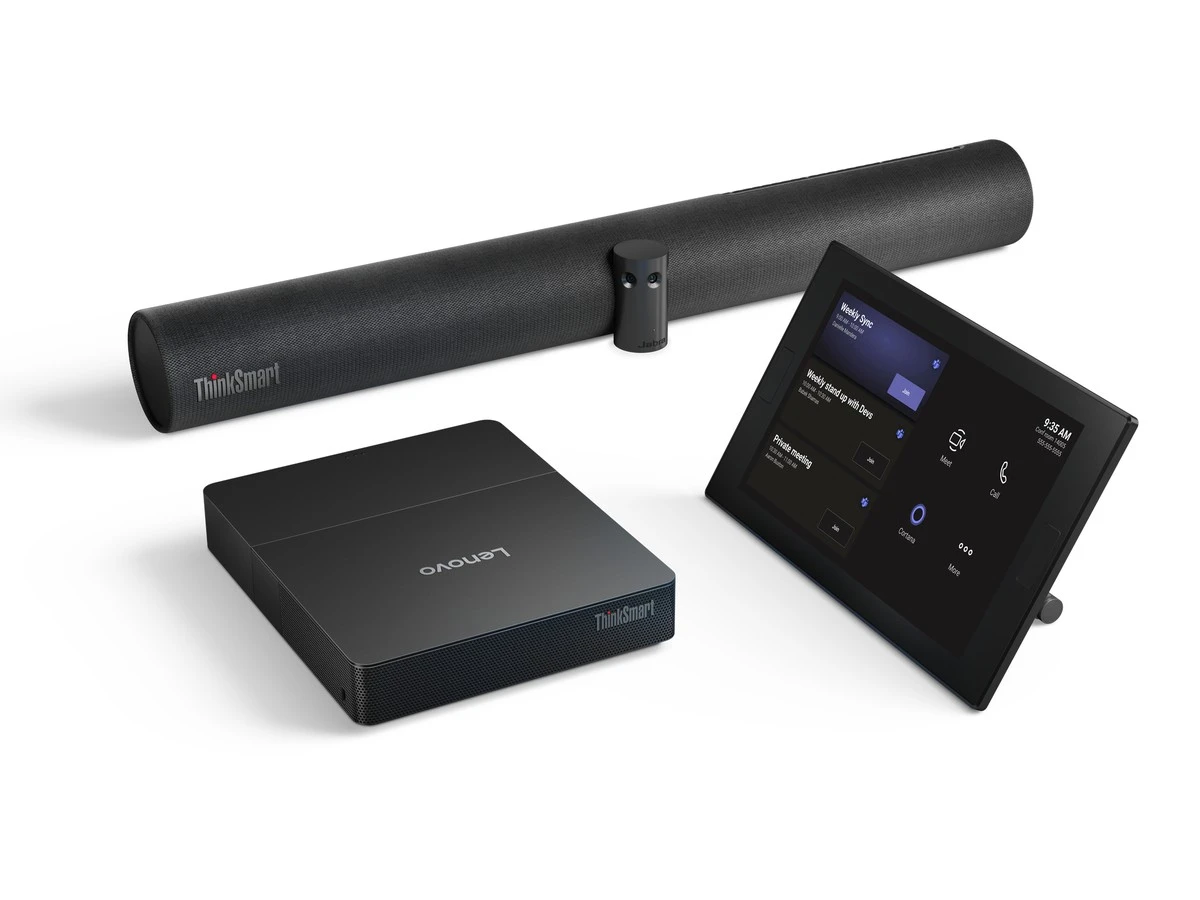
Lenovo ThinkSmart Core Gen 2 Full Room Kit
Specifications
Brand: Lenovo | Model: ThinkSmart Core Gen 2 Full Room Kit for Microsoft Teams Rooms | In the Kit: ThinkSmart Core Gen 2 compute, ThinkSmart Controller, ThinkSmart Bar 180 | Teams Rooms: Windows (ThinkSmart Core Gen 2 + Controller on Microsoft certified list) | Room Size: Medium | Operating System: Windows 11 IoT Enterprise for Collaboration, with Microsoft Teams Rooms | AI Features: Teams IntelliFrame and intelligent speaker recognition with the Bar 180 | Processor: Intel Core Ultra 5 135H (14 cores, up to 4.6 GHz) or Core Ultra 7 165H (16 cores, up to 5.0 GHz) | Graphics: Intel Arc, up to 3840 x 2160 at 60 Hz | Memory: 16 GB or 32 GB DDR5-5600 | Storage: 256 GB PCIe 4.0 NVMe SSD (Opal 2.0) | Networking: Gigabit Ethernet (optional 2.5GbE), Wi-Fi 6E, Bluetooth 5.3, Intel vPro | Ports: 2 USB-C 10 Gbps with DisplayPort 1.4, 3 USB-A 5 Gbps, 1 USB-A 2.0, 2 HDMI-out 2.1, RJ-45; HDMI-in and BYOM on select models | Power: 135W adapter (170W with BYOM) | Security: Discrete TPM 2.0, BIOS passwords, Kensington slot | Cooling: Fanless, tested for 24/7 use from 5 to 40 C | Compute Size and Weight: 185 x 220 x 42.8 mm with cable management, 1.01 kg (2.23 lb) | Controller Screen: 10.1-inch, 10-point touch, up to 340 nits | Controller Design: 16:10, rotates to 30 or 60 degrees, anti-glare and anti-fingerprint | Controller Connection: USB-C, with 10 m cable included | Controller Extras: Ultrasound speaker for proximity join | Controller Weight: 811 g (1.79 lb) | Bar 180 Cameras: 3 x 13 MP, panoramic 4K up to 3840 x 1080 at 30 fps | Bar 180 Field of View: 180 degrees horizontal, 54 degrees vertical | Bar 180 Speakers: 4 (2 woofers, 2 tweeters), 80 Hz to 20 kHz | Bar 180 Microphones: 8-mic beamforming array, -37 dBFS sensitivity, 100 Hz to 8 kHz | Bar 180 Ports: USB-C, USB-A, RJ45 | In the Box (12WJ0008US): Core Gen 2, ThinkSmart Controller, ThinkSmart Bar 180, Bar 180 wall mount, 3 m USB-C BYOM cable, VESA bracket, power cage, AC adapters, quick start guide | Warranty: 3-year onsite on U.S. models listed in Lenovo PSREF | Launch Price: Not announced for the Full Room Kit (ThinkSmart Core Gen 2 + Controller launched from $2,900)
Why We Picked the Lenovo ThinkSmart Core Gen 2 Full Room Kit?
The Lenovo ThinkSmart Core Gen 2 Full Room Kit is a complete Teams Rooms on Windows setup in one box: a small Intel Core Ultra PC, a 10.1-inch ThinkSmart Controller for the table, and the ThinkSmart Bar 180 camera and audio bar. The PC is fanless, so it can hide quietly behind the display.
Going the Windows route gives you features Android rooms don’t have, like Miracast sharing, 21:9 displays, and multiple cameras. The PC has two HDMI outputs for dual screens, and select models add BYOM so people can run their own meeting from a laptop. Lenovo says the kit also enables Teams IntelliFrame with the Bar 180.
Who It’s For?
We recommend the Lenovo ThinkSmart Core Gen 2 Full Room Kit if your IT team prefers Windows devices, wants Windows-only Teams Rooms features, or plans to add other certified peripherals later. If you want the simplest install, an Android video bar has fewer parts.
- Complete room kit
- Windows-only features
- Dual HDMI outputs
- More parts to install
- Reseller prices vary
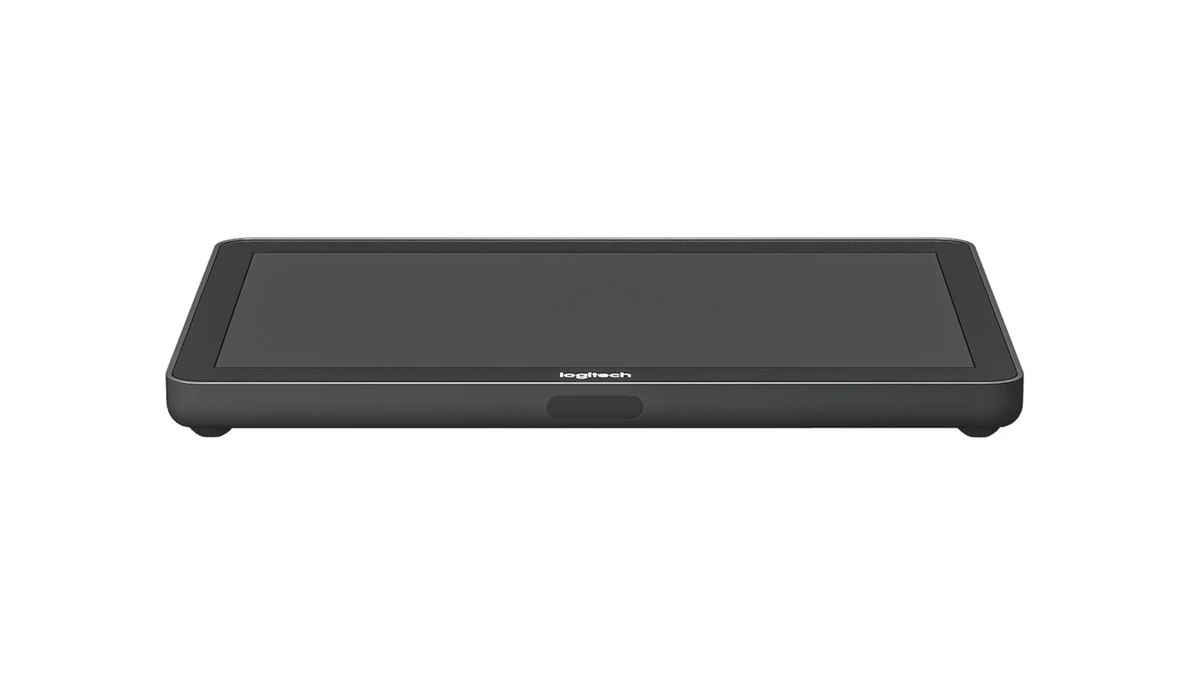
Logitech Tap
Specifications
Brand: Logitech | Model: Tap (USB touch controller) | Part Number: 939-001950 | Teams Rooms: Windows (certified with PCs such as Lenovo ThinkSmart Core Gen 2) and Android as a USB console for Rally Bar, Rally Bar Mini, Roommate, Rally Board 65, and Rally Bar 2 | Also Works With: Google Meet and Zoom Rooms | Screen: 10.1-inch IPS LCD, 1280 x 800 | Touch: Capacitive, 10-point multi-touch | Brightness and Contrast: 400 nits, 1000:1 | Viewing Angle: 85 degrees (up, down, left, right) | Display Angle: 14 degrees | Coating: Oleophobic | Ports: USB-C (Tap receiver), USB 2.0 Type-A (accessories), HDMI input, 3.5 mm headset jack | HDMI Sharing: Up to 1920 x 1080 at 60 Hz with audio | Cabling: Cat5e or higher, up to 131 ft (40 m) combined | DisplayLink: Yes | System Requirements: Windows 10 or later, ChromeOS 80 or later, or Logitech CollabOS; USB 2.0 Type-A port | Sensors and Extras: PIR motion sensor, ultrasonic speaker, internal cable retention | Mounting: VESA 100 x 100 mm; table, riser, wall, and PC mounts sold separately | Security: 2 Kensington lock slots | Dimensions: 2.28 x 9.6 x 7.05 in (58 x 244 x 179 mm) | Weight: 2.76 lb (1.25 kg) | In the Box: Tap, Cat5e kit (receiver, dongle transceiver, power supply, 2.97 m and 7.0 m Cat5e cables), 2 m HDMI cable, VESA screws, microfiber cloth, documentation | Warranty: 2-year limited, with a 1-year extension | Launch Price: $999
Why We Picked the Logitech Tap?
The Logitech Tap is the touch console that sits on the table and starts meetings with one tap. It connects to a Teams Rooms PC on Windows, and it also works as a USB console with Logitech’s Android bars like the Rally Bar and Rally Board 65.
The HDMI input lets a guest plug in a laptop and share without hunting for cables behind the TV. With the included Cat5e kit, the PC can sit up to 40 m away in a closet or behind the display. Its motion sensor wakes the screen when someone walks in, and the ultrasonic speaker helps laptops detect the room for proximity join.
Who It’s For?
We recommend the Logitech Tap if you’re building a Windows Teams Room around a separate PC, or want a touch console for a Logitech Android bar. Just note that the table, riser, and wall mounts are sold separately.
- Long Cat5e runs
- HDMI input for laptops
- Windows and Android
- 1280 x 800 screen
- Mounts sold separately
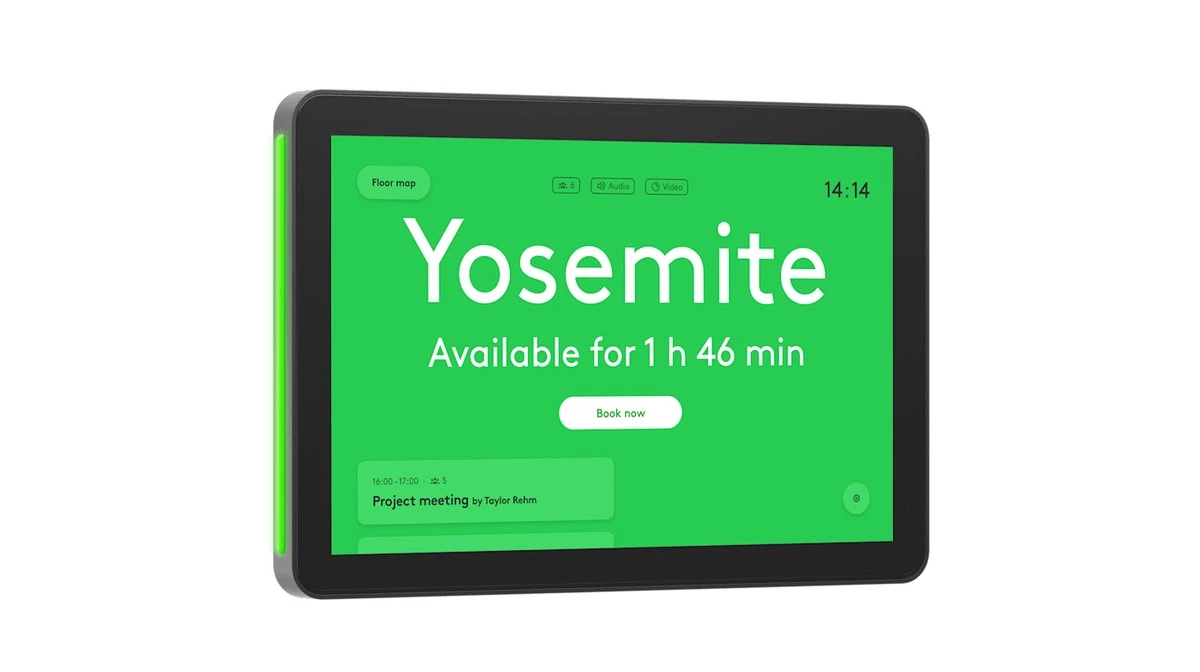
Logitech Tap Scheduler 2
Specifications
Brand: Logitech | Model: Tap Scheduler 2 (VR0054) | Part Numbers: 952-000295 (graphite), 952-000298 (white) | Teams Certification: On Microsoft’s Teams panels certified list, Android 14 | Licensing: Needs a Teams Rooms Pro or Teams Shared Device license | Screen: 10.1-inch IPS LCD with LED backlight | Resolution: 1920 x 1200 | Touch: Capacitive, 10-point multi-touch | Brightness and Contrast: 400 nits, 1000:1 | Viewing Angle: 85 degrees (up, down, left, right) | Coating: Oleophobic anti-fingerprint, anti-glare haze | Power: PoE, IEEE 802.3af Type 1, Class 3 (PoE switch or injector not included) | Ethernet: 10/100 Mbps | Wi-Fi: 802.11a/b/g/n/ac | Bluetooth: 5.0 | Sensors: Radar and accelerometer | Security: AES-128 full disk encryption, device attestation, Arm TrustZone | Management: Logitech Sync, Microsoft Teams Admin Center, Zoom Device Management | Operating Temperature: 0 to 40 C | Humidity: 10 to 95% | Dimensions: 6.5 x 9.69 x 1.12 in (165 x 246.2 x 28.5 mm) | Mullion-Mounted Width: 11.52 in (292.6 mm) | Weight: 1.5 lb (0.7 kg) | In the Box: Tap Scheduler 2, multi-surface mount (glass or drywall), corner mount, mullion mount, mounting hardware, documentation | Warranty: 2-year limited, with extended warranty available | Launch Price: $1,299
Why We Picked the Logitech Tap Scheduler 2?
The Logitech Tap Scheduler 2 is a room booking panel that mounts outside the door. It shows whether the room is free, lets people book it on the spot, and runs the Teams panels app on Android 14.
It’s powered by PoE, so you need a PoE network port or an injector at the door. The mounts for glass, drywall, and window mullions are all in the box. Here’s the licensing gotcha: every Teams panel needs a Teams Rooms Pro or Teams Shared Device license, and Teams Rooms Basic can’t license panels.
Who It’s For?
We recommend the Logitech Tap Scheduler 2 if people often walk into booked rooms or hold rooms they never use. Sort out PoE at the door and the license before you order a batch.
- Sharp 1920 x 1200 screen
- Single-cable PoE
- Three mounts included
- Needs PoE at the door
- Needs Pro or Shared license
Logitech Rally Board 65
Specifications
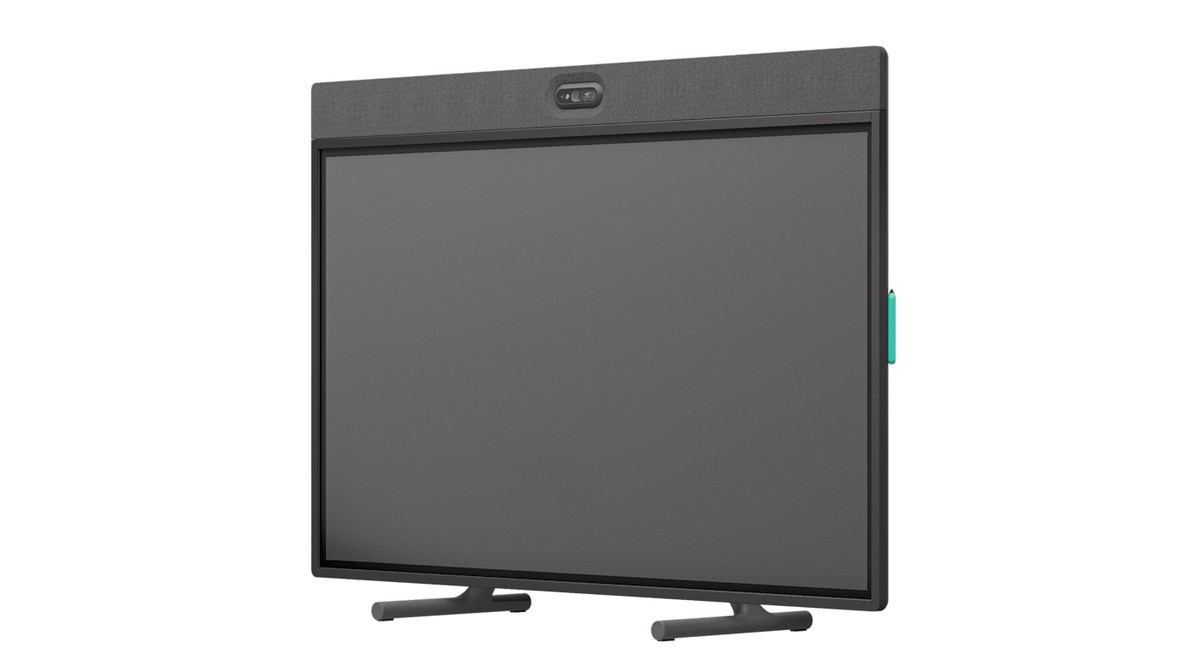
Brand: Logitech | Model: Rally Board 65 (VR0039) | Type: All-in-one video conferencing display | Teams Rooms: Android (Microsoft lists it for rooms about 4.5 x 6 m) | Built-in: Mic array, 4K camera, depth camera, speakers and tweeters, motorized privacy shutter | Display: 65-inch LCD, 4K UHD (3840 x 2160), 16:9 | Touch: IR touch, 20 points | Brightness and Contrast: 400 nits, 5000:1 typical | Coating: Anti-glare and anti-fingerprint | Second Display: Supported, up to 4K60 | Camera Sensor: 1-inch, 20.3 MP | Camera Resolution: 4K, 1440p, 1080p, 900p, 720p, and SD at 30 fps | Zoom: 4x HD digital | Field of View: 115.7 degrees diagonal, 103.3 horizontal, 60.7 vertical | Depth Camera: 145 degrees diagonal, 121 degrees horizontal | Tilt: Motorized | Speakers: 2 x 70 mm full-range (8W, 89 dB SPL) and 2 x 31 mm tweeters (93 dB SPL) | Mic Pickup Range: Up to 23 ft (7 m) | Mic Frequency Response: 90 Hz to 16 kHz | Mic Sensitivity: -36 dBFS | Audio Processing: RightSound 2 AI speech enhancement, AI beam selection, echo cancellation | Room Sensors: Temperature, humidity, tVOC, CO2, PM2.5, PM10, radar, ambient light | HDMI: 1 in and 1 out, up to 4K60 | USB: 3 x USB-A 3.1, 1 x USB-C 3.1 with DP Alt Mode | Network: 10/100/1G Ethernet, Wi-Fi 6 (802.11ax), Bluetooth Low Energy | Audio Out: 3.5 mm line-level | Security: AES-256 file-based encryption, device attestation, Arm TrustZone | Power: Built-in 100-240V supply, 3 m AC cable | Operating Temperature: 0 to 35 C | Dimensions: 59.06 x 38.94 x 2.99 in (1500 x 989 x 76 mm) | Weight: 101 lb (46 kg); 110 lb (50 kg) with table stand | VESA: 400 x 400 mm and 400 x 200 mm | Optional Cart: Rally Board 65 cart, 108 lb (49 kg) | In the Box: Rally Board 65, tabletop legs, power cord, 2 styluses, VESA 100 PC mount, cable hook, hardware and tools, documentation | Warranty: 2-year limited, with extended warranty available | Launch Price: $6,999
Why We Picked the Logitech Rally Board 65?
The Logitech Rally Board 65 puts a 65-inch 4K touch display, camera, mics, and speakers into a single unit running Teams Rooms on Android. You can hang it on the wall, stand it on its tabletop legs, or roll it around on Logitech’s optional cart.
Microsoft lists it for medium rooms of about 4.5 x 6 m. At 101 lb (46 kg), wall mounting is a two-person job, so check that the wall can take the load first. It also reads air quality, temperature, and occupancy, which is useful if your facilities team tracks how rooms are used. You can add a second display through HDMI out if the room needs it.
Who It’s For?
We recommend the Logitech Rally Board 65 if you want a clean, all-in-one Teams Room with touch and inking, or a shared space where a cart lets you move it between rooms. If you already own a good display, a video bar is far cheaper.
- True all-in-one
- 65-inch 4K touch screen
- Optional rolling cart
- Expensive
- Heavy at 101 lb
Logitech Scribe
Specifications
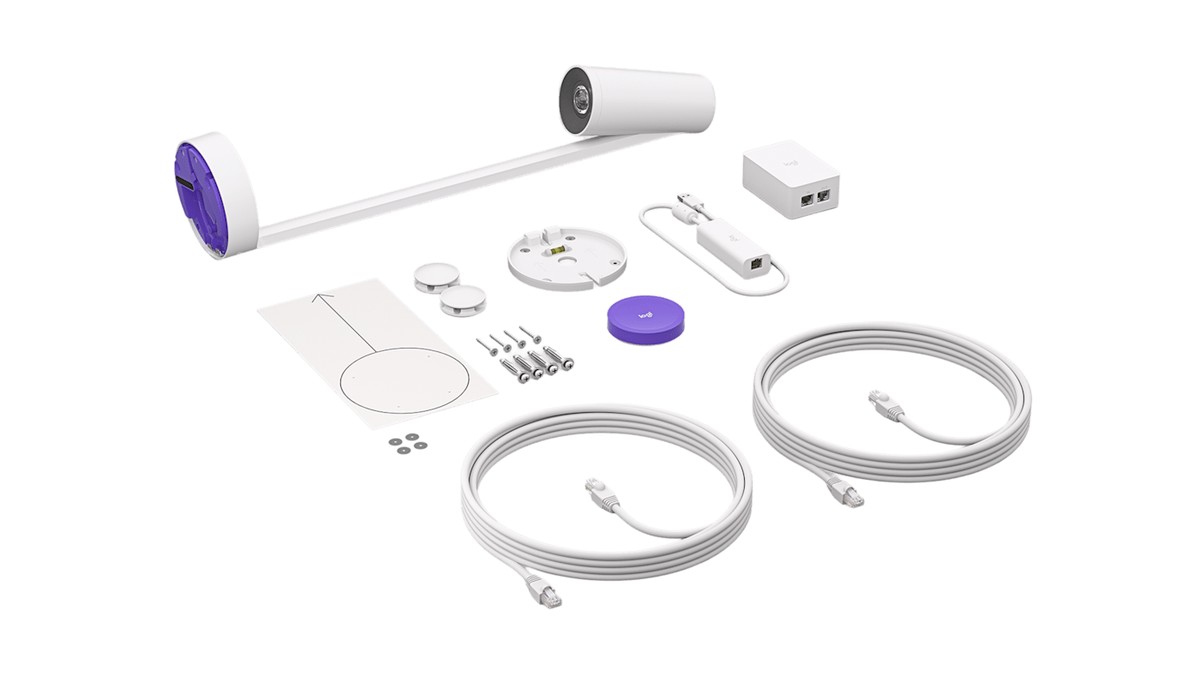
Brand: Logitech | Model: Scribe whiteboard camera | Part Number: 960-001332 | Teams Rooms: Content camera on Microsoft’s Windows peripherals list; on Android with Rally Bar, Rally Bar Mini, Roommate, and Rally Board 65 | Also Works With: Zoom Rooms, Google Meet Rooms, and most apps as a USB camera | Output Resolution: 1080p at 15 fps | Field of View: 148 degrees | Built-in AI: Sends an AI-enhanced whiteboard image into meetings | Max Whiteboard Size: 4 x 5.9 ft (1.2 x 1.8 m) | Share Button: Wireless, Bluetooth Low Energy, 2 x CR2032 batteries, adhesive mount | Share Button Size: 2.83 in (71.8 mm) wide, 3.81 oz (108 g) | Camera Interface: Category cable port | Cabling: Cat5e SF/UTP AWG26 or higher, up to 35 m total; 2 x 5 m cables included | Power: 100-240V power supply | Security: AES-128 full disk encryption | Management: Logitech Sync | Operating Temperature: 0 to 40 C | Storage Temperature: -40 to 70 C | Humidity: 10 to 95% | Camera Size: 5.87 x 4.69 x 22.56 in (149 x 119 x 573 mm) | Camera Weight: 2.43 lb (1.1 kg) | Dongle Transceiver: 0.89 x 1.22 x 3.3 in, 500 mm cable | In the Box: Camera, share button, dongle transceiver, power supply, 2 x 5 m Cat5e cables, 2 cable clips, installation kit, documentation | Warranty: 2-year limited, with 1- and 3-year extensions | Launch Price: $1,199
Why We Picked the Logitech Scribe?
The Logitech Scribe is a whiteboard camera that mounts above a normal whiteboard and shares it into Teams meetings. Its built-in AI cleans up the image before sending it, so remote people can actually read the board.
Sharing is one press of the wireless share button next to the board. Check your board size first: Scribe covers up to 4 x 5.9 ft (1.2 x 1.8 m), so bigger boards won’t fit fully. On Android, it works with Logitech’s Rally Bar, Rally Bar Mini, Roommate, and Rally Board 65.
Who It’s For?
We recommend the Logitech Scribe if your team still brainstorms on a physical whiteboard and remote people keep asking you to hold up your phone. It runs at 1080p and 15 fps, which is fine for a board but not meant for people video.
- Readable whiteboard
- One-press share button
- Windows and Android
- 1080p at 15 fps
- Max 4 x 5.9 ft board
Comparing Microsoft Teams Room Equipment
Microsoft Teams Rooms Setup
Step-by-step process to set up a Microsoft Teams Room:
Microsoft has a detailed Teams Rooms deployment guide if you’re setting up many rooms. And for better meetings in general, take a look at our virtual meeting etiquette guide.
Conclusion:
The right equipment turns Microsoft Teams from a laptop app into a real meeting room experience. For your own desk, a Teams-certified webcam like the Logitech C920e and a good speakerphone or headset are all you need.
For meeting rooms, I recommend the Logitech Rally Bar for medium rooms, the Poly Studio X52 for the best picture, the Yealink MeetingBar A40 for the best value, and the Jabra PanaCast 50 if you already run Windows Teams Rooms. Whatever you choose, stick to certified devices and a wired network, and your meetings will be much easier.
To finish the room, add the Logitech Sight or Shure MXA925 for large spaces, the Lenovo ThinkSmart Core Gen 2 kit or Logitech Tap if you go the Windows route, a Tap Scheduler 2 at the door, the Rally Board 65 if you want everything in one screen, and the Logitech Scribe if your team still loves the whiteboard.
Which Teams equipment are you using or planning to buy? Please share it in the comments below and give this post a star rating. If you need help choosing, feel free to contact us.
We’ll be happy to hear your thoughts, thanks.