
If you’ve been shopping for meeting room gear or reading Microsoft’s licensing pages, you’ve probably seen two names that sound almost the same: Microsoft Teams and Microsoft Teams Rooms. It’s easy to think they’re the same product, but they’re not.
Don’t worry! In this guide, I’ll explain the difference in plain words: what each one is, how Teams Rooms works on Windows and Android, how the 2026 licenses and prices compare, what hardware you need, and which one your team actually needs.
So, let’s get started.
What is Microsoft Teams?
Microsoft Teams is the collaboration app that people install on their own computers, phones, and tablets (or open in a web browser). Each person signs in with their own account and uses it for chat, channels, file sharing, calls, and virtual meetings.

You can start with Microsoft Teams Free, which lets you host group meetings for up to 60 minutes with 100 people, or move to a paid plan like Teams Essentials or a Microsoft 365 business plan for longer meetings, recordings, and more storage. If you’re curious about the free version, check out our post on Microsoft Teams free features and limitations.
In short, Teams is made for people. One person, one account, one device.
What is Microsoft Teams Rooms?
Microsoft Teams Rooms is a complete meeting room system. It runs a special version of Teams on certified hardware that stays in the room: a touch console on the table, a camera, microphones, speakers, and one or two displays.
Instead of each person signing in, the room signs in with its own resource account. When a meeting starts, anyone in the room taps Join on the console, and the whole room is connected with the camera and microphones ready. There’s no laptop to plug in and no cables to search for.
In short, Teams Rooms is made for spaces. One room, one account, many people.
Microsoft Teams vs. Teams Rooms: Key Differences
The easiest way to remember it: Teams is the app, and Teams Rooms is the room. Most companies use both together. People join from their laptops with the Teams app, while meeting rooms join through Teams Rooms, and everyone ends up in the same meeting.
How Does Teams Rooms Work? Windows vs. Android
Teams Rooms comes in two main versions. Both use the same meeting experience and licenses, but the hardware is different.
Teams Rooms on Windows
Teams Rooms on Windows uses a small compute unit (a mini PC) that connects to a touch console, a camera, an audio system, and the room displays. Brands like Lenovo, HP Poly, Logitech, Yealink, and Crestron sell complete kits.
This version is popular for medium and large rooms because you can mix and match cameras, ceiling microphones, and speakers. It also tends to get some new Teams Rooms features first.
Teams Rooms on Android
Teams Rooms on Android usually runs on an all-in-one video bar with the computer built in, paired with a touch console. Devices like the Yealink MeetingBar, Poly Studio X series, and Logitech Rally Bar can run Teams Rooms on Android without a separate PC. We compared two of these in our Jabra PanaCast 50 vs Poly Studio X50 guide.
This version is simpler to install and manage, which makes it a great fit for small rooms and huddle spaces.
| Teams Rooms on Windows | Teams Rooms on Android | |
|---|---|---|
| Main hardware | Compute unit plus separate camera and audio | All-in-one video bar |
| Best for | Medium to large rooms | Small rooms and huddle spaces |
| Flexibility | Mix and match peripherals | Mostly one device |
| Setup | More cables and parts | Fewer parts, faster setup |
| Licenses | Teams Rooms Basic or Pro | Teams Rooms Basic or Pro |
Licensing and Pricing in 2026
This is where most of the confusion comes from, because Teams and Teams Rooms are licensed in completely different ways.
Teams App Licenses (Per User)
Each person who uses the Teams app needs their own license (or a free account). Here are the common options in 2026:
- Teams Free: $0, 60-minute group meetings, up to 100 participants, and 5 GB of cloud storage.
- Teams Essentials: $4.00 per user/month (paid yearly), 30-hour meetings, up to 300 participants, recordings, and 10 GB of storage per user.
- Microsoft 365 Business Basic: $7.00 per user/month, Teams plus business email and web apps.
- Microsoft 365 Business Standard: $14.00 per user/month, Teams plus desktop Office apps.
Microsoft raised the Business Basic and Business Standard prices in 2026, so older articles may still show $6.00 and $12.50. You can see the official 2026 price update here. Existing customers keep their old price until renewal.
Teams Rooms Licenses (Per Room)
Each Teams Rooms device needs a room license, not a user license. According to Microsoft Learn, there are two options:
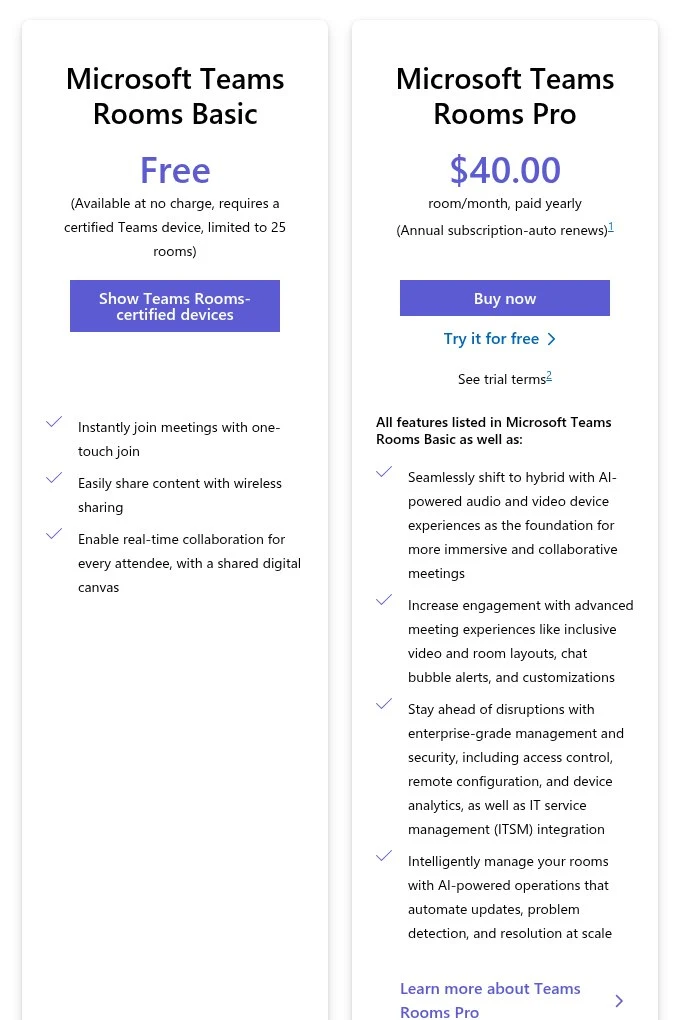
- Teams Rooms Basic: Free, requires a certified Teams Rooms device, and is limited to 25 rooms per organization. You get the core meeting experience: one-touch join, content sharing, Whiteboard, and Direct Guest Join for Zoom and Webex.
- Teams Rooms Pro: $40.00 per room/month, paid yearly. It adds advanced meeting features, enterprise security, and remote management.
Here’s what Teams Rooms Pro adds on top of Basic:
| Feature | Rooms Basic | Rooms Pro |
|---|---|---|
| Price | Free | $40.00 per room/month |
| Room limit | Up to 25 rooms | No limit |
| One-touch join and content sharing | Yes | Yes |
| Direct Guest Join (Zoom, Webex) | Yes | Yes |
| Front Row and Together mode | No | Yes |
| Large gallery (up to 50 videos) | No | Yes |
| Dual screens and multiple cameras | No | Yes |
| Panoramic view and remote PTZ control | No | Yes |
| AI noise suppression and people counting | No | Yes |
| Intune and Entra conditional access | No | Yes |
| Teams Phone in the room | No | Yes |
| Remote management and analytics | No | Yes |
I recommend Rooms Basic for a small office with a few rooms and no dedicated IT team. Once you have more than 25 rooms, need dual screens, or want IT to monitor rooms remotely, Teams Rooms Pro is worth the cost.
What Hardware Do You Need?
For the Teams app, you don’t need anything special. Any modern laptop or phone with a camera and microphone works, although a good webcam and headset help a lot. Our guide on the best webcams for video conferencing is a good place to start.
For Teams Rooms, you must use Teams Rooms certified hardware. A typical setup includes:
- Compute unit or video bar: The brain of the room. On Android, it’s usually built into the video bar.
- Touch console: A small tablet-like screen on the table for joining and controlling meetings.
- Camera: A wide-angle camera, a video bar, or a PTZ camera for larger rooms.
- Audio: Table or ceiling microphones plus speakers, often built into the video bar in small rooms.
- Displays: One or two TVs or monitors at the front of the room.
- Room panel (optional): A small screen outside the door for room booking and check-in.
If you’re planning a room, our list of the best equipment for Microsoft Teams Rooms and our all-in-one video bar guide cover the best certified options.
Which One Do You Need?
Here’s a simple way to decide:
- Freelancers and remote workers: Just the Teams app. Teams Free or Teams Essentials is enough.
- Small businesses with no meeting room: The Teams app through Teams Essentials or Microsoft 365 Business Basic.
- Offices with a few small meeting rooms: The Teams app for everyone, plus Teams Rooms Basic on an Android video bar in each room.
- Companies with many rooms or strict security rules: The Teams app for everyone, plus Teams Rooms Pro for central management and advanced features.
- Schools and training centers: The Teams app for students and teachers, with Teams Rooms in lecture halls for hybrid classes.
Remember, Teams Rooms doesn’t replace the Teams app. People still need the app for chat, files, and joining from their desks. Teams Rooms just makes the meeting room part of the experience much easier.
Conclusion:
Hopefully, you now understand the difference between Microsoft Teams and Microsoft Teams Rooms.
Microsoft Teams is the app each person uses on their own device, licensed per user. Teams Rooms is a meeting room system on certified hardware, licensed per room, with a free Basic option for up to 25 rooms and a Pro option for $40.00 per room per month.
So, are you setting up Teams for your team or planning a Teams Room? Please let us know by commenting below and giving us a star rating to rate this post. And, if you have any questions or suggestions, feel free to contact us. We’ll be happy to hear your thoughts, thanks.