

Virtual meetings have become a part of our daily lives, and Zoom is still the go-to platform for millions of businesses, schools, teachers, and individuals around the world.
Recording these meetings is one of the most useful things you can do. Because if someone misses an online class, a client call, or an important team discussion, you can simply share the recording instead of holding the same meeting again, which saves both time and money.
But if you are using Zoom’s free plan, you might be wondering whether recording is even possible, since the Zoom free account comes with many limitations.
Don’t worry!
In this guide, we’ll show you how to record Zoom meetings on a free account step by step, where your recordings are saved, how participants can record, and the best free alternatives if Zoom’s built-in recorder doesn’t fit your needs.
So, let’s get started.
Can I Record Zoom Meetings on a Free Account?
Yes, you can. Zoom offers computer recording (also called local recording) to both free and paid users, which means you can record the meeting video and audio and save it directly to your computer’s storage.
However, cloud recording is only available to licensed users on Pro, Business, or Enterprise plans. So with a Zoom Basic (free) account, all your recordings will be saved on your own device rather than in the Zoom cloud.
Also note that computer recording only works on the Zoom desktop app for Windows, macOS, and Linux. It is not supported on the Zoom mobile app for iOS, iPadOS, or Android.
So, on a free account, you can record Zoom meetings in two ways:
- Zoom local recording: The built-in “Record on this Computer” option in the Zoom desktop app.
- Third-party screen recording software: Free tools like OBS Studio or the screen recorders built into Windows and macOS.
Now let’s look at how to set up and use Zoom’s built-in local recording, which is one of the most useful Zoom free plan features.
How Do I Enable Zoom Local Recording and Record Meetings?
Follow these steps to record a Zoom meeting on a free account:
1. Download and Sign In to the Zoom Workplace Desktop App
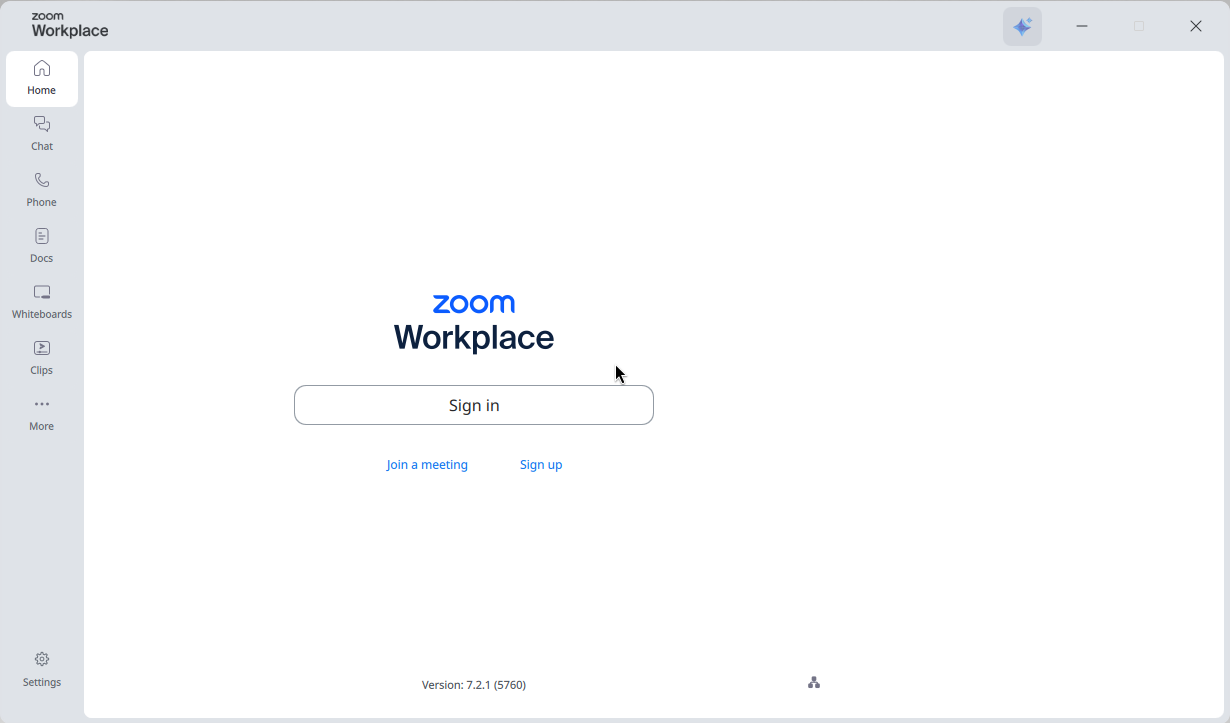
First, download the Zoom Workplace desktop app for your Windows, Mac, or Linux computer and sign in with your free Zoom account. Local recording isn’t available on mobile, so you must host or join the meeting from a computer.
If you already have the app, make sure it is updated to the latest version, because Zoom requires a minimum app version to use recording features.
2. Turn On “Record to Computer Files” in the Zoom Web Portal
Local recording is usually enabled by default, but if you can’t see the Record button, you need to enable computer recording from your Zoom web portal settings:
- Sign in to the Zoom web portal.
- In the top-right corner, click your profile picture or initials, then click Settings.
- Click the Recording tab.
- Under General, turn on the Record to computer files toggle.
- If a verification dialog appears, click Enable to confirm.
From the same section, you can also choose whether to save in-meeting chat messages and closed captions (as a VTT file) with your recording files.
Note: If the option is grayed out, it has been locked at the group or account level, and you will need to contact your Zoom admin.
3. Check Your Local Recording Settings
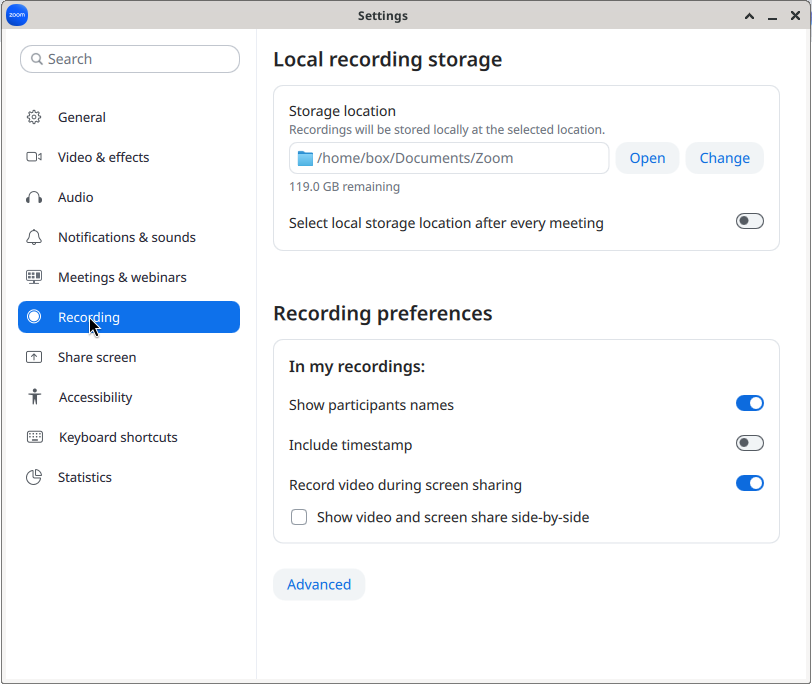
Before you start recording, open the Zoom desktop app, click your profile picture (or the Settings gear), then click Settings and go to the Recording tab. Here you can change your recording preferences, such as:
- Storage location: View or change the folder where your recordings are saved.
- Show participants names: Display names on participants’ videos in the recording.
- Include timestamp: Add the date and time to the recording.
- Record video during screen sharing: Keep participants’ video thumbnails in the recording while someone is sharing their screen.
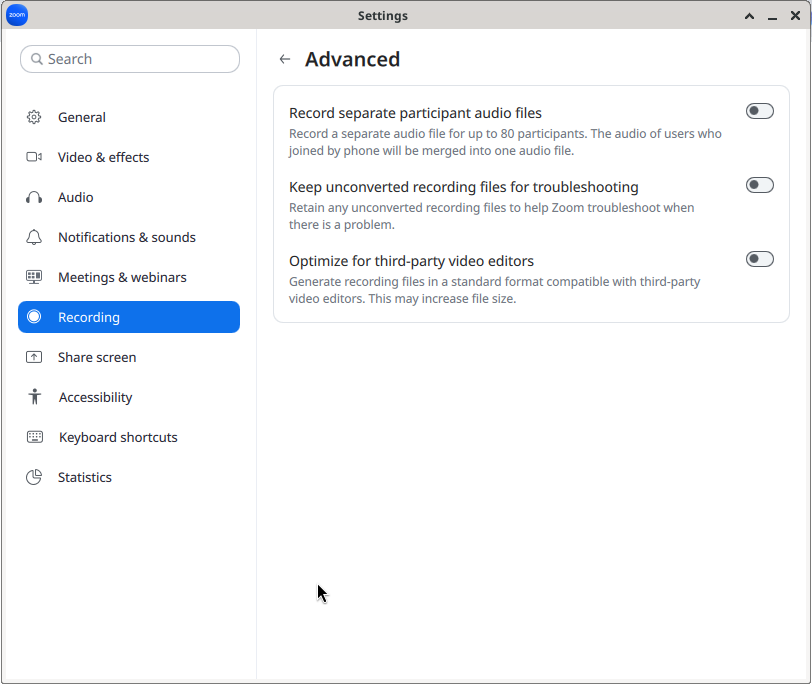
Click Advanced to find more options, including recording a separate audio file for each participant (for up to 80 participants), keeping unconverted recording files for troubleshooting, and optimizing recordings for third-party video editors.
Zoom strongly recommends keeping the default storage location on a local drive. Saving directly to a cloud syncing folder (such as Dropbox, Google Drive, or OneDrive), an external drive, or a network storage device may cause problems when saving and converting your recording.
4. Start Your Meeting as the Host and Click Record
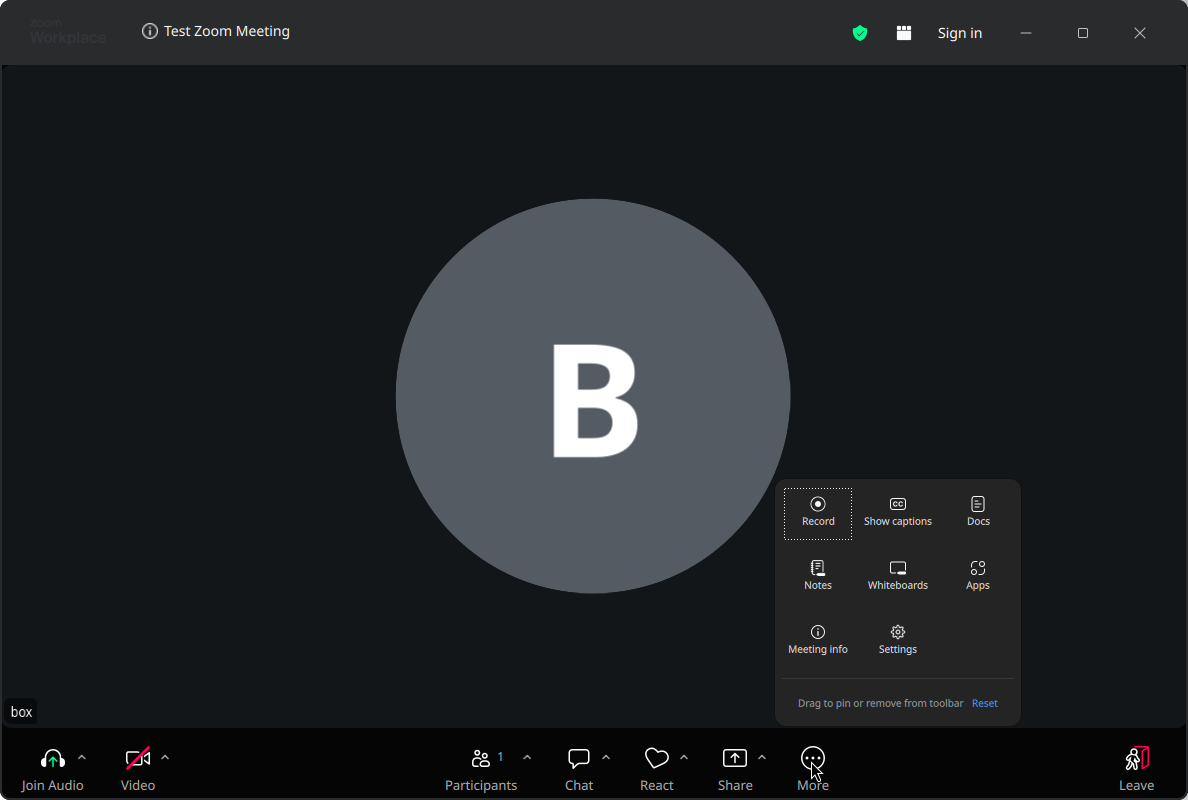
Now start your Zoom meeting as the host. In the meeting controls toolbar, click Record. If you don’t see it on the toolbar, click More and you’ll find the Record option there.
If a menu appears, select Record on this Computer. A recording indicator will appear in the top-left corner of the meeting window so that everyone knows the meeting is being recorded.
5. Pause or Stop the Recording
During the meeting, you can click Pause or Stop Recording in the toolbar, or click the recording indicator in the top-left corner.
Keep in mind that if you pause and resume, Zoom continues recording to the same video file. But if you stop and start again, a new video file will be created for the next recording segment.
6. End the Meeting and Let Zoom Convert the Recording
After the meeting ends, Zoom will automatically convert the recording into playable files. Once the conversion is complete, the folder containing your recording will open.
Do not restart or shut down your computer, put it to sleep, or close your laptop lid during the conversion, because interrupting the process can corrupt the recording files and make them non-recoverable. If the conversion fails, you can try to convert the recording manually later.
7. Find and Manage Your Zoom Recordings
By default, Zoom saves computer recordings in these folders:
- Windows: C:\Users\[Username]\Documents\Zoom
- Mac: /Users/[Username]/Documents/Zoom
- Linux: home/[Username]/Documents/Zoom
The main audio/video file is saved as an MP4 file (named video[number].mp4) and the audio-only file as an M4A file (named audio[number].m4a).
You can also access your computer recordings from the Zoom desktop app: go to the Home tab, click Open recordings, and then open the Computer recordings tab under My files > Meeting recordings. From there, you can play a recording, view its file location, or delete it.
If you rename a file, Zoom recommends using a unique name and avoiding words like “Zoom”, “Personal Meeting Room”, or “My Meeting”.
How Can Participants Record a Zoom Meeting on a Free Account?
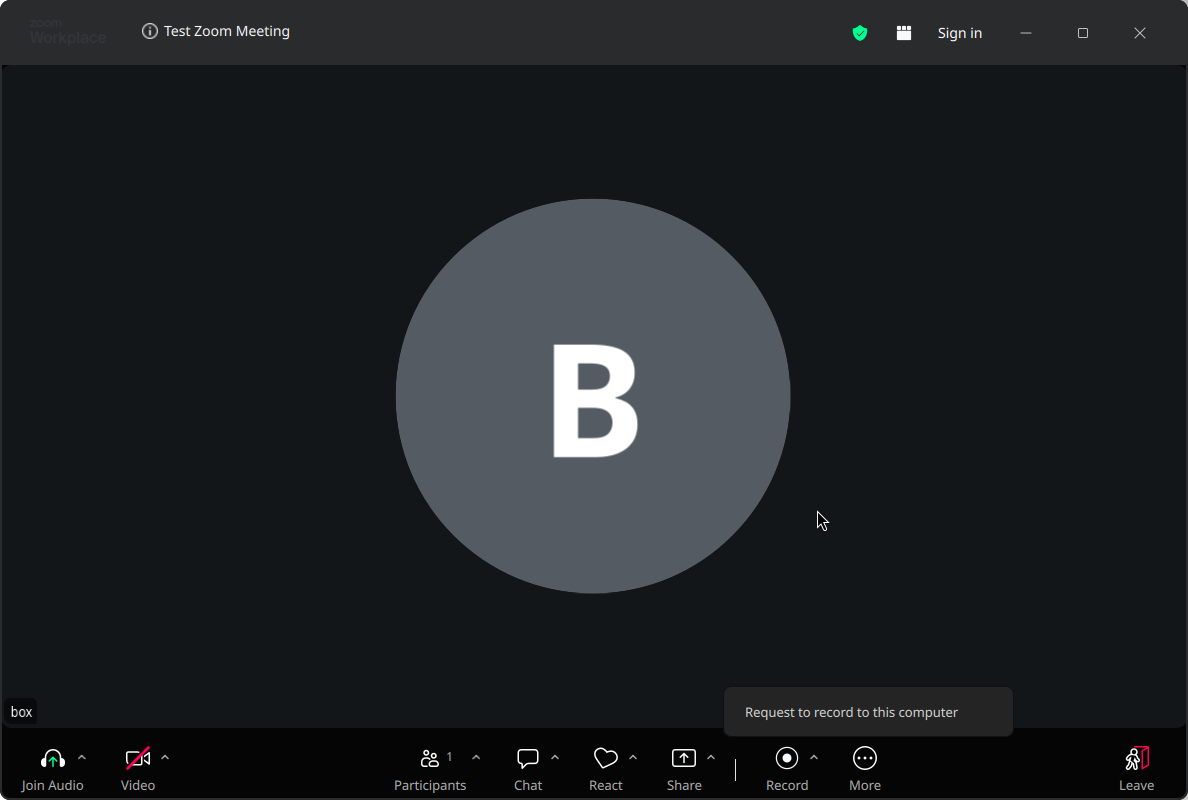
By default, only the host can record a Zoom meeting. If you are a participant, the Record button will show a Request to record to this computer option, which asks the host for permission.
As a host, here is how you can allow a participant to record:
- In the meeting, click the Participants icon.
- Hover over the participant’s name and click More.
- Click Allow Record. The participant will get a notification and can start recording to their own computer.
- To take this permission back, click More next to their name again and select Forbid Record.
Additionally, in your web portal’s recording settings, you can choose who can request host permission to record (internal participants, external participants, or users from specific domains) and even auto-approve their requests.
How to Automatically Record Zoom Meetings for Free?
If you often forget to press the Record button, you can turn on automatic recording from the Recording tab of your Zoom web portal settings and select Record to computer.
Basic (free) users can only use automatic recording on a local computer, and it only starts when the host launches the meeting from the Zoom desktop app. If you start the meeting in a web browser and later rejoin using the desktop app, automatic recording may not start, so always join directly through the Zoom Workplace app.
Also, changing this setting only applies to meetings scheduled after the change, so you’ll need to edit existing meetings and your Personal Meeting ID separately.
Can I Record Zoom Meetings on Mobile with a Free Account?
Unfortunately, no. Recording from the Zoom mobile app is only available as a cloud recording, which requires a Pro, Business, Education, or Enterprise license. Local recording is not possible from an iOS or Android device.
So, if you are on a free account and want to record, you have two options: join the meeting from a desktop or laptop computer to record locally, or upgrade to a paid plan to record to the cloud from your phone or tablet.
How to Record Zoom Meetings Using a Free Recording Software?
If you can’t use Zoom’s built-in recorder, for example, because the host hasn’t given you permission or you need a custom layout, free screen recording software can also do the job.
But remember, always inform everyone in the meeting and get their consent before recording, especially because these tools don’t show Zoom’s recording indicator to other participants.
OBS Studio (Windows, macOS, and Linux)
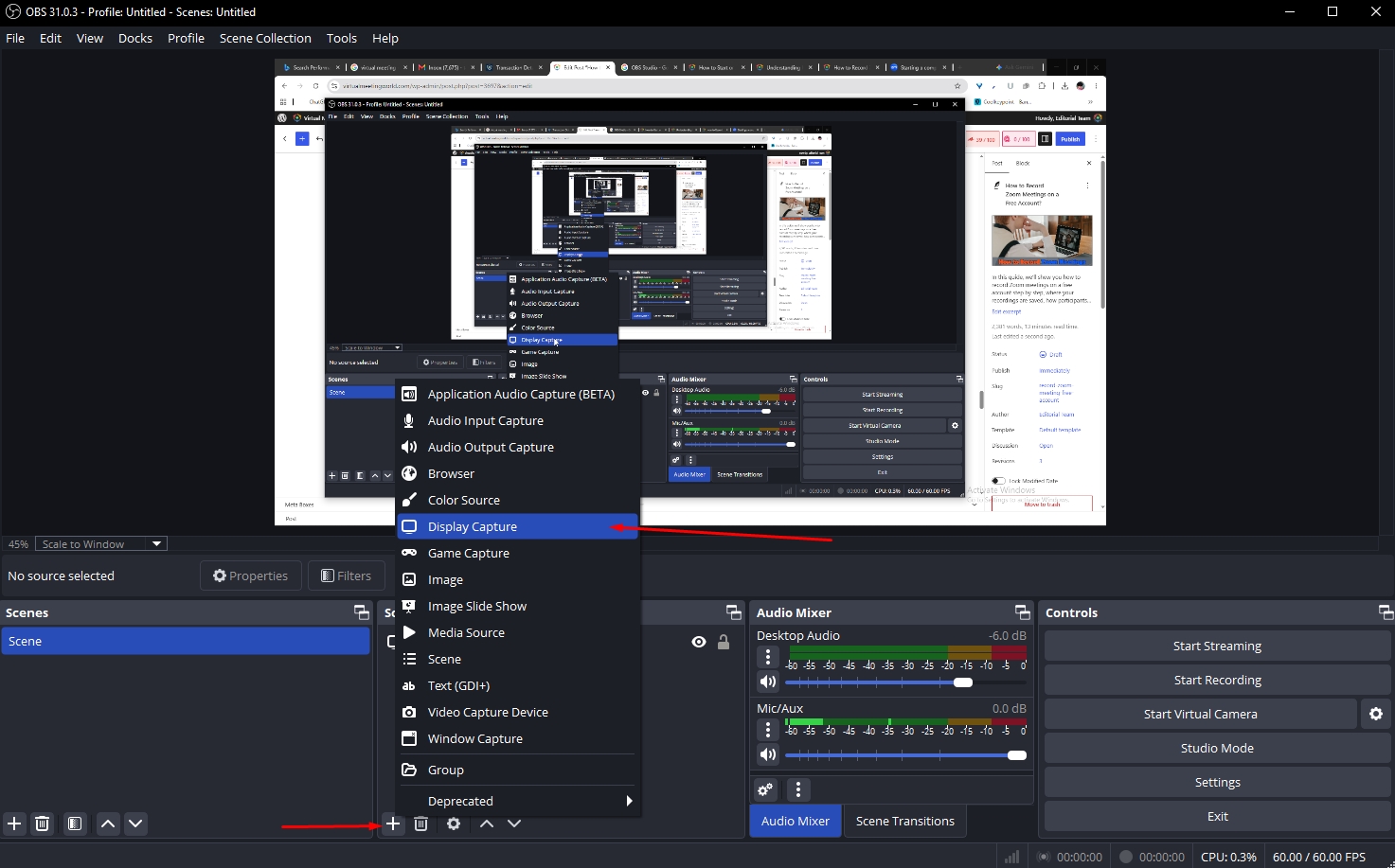
OBS Studio is a free and open-source software for video recording and live streaming. Simply add a “Display Capture” or “Window Capture” source for your Zoom window, include desktop audio and your microphone, and click Start Recording.
It gives you full control over resolution, frame rate, and layout, and there is no time limit on your recordings, which makes it the most powerful free option.
Windows Snipping Tool or Xbox Game Bar
On Windows 11, the built-in Snipping Tool can record your screen. Alternatively, the Xbox Game Bar (press Windows + G) can record an app window like Zoom. Both are free and don’t require installing any additional software.
macOS Screenshot Toolbar or QuickTime Player
On a Mac, press Shift + Command + 5 to open the Screenshot toolbar and record your entire screen or a selected portion, or use QuickTime Player’s New Screen Recording option. Make sure your microphone is selected in the Options menu to capture audio.
How Do I Know if My Zoom is Being Recorded?
Zoom makes it clear when a meeting is being recorded with its built-in recorder:
- A recording indicator appears in the top-left corner of the meeting window for all participants.
- In the Participants panel, a recording icon is shown next to the name of anyone who is recording.
- Participants who join by phone (dial-in) hear an audio message saying the meeting is being recorded, unless the host has disabled it.
However, third-party screen recorders don’t trigger these notifications, which is why getting consent is so important.
Differences Between Zoom Free and Paid Account Recording Features
Below is a quick comparison of the recording features available in Zoom’s free (Basic) plan and its paid plans:
Also, keep in mind that almost all meetings hosted by Basic users are limited to 40 minutes, so your recording will end when the meeting ends. If you need longer sessions, check out these free video conferencing platforms with no time limit.
Legal Considerations for Recording Virtual Meetings
Recording laws differ from country to country and even from state to state. In some places, you only need one person’s consent, while others require consent from everyone in the conversation.
So, the safest practice is to always tell participants at the start that the meeting will be recorded, explain why, and how the recording will be used and shared. Also, never share a recording publicly without the permission of the people in it, and follow your company’s or school’s privacy policies.
Note: This is general information, not legal advice. If you record meetings for business purposes, check the rules that apply in your region.
Best Practices for Recording Zoom Meetings
- Test before the meeting: Start a quick test meeting and record it to make sure your audio, video, and settings work properly.
- Check your storage space: Local recordings are saved to your computer, so make sure you have enough free disk space for long meetings.
- Use a good setup: A clear microphone, webcam, and stable internet connection make a big difference. See our guide to video conferencing setup requirements.
- Choose the right view: Local recordings capture the layout you see on your screen, so switch to Speaker or Gallery view before recording.
- Plan around the 40-minute limit: Keep free meetings short or plan breaks, and remember that a new meeting will create a new recording.
- Back up your files: After the conversion is complete, upload your recording to a storage service such as Google Drive, Dropbox, or YouTube.
- Follow meeting etiquette: Respect your participants’ privacy and follow basic virtual meeting etiquette.
Conclusion:
Hopefully, this guide has given you a clear idea of how to record Zoom meetings on a free account.
Although the Zoom Basic plan doesn’t offer cloud recording, its built-in local recording is completely free and works great for most users, as long as you are using the desktop app on Windows, Mac, or Linux.
And, if you need more flexibility, free tools like OBS Studio are always there for you. However, if you need to record from your phone, store recordings in the cloud, or get automatic transcripts, you may need to consider a paid plan or compare the free features and limitations of other virtual meeting platforms.
So, which method are you going to use to record your next Zoom meeting? — Is it Zoom’s local recording or OBS Studio?
Please let us know by commenting below and giving us a star rating to rate this post. And, if you have any questions or suggestions regarding this guide, feel free to contact us.
We’ll be happy to hear your thoughts, thanks.