
Zoom can now write a meeting recap and answer questions about what was just said, without you taking notes the whole time. In the current Zoom app, these meeting features live under Zoom AI.
You may still see the older name, AI Companion, in menus, help articles, or settings, but the steps in this guide use the names Zoom uses in its current help: Meeting summary and in-meeting questions.
This is a product-specific walkthrough, not a general explainer. If you want the broader picture of what an AI meeting assistant is, start there, then come back here for the Zoom clicks.
I’ll show you how to turn the features on, how to start them in a meeting, and where to find the summary afterward. The steps follow Zoom’s getting started guide for Zoom AI features and Zoom’s Meeting Summary article.
Let’s get it started!
What You Need to Use Zoom AI in Meetings
Meeting summary is not a Basic (free) Zoom feature. Zoom currently lists it for licensed users on Zoom Workplace Pro, Pro Plus, Business, Business Plus, Enterprise, Enterprise Plus, or an Enterprise Bundle account, with Meeting Summary enabled. Zoom also notes that AI features may not be available in some industries or regions, and that the desktop, mobile, or Zoom Rooms app needs to be on a current version.
A few official limits from Zoom’s Meeting Summary article:
- Only the meeting host and co-host can start or stop Meeting summary from the in-meeting controls.
- Meeting summary is not available in breakout rooms.
- Participants must be signed in to their Zoom account during the meeting to receive the summary automatically.
- Starting and stopping the summary still produces a summary of the portion of the meeting when it was on.
Zoom AI is Zoom’s own assistant. It is different from third-party notetaker bots that join as participants. If those bots keep walking into your calls, use how to stop AI notetaker bots from joining your meetings.
How to Enable Zoom AI in the Web Portal
Account owners and admins can turn Zoom AI features on or off for the whole account or for a group. If a setting is not locked, you can also change some of them for yourself.
- Sign in to the Zoom web portal.
- To change this for the whole account, open Admin Center, then Settings. To change it for a group, open Admin Center, then Users, then Groups, and choose the group. To change only your own settings, click Settings.
- Click Zoom AI.
- Click the toggle next to a feature, such as Meeting summary or In-meeting questions, to enable or disable it.
If a toggle is grayed out, it is locked at the account or group level and only an admin can change it. Admins can also click the lock icon so users cannot change the setting themselves. Zoom’s getting started article is the place to confirm which features appear at the account, group, or user level.
How to Start Meeting Summary in a Zoom Meeting
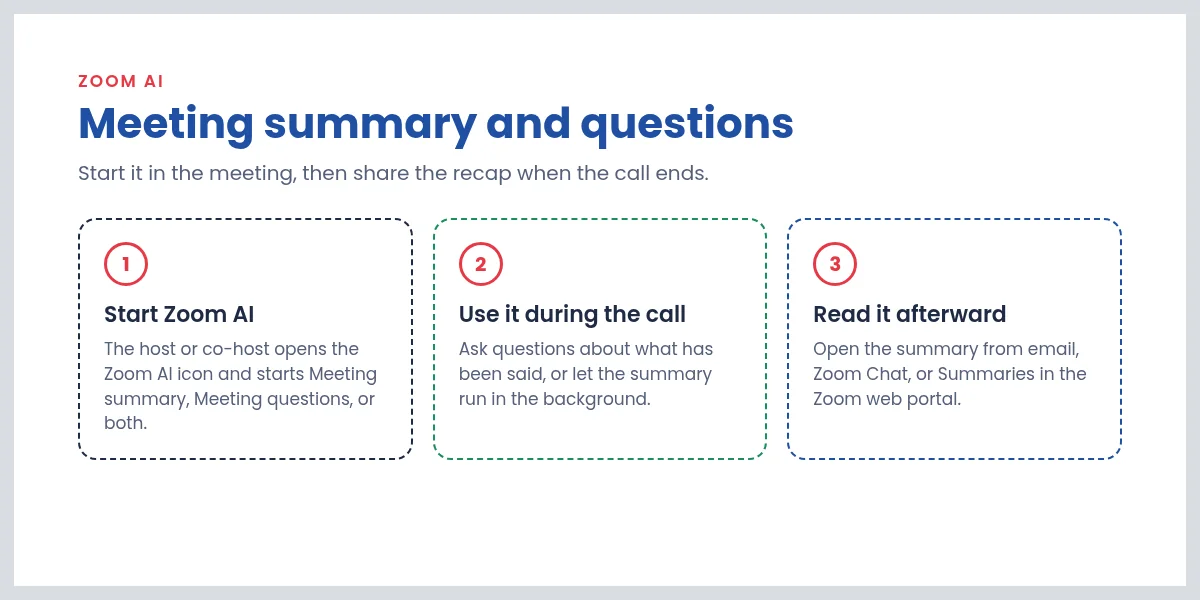
When the meeting starts, the host (or a co-host) starts Meeting summary from the Zoom AI control. Participants will see the Zoom AI icon change color when AI features are active.
Start Meeting summary on a computer:
- Start the meeting as the host in the Zoom desktop app.
- In the top-right corner of the meeting window, hover over the Zoom AI icon. The in-meeting AI window opens.
- Select the Meeting summary checkbox.
- Optionally, select Generate transcript if you also want a transcript available after the meeting.
- Click Start Zoom AI.
Zoom says Meeting summary then uses speech-to-text data from the meeting. Hosts on desktop app versions below 6.7.5 may still find the AI controls in the toolbar at the bottom of the window instead of the top-right icon.
Hosts can also configure Meeting summary so it is available automatically when meetings start. If you want a recording as well, that is a separate feature, and how to record a Zoom meeting on a free account covers what is possible on a free account.
Participants can request that the host start Zoom AI if the host has allowed that request in Host tools, but they cannot start Meeting summary themselves.
How to Ask Questions During the Meeting
In-meeting questions let you catch up on what you missed and ask about what has already been discussed, without interrupting the live conversation. Zoom describes this in Zoom’s article on in-meeting questions and in Zoom’s getting started guide for Zoom AI features.
Start in-meeting questions:
- In the meeting, hover over the Zoom AI icon in the top-right corner of the window (or open the AI control in the toolbar on older app versions).
- Select the Meeting questions checkbox, the Meeting summary checkbox, or both.
- Click Start Zoom AI if it is not already running.
- Type a question about the meeting so far, or ask for a recap of what has been discussed.
You can run questions and the summary together. The summary is the recap people receive later. In-meeting questions are for catch-up and clarification while the call is still going.
How to View and Share the Meeting Summary Afterward
When Meeting summary was on, Zoom can send the recap by email and, if the meeting’s chat is available before and after the meeting, post it to the meeting’s group chat in Zoom Chat.
Find it in the Zoom web portal:
- Sign in to the Zoom web portal.
- Open Profile, then click Summaries in the side menu.
- On the My Summaries tab, select a summary from the list, or search by topic, meeting ID, or date.
- From there you can Share the summary by email, Edit it and save the changes, or Delete it. Deleting a summary cannot be undone.
Zoom also documents access from Zoom Chat and from the email that goes out after the meeting. If you cannot see a summary, check that you were signed in during the meeting, that the host started Meeting summary, and that the host chose to share it with participants.
Meeting summary can work in several languages. If more than one language is spoken, Zoom says the summary is written in the language used by most participants, or in the host’s speaking language if there is no clear majority. Setting the caption language correctly helps the speech-to-text data that the summary is based on.
How Zoom Says It Handles AI Data
Zoom’s getting started article includes a data-use note that is worth reading in full in Zoom’s getting started guide for Zoom AI features. In short, Zoom says it does not use customer audio, video, chat, screen sharing, attachments, or other communications-like content (such as poll results, whiteboard, and reactions) to train Zoom’s or third-party AI models.
Zoom also says that for features that use third-party AI model providers, relevant data is shared with those providers when you use the feature, and that data may be processed in U.S.-based data centers. If your organization has a legal or data-residency requirement, confirm the current details with your admin and with Zoom’s official AI documentation before you turn the features on for every meeting.
If you only need a free recap tool and your account does not include Meeting summary, how to get AI meeting summaries for free walks through the built-in options across Zoom, Google Meet, and Teams.
Conclusion
I hope this guide has shown you how to use Zoom AI (the features many people still call AI Companion) to summarize a meeting and ask questions during the call.
Enable Meeting summary and in-meeting questions under Zoom AI in the web portal if you have a licensed Zoom Workplace plan that includes them. In the meeting, the host or co-host opens the Zoom AI icon, selects Meeting summary and or Meeting questions, and clicks Start Zoom AI. After the meeting, look for the recap in email, Zoom Chat, or Summaries in the web portal.
Do you start Zoom AI automatically in your meetings, or only when you need a recap? Has the summary been accurate enough to send on to your team? Let me know by commenting below and giving this post a star rating. If you have any questions or suggestions, feel free to contact us. I’d be happy to hear your thoughts, thanks.