

Taking notes during a virtual meeting is hard. You’re trying to listen, think, and reply, and at the same time someone expects you to write down every decision and deadline. Most of the time, something important gets missed.
This is exactly where an AI meeting summary helps. It listens to the call, then gives you a short recap with the key points, decisions, and action items, so you can focus on the conversation instead of your notebook.
But here is the problem. Zoom, Google Meet, and Microsoft Teams all sell their AI features inside paid plans, and it’s not always clear what you can actually get for $0.
In this guide, we’ll show you how to get AI meeting summaries for free in Zoom, Google Meet, and Microsoft Teams, step by step.
You’ll learn exactly what each free plan includes, how to turn the feature on, where to find your summary after the call, and which free AI note takers fill the gaps when the built-in option is locked.
What Is an AI Meeting Summary?
An AI meeting summary is a short written recap that an AI tool creates from the speech in your meeting. The tool turns the audio into text in the background, then picks out what matters and organizes it for you.
A good AI summary usually includes:
- Meeting overview: A few sentences about what the meeting was about.
- Key topics: The main points discussed, often grouped under small headings.
- Decisions: What the group agreed on.
- Action items: Who needs to do what next, sometimes with names attached.
- Questions or open issues: Things that still need an answer.
Keep in mind that a summary is not the same as a transcript. A transcript is the full word-for-word text of everything that was said, while a summary is a short version of it. If you need the full text, read our guide on how to turn meeting recordings into transcripts, notes, and action items.
Which Platforms Give You Free AI Meeting Summaries?
Before we go step by step, let’s clear up the biggest question. Only one of the three big platforms gives you built-in AI summaries on its free plan today.
Here’s a quick overview of what each free plan includes:
| Platform | Free AI summaries? | Free allowance | What unlocks unlimited summaries |
|---|---|---|---|
| Zoom (Basic plan) | Yes | 3 hosted meetings per month | Zoom Workplace Pro or the My Notes add-on |
| Google Meet (personal account) | No | None built in | Google AI Pro or an eligible Google Workspace plan |
| Microsoft Teams (free) | No | None built in | Teams Premium or a Microsoft 365 Copilot license |
So, if you’re on Google Meet or Teams Free, you’re not stuck. You can still get free summaries with Zoom’s My Notes (which also works in other meeting apps) or with a free AI note taker, as we’ll show you later in this guide. And if you’re still deciding which free plan to use for your meetings, our Zoom vs Google Meet vs Teams Free comparison covers the other limits too.
How to Get Free AI Meeting Summaries in Zoom?
Zoom is the most generous of the three. According to the official Zoom pricing page, the free Basic plan now includes AI meeting summaries for 3 hosted meetings per month, plus 3 uses of AI note-taking with My Notes and 20 AI queries per month.
That’s not unlimited, but it’s enough for your most important calls each month. If you want to know what else comes with the free plan, read our list of Zoom free plan features.
Zoom Basic vs Zoom Pro: AI Features Compared
Step 1: Update the Zoom Workplace Desktop App
Download or update the Zoom Workplace app on your Windows, Mac, or Linux computer and sign in with your free account. Zoom’s AI features need a recent app version, and the in-meeting AI controls work best on the desktop app.
Step 2: Start Your Meeting as the Host
The summary allowance counts meetings you host, so you need to start the meeting yourself. If you only join someone else’s meeting, the host decides whether AI is used, and the summary uses their allowance, not yours.
Step 3: Turn On Meeting Summary with Zoom AI
Here’s how to start it, based on Zoom’s Meeting summary support article:
- In the top-right corner of the meeting window, hover over the Zoom AI icon (the diamond-shaped sparkle icon).
- Select the Meeting summary checkbox.
- Optional: Select Generate transcript if you also want a transcript after the meeting.
- Click Start Zoom AI.
Everyone in the meeting will see that the AI icon changes color, so they know AI is running. On the Zoom mobile app, tap the Zoom AI icon in the top-right corner, turn on the Meeting summary toggle, and tap Start Zoom AI.
If you don’t see the Zoom AI icon at all, sign in to the Zoom web portal, open Settings, and look for the Zoom AI tab to check that Meeting summary is turned on. Some regions and industries don’t get Zoom’s AI features yet.
Step 4: Find Your Summary After the Meeting
When the meeting ends, Zoom finishes the summary and sends it out by email. You can also find all your summaries in the web portal.
- Sign in to the Zoom web portal.
- Click your profile picture or initials in the top-right corner, then click My account.
- In the side menu, click Summaries.
- Open the My Summaries tab to view, edit, share, or delete a summary.
Participants who were invited to the meeting can receive the summary too if you choose to share it. Good news: free users can also open summaries that other hosts share with them in the Shared with me tab, and that doesn’t use up their own allowance.
Step 5: Use My Notes for Meetings on Other Platforms
This is the trick most people don’t know. Zoom’s My Notes AI note taker supports third-party meeting platforms and in-person conversations, and the free Basic plan includes 3 uses per month. So, you can use it to take AI notes in a Google Meet or Teams call as well.
If 3 uses aren’t enough, Zoom sells My Notes as a separate add-on at $10 per month (or $8.33 per month billed yearly), which is much cheaper than a full Pro plan if you only need AI notes.
Tips to Make the Most of Your 3 Free Summaries
- Save them for the calls that matter: Use them for client calls, planning sessions, or lectures, not quick check-ins.
- Remember the 40-minute limit: Zoom Basic meetings still end at 40 minutes, so keep your agenda tight.
- Set the right caption language: Zoom uses your caption language to understand the speech, so set it correctly if you don’t speak English in the meeting. Our guide on how to turn on live captions shows where that setting lives.
- Ask a paid user to host: If a colleague has a Pro account, their summaries are unlimited and they can share them with you.
How to Get AI Meeting Summaries in Google Meet?
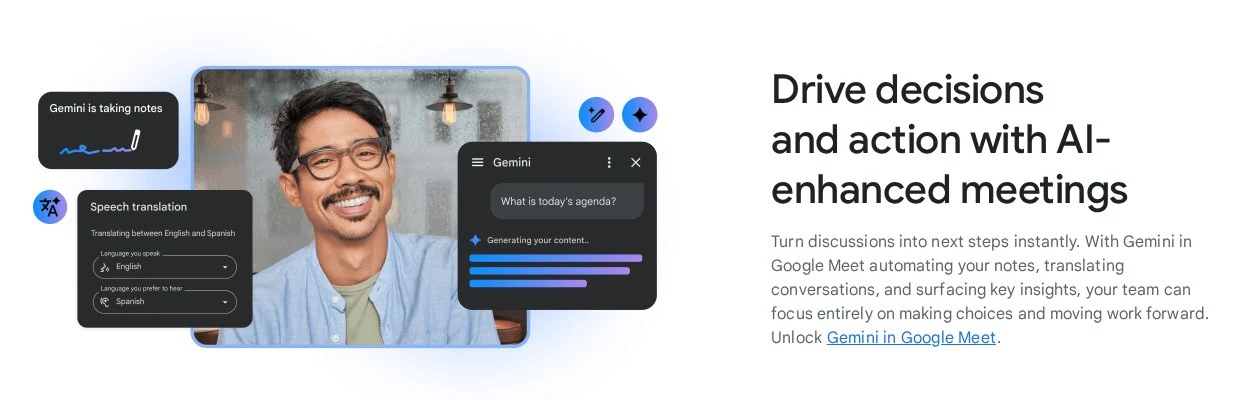
In Google Meet, the AI summary feature is called Take notes for me, and it’s powered by Gemini. It writes your meeting notes into a Google Doc, adds a summary and next steps, and emails a recap to the organizer when the meeting ends.
Is Take Notes for Me Free?
Unfortunately, no. A free personal Google account doesn’t include Take notes for me. Based on Google’s premium Meet features page, you need one of these:
- Google AI Pro or Google AI Ultra: Google added Take notes for me to these personal plans in 2026. AI Pro costs $19.99 per month in the US.
- Google Workspace: Business Standard, Business Plus, Enterprise Standard, Enterprise Plus, and some other editions include it.
- Google AI Pro for Education: For schools that buy it.
There are a few ways to try it without paying, though. Google often gives free AI Pro trials, and eligible college students in the US can get 12 months of Google AI Pro for free (the offer runs until the end of 2026 and needs a payment method). Just remember to cancel before the trial ends if you don’t want to pay.
How to Turn On Take Notes for Me in Google Meet?
Once you have an eligible plan, follow these steps from Google’s Take notes for me help page:
- Go to meet.google.com on your computer and start or join a meeting you host.
- Click Take notes for me (the pencil icon) at the top right of your screen.
- Optional: Before you start, choose who receives the notes, the notes language, and the note length.
- Click Start. Everyone in the call gets a notice that Gemini is taking notes.
To turn it on automatically, go to meet.google.com, click Settings, open Meeting records, and under Automatic note taking for all future meetings, choose For all scheduled meetings I host or For all scheduled meetings I host with 3+ guests. Then click Save. Google explains these options in its Calendar and Meet settings guide.
Where Do You Find Your Google Meet Notes?
After the meeting, the notes are saved as a Google Doc in the organizer’s Google Drive. The organizer also gets an email with a link to the recap, and the same link shows up in the Google Calendar event. If you join late, you can click Summary so far to catch up during the meeting.
Things to Know Before You Rely on It
- Languages: It works in English, French, German, Italian, Japanese, Korean, Portuguese, and Spanish, and only one language per meeting.
- Meeting length: Google recommends it for meetings from 15 minutes up to 8 hours.
- Host only: On personal plans, it works only in meetings you host.
- Free meetings still end at 60 minutes: If you’re on a free account, group calls with 3 or more people are limited to 60 minutes.
Free Ways to Summarize a Google Meet Call
If you don’t want to pay for AI Pro, you still have good free options. Zoom My Notes gives you 3 free AI notes per month for third-party platforms, and free AI note takers like Otter and Fathom can join Google Meet calls too. We compare them in the free tools section below.
How to Get AI Meeting Recaps in Microsoft Teams?
Microsoft calls its AI summary feature intelligent recap. It gives you AI notes, follow-up tasks, and mentions after a meeting. Sadly, it isn’t part of Microsoft Teams Free. According to Microsoft’s Meeting Recaps help page, intelligent recaps need a Teams Premium or Microsoft Copilot license.
What Teams Free Gives You Instead
The free version of Teams for personal use doesn’t write AI summaries, and it doesn’t really record either. Microsoft’s Teams for personal use updates show the More options > Start recording button, with recordings kept in the cloud for up to 30 days, but its meeting controls page says only people with a Microsoft 365 Personal, Family, or Premium subscription can start a recording. What you can use for free is live captions, so you can follow the conversation as it happens.
If you do have Microsoft 365 Personal or Family, a recording is a great starting point, because you can turn it into a transcript and summary later. For the full Teams Free limits, check our post on Microsoft Teams free plan features and limitations, and if you want a step-by-step recording guide, read how to record a Google Meet or Teams meeting.
How to Use Intelligent Recap (If Your Work Account Has It)
Many people use Teams through work or school, and their organization may already pay for Teams Premium or Copilot. If that’s you, here’s how to open the recap, based on Microsoft’s Recap in Teams guide:
- Make sure the meeting is recorded or at least transcribed. Intelligent recap needs a transcript, and the meeting must be 5 minutes or longer.
- After the meeting ends, select Chat in Teams.
- Open the meeting chat.
- Select Recap, then open the AI summary to see the AI notes and follow-up tasks.
- Optional: Select Share > Share to email to send the summary to the people who were invited.
If you don’t have Teams Premium or Copilot, the Recap tab can still show the recording and transcript you have permission to view. That’s not an AI summary, but it saves you from rewatching the whole meeting.
Free Ways to Summarize a Teams Meeting
On Teams Free, your best free options are an AI note taker that joins the call (Otter or Fathom both support Microsoft Teams) or Zoom My Notes, which supports third-party meetings with 3 free uses per month.
Best Free AI Note Takers That Work with Zoom, Meet, and Teams
If your platform doesn’t give you free summaries, a free AI note taker is the easiest fix. Most of them join your meeting as a bot participant, record the conversation, and send you a summary afterwards.
Here’s how the main free plans compare:
| Tool | Free plan allowance | Works with | Good to know |
|---|---|---|---|
| Zoom My Notes | 3 AI note-taking uses per month | Zoom, third-party platforms, in person | Comes with any free Zoom account |
| Fathom | Unlimited recordings and transcripts; advanced AI summaries on your first 5 calls each month | Zoom, Google Meet, Microsoft Teams | After 5 calls, you still get a general summary |
| Otter.ai | 300 transcription minutes per month, 30 minutes per conversation | Zoom, Google Meet, Microsoft Teams | Only 3 lifetime audio or video file imports |
Fathom
Fathom is the most generous free option for people who have a lot of meetings. Its free plan gives you unlimited recordings, storage, and transcripts in 38 languages. You get advanced AI summaries for your first 5 calls each month, and after that, a general summary for every call.
Otter.ai
Otter’s Basic plan is free forever, but it has tighter limits. You get 300 transcription minutes per month, and each conversation is limited to 30 minutes on the free plan. If a meeting runs longer, the recording continues, but you can only see the first 30 minutes unless you upgrade. That makes it a better fit for short calls.
Zoom My Notes
As we mentioned above, My Notes is included with every free Zoom account. It’s a good choice if you already use Zoom and only need AI notes for a few meetings a month, even if those meetings happen on another platform.
Before you add any bot to a meeting, ask the host. Many companies and schools block outside note takers, and you can learn why in our guide on how to stop AI notetaker bots from joining your meetings.
How to Get Better AI Meeting Summaries?
An AI summary can only be as good as the audio it hears. These simple habits make a big difference:
- Use a good microphone: Clear audio means fewer mistakes. A headset or a decent USB mic is worth it, and you can test your camera and microphone before the call.
- Start with an agenda: Say the meeting goal out loud at the start. The AI often uses it to organize the summary.
- Say decisions clearly: Phrases like “So, we’ve decided…” or “Action item for Sara…” help the AI catch them.
- Avoid talking over each other: Overlapping voices confuse speech-to-text.
- Use names: Ask people to sign in with their real names so action items are assigned to the right person.
- Always review the summary: AI can misunderstand jokes, numbers, and names. Read it before you share it.
In our experience, the quality of the audio matters more than which AI tool you pick, so fix the microphone before you blame the summary.
Is It Safe to Use AI Meeting Summaries?
AI summaries are safe to use for most everyday meetings, but you should still be careful with sensitive topics. The AI has to process everything that’s said, so think twice before using it in meetings about health, legal issues, salaries, or private client data.
Also, always tell people when AI notes are on. Zoom, Google Meet, and Teams all show a notice to participants when their AI features start, and that’s the right approach for third-party tools too. In some countries and states, recording or transcribing people without consent can even be illegal, so a quick “Is everyone okay if I use AI notes today?” goes a long way.
Conclusion
We hope this guide has given you a clear idea of how to get AI meeting summaries for free in Zoom, Google Meet, and Microsoft Teams.
If you use Zoom, start with the 3 free AI summaries and 3 My Notes uses you get every month. If you’re on Google Meet or Teams Free, the built-in AI notes need a paid plan, so we recommend a free AI note taker like Fathom for frequent meetings, or Otter for short calls. And if your work account already includes Gemini, Teams Premium, or Copilot, just turn the feature on and let it do the work.
Whichever option you choose, always review the summary before you share it, and let people know when AI is listening. For more on handling your recordings, check out our guide on how to record Zoom meetings on a free account.
So, which option will you try first? Is it Zoom AI, Gemini, or a free note taker? Please let us know by commenting below and giving us a star rating to rate this post. And if you have any questions or suggestions, feel free to contact us. We’ll be happy to hear your thoughts, thanks.