

Virtual meetings are now a normal part of work, school, and even family life. And for a lot of people, Google Meet is the first app they open, simply because they already have a Google account.
It’s free. It runs right in your browser. And you don’t have to install anything on your computer.
But if you have never used it before, the first meeting can still feel a little confusing. Where is the “New meeting” button? What do you send to the other people? And what if someone you invite doesn’t have a Google account at all?
Don’t worry!
In this guide, I’ll show you how to start or join a meeting in Google Meet on a computer and on your phone, step by step.
You’ll also find out what the free account limits are, what to check before you click “Join now”, and how to fix the most common problems.
So, let’s get started! 👍
What Do You Need to Start or Join a Google Meet Meeting?
Not much, honestly. To start (create) a meeting, you must be signed in to a Google account. That can be a free personal Gmail account or a work or school Google Workspace account.
To join a meeting, you don’t even need an account. You can join as a guest and ask the host to let you in (more on that below).
On a computer, Google Meet works in a web browser, so there is nothing to download. On a phone or tablet, you’ll need the Google Meet app or the Gmail app. And of course, you need a working camera, microphone, and internet connection. If you’re not sure your setup is good enough, take a quick look at our video conferencing setup requirements guide.
Quick Answer: How Do You Start or Join a Google Meet Meeting?
- Start: Go to meet.google.com, click New meeting, and choose Start an instant meeting (or Create a meeting for later to get a link you can send first).
- Join: Click the meeting link in your invite, or type the meeting code at meet.google.com, then click Join now (or Ask to join).
- On your phone: Open the Google Meet app and tap New to start a meeting, or tap your meeting (or enter its code) to join.
How to Start a Meeting in Google Meet on a Computer?
There are three easy ways to start or schedule a Google Meet meeting from your computer. I’ll go through each one, and you can pick whichever fits your day.
Start a Meeting from meet.google.com
This is the quickest way, and the one I use the most:
- Go to meet.google.com and make sure you are signed in to your Google account.
- Click New meeting.
- Choose one of the options that appear.
Here is what each option does:
- Create a meeting for later: Google gives you a meeting link without starting the call. Copy it and send it to your participants. When it’s time, paste the link into your browser (or into the “Enter a code or link” box) and click Join.
- Start an instant meeting: Creates a new meeting and puts you straight into it. Then you can share the link from inside the call.
- Schedule in Google Calendar: Opens Google Calendar so you can pick a date and time and invite people.
A small tip from experience: if you need to send the link first (to a client, for example), use “Create a meeting for later”. With an instant meeting you end up sitting alone in the call, waiting while you copy and paste the link.
Start a Meeting from Gmail
If you live in your inbox all day, you can start a video call right from Gmail:
- Open Gmail on your computer.
- On the left sidebar, click Meet, then click New meeting.
- Click Send invite. You can choose Copy meeting invite or Share via email.
- Click Join now.
- When you are done, click Leave call to end it.
Can’t see Meet in your Gmail sidebar? It might be hidden. Click Settings (the gear icon) > See all settings > Chat and Meet, change the “Meet” option, and click Save Changes.
Schedule a Meeting in Google Calendar
For meetings planned ahead of time, Google Calendar is the best option. Google itself recommends using Meet with Calendar for the best experience.
- Open Google Calendar on your computer.
- At the top left, click Create > Event, then add a title, date, time, and your guests.
- Make sure a Google Meet video conferencing link is added to the event (click Add Google Meet video conferencing if it’s not there yet).
- Click Save, and then Send to email the invite to your guests.
Everyone you invite gets the meeting link inside the event. They can also forward it to other people. But if someone who wasn’t invited tries to join, they have to ask first. And for meetings organized by a personal Google account, only the meeting creator can let those people in.
Good to know: Meeting codes don’t last forever. A code created from Calendar expires if it hasn’t been used for 60 days and isn’t linked to any future event. Codes created from meet.google.com or Gmail expire 365 days after their last use. So for a weekly or monthly meeting, I recommend a recurring Calendar event, so the same link keeps working.
How to Start a Google Meet Meeting on Your Phone?
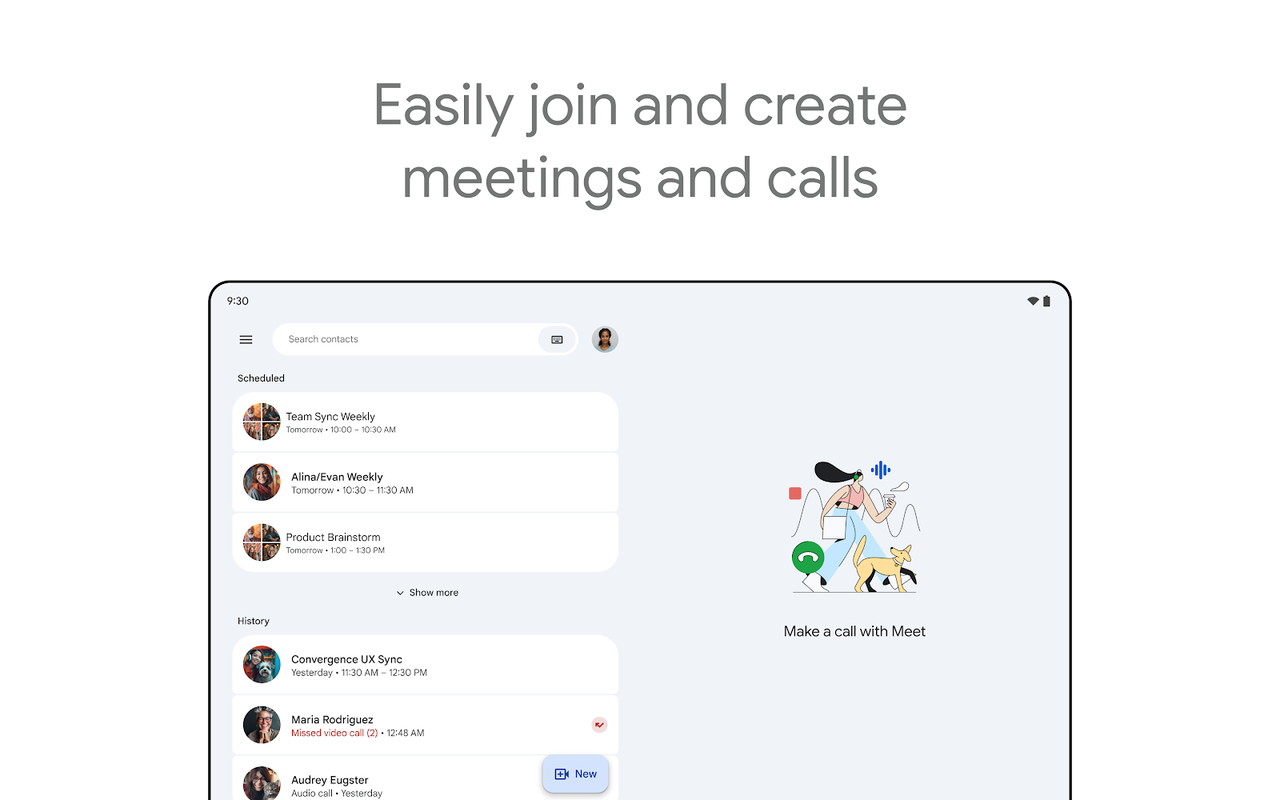
On Android, iPhone, and iPad, you can start a meeting from the Google Meet app (on iPhone and iPad, get it from the App Store). Here’s how:
- Open the Google Meet app.
- At the bottom right, tap New.
- Tap Create link, then tap Copy or Share to send the link by email, text, or any chat app.
- To go into the meeting you just created, tap Join meeting.
Want to plan it for later? Tap New > Schedule instead. The Google Calendar app opens, where you can set the title, time, and guest list, then tap Save.
The Gmail app on Android, iPhone, and iPad also has a Meet tab at the bottom. Tap Meet > New meeting there, and you can get a meeting link to share, start an instant meeting, or schedule it in Google Calendar.
One more nice thing: calls are synced across devices. So you can start a meeting on your phone and continue it on your laptop when you get to your desk.
How to Join a Meeting in Google Meet?
Joining is even easier than starting. Somebody has already done the hard part for you! Google lists several ways to join a meeting, so let’s go through them one by one.
Join with a Meeting Link
This is how most people join. Open the email or chat message with the invite, click the meeting link, and then click Join now on the screen that opens.
If you aren’t on the calendar invite, you’ll see Ask to join instead, and the organizer (or a participant) has to let you in.
Join with a Meeting Code
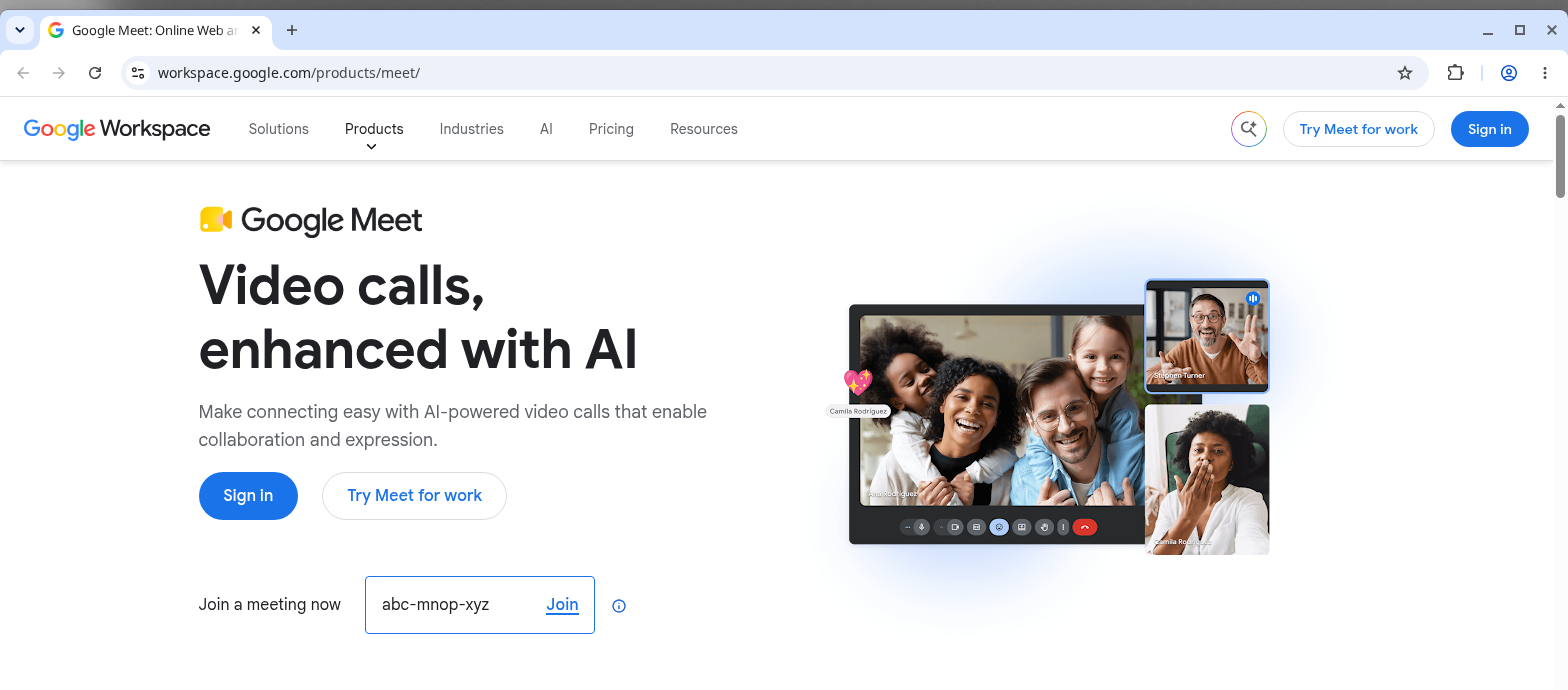
Every Google Meet meeting has a unique code that looks something like abc-defg-hjk. You’ll find it at the end of the meeting link or in the joining info you were sent.
- Go to meet.google.com.
- Type the meeting code into the Enter a code or link box (if you aren’t signed in, click Enter code first).
- Click Join, and then click Join now (or Ask to join).
Typing codes over the phone is a pain, right? I usually paste the whole link into that box instead. It works just the same.
Join from Google Calendar
Open Google Calendar, click the event, and click Join with Google Meet. Then click Join now. Your scheduled meetings also show up on the meet.google.com home page, so you can simply click the one you want from the list.
Join from Gmail
In Gmail, click Meet on the left sidebar. Under “My Meetings”, hover over the meeting and click Join. If the meeting isn’t on your calendar, click Join a meeting, enter the code, and click Join.
Just remember that only meetings scheduled in Google Calendar appear under “My Meetings”.
Join from the Google Meet App on Your Phone
Open the Meet app and tap your meeting under “Meetings”. If you have a code, tap the Keyboard icon next to the search bar at the top, enter the code, and tap Join. If you’re from a different organization, you’ll tap Ask to join. You can also open the event in the Google Calendar app and tap Join with Google Meet.
Join by Phone (Dial-In)
No internet? You can call in for audio only, but there is a catch. Dial-in only works for meetings organized by a Google Workspace user whose admin has turned on the dial-in feature. Meetings created with a free personal Google account don’t come with a phone number.
If your invite has one, here’s what to do:
- Dial the phone number shown in the Calendar event or invite.
- Enter the PIN, followed by #.
- Press *6 to mute or unmute yourself.
You can call in from 15 minutes before the meeting starts. Regular call charges from your phone carrier may apply, especially for long-distance numbers.
Can You Join Google Meet Without a Google Account?
Yes, you can! This surprises a lot of people. You don’t need a Google account to join a Meet video meeting, but the organizer or someone in the meeting has to approve you.
- Click the meeting link, or go to meet.google.com, click Enter code, type the code, and click Join.
- Enter your name.
- Click Ask to join and wait for the host to let you in.
Please use your real name here. If the host sees “User 1” or a nickname in the request, there’s a good chance they won’t let you in. I’ve seen it happen more than once!
There is one exception. Meetings organized by Google Workspace for Education accounts don’t allow guests who aren’t signed in, although they can still dial in by phone if a number is available.
What Should You Check Before Clicking “Join Now”?
Before you enter a meeting, Google Meet shows a preview screen (Google calls it the “green room”). It only takes a few seconds, but it can save you from that awkward “Can you hear me? Hello?” moment. Here is what Google suggests you check before the meeting:
- Microphone: Click the microphone icon and speak. If the mic bar moves, your mic works.
- Speaker: Click the speaker option and select Test speakers. If you hear a sound, you’re good.
- Camera: Turn on the camera and make sure you see yourself in the preview tile.
- Devices: Using a headset or an external webcam? Click the dropdown arrow next to each device to pick the right one.
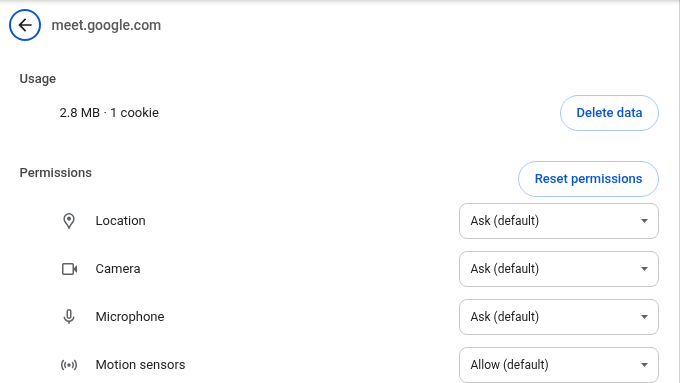
The first time you use Meet, your browser asks for permission to use your camera and microphone. Click Allow. If you clicked “Block” by mistake (it happens!), open your browser’s site settings for meet.google.com and change Camera and Microphone to Allow. In Chrome, you’ll find this under Settings > Privacy and security > Site settings.
Joining from a meeting room where the audio and video already come from a room device? Use Companion mode. On the joining screen, under “Other joining options”, click Use Companion mode, or go to g.co/companion. Your mic and video are turned off to avoid echo, but you can still use the meeting chat and share your screen (with audio) from your laptop.
And if your laptop’s built-in camera makes you look like a blurry potato, it might be time for an upgrade. Check out our list of the best video conferencing webcams.
What Are the Google Meet Free Account Limits?
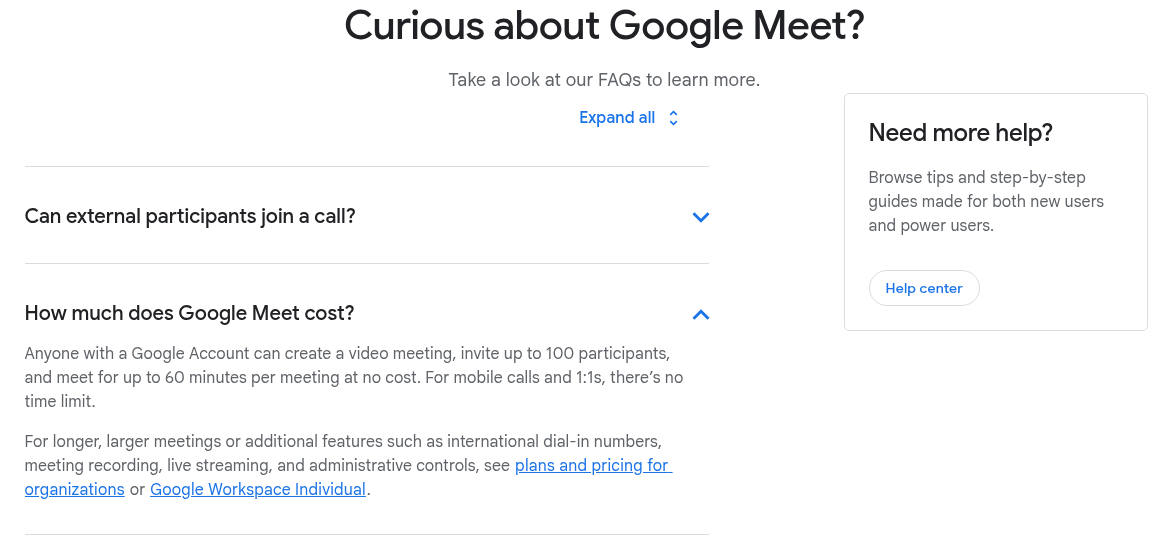
Google Meet is free for anyone with a Google account, but the free version does have a few limits you should know about before an important call:
| Free Personal Google Account | |
| Maximum participants | 100 per meeting |
| One-on-one meetings | Up to 24 hours |
| Meetings with 3 or more participants | Up to 60 minutes |
| Time-limit warning | A chime and message at 50 minutes |
| Dial-in by phone | Not included |
| Meeting recording | Not included |
| Guests without a Google account | Can join after the host lets them in |
So, if you have a group call with three or more people, everyone gets a notice at 50 minutes, and the call ends at 60 minutes unless the host upgrades. My advice? Plan group meetings for 45 to 50 minutes. Or keep a second meeting link ready, just in case.
Google’s product page also says there is no time limit for mobile calls, but its Help Center only lists the computer limits above. So I wouldn’t count on your phone for a long group meeting.
Also, recording isn’t part of the free plan. If you need a free way to record your calls, Zoom still allows local recording on its free plan. Here’s our guide on how to record Zoom meetings on a free account. And if the 60-minute cap is a deal-breaker, take a look at these free video conferencing platforms with no time limit, or compare the free features and limitations of popular meeting platforms.
Why Can’t I Start or Join a Meeting in Google Meet?
Most problems have a simple fix. Here are the ones I see most often, based on Google’s own troubleshooting guide:
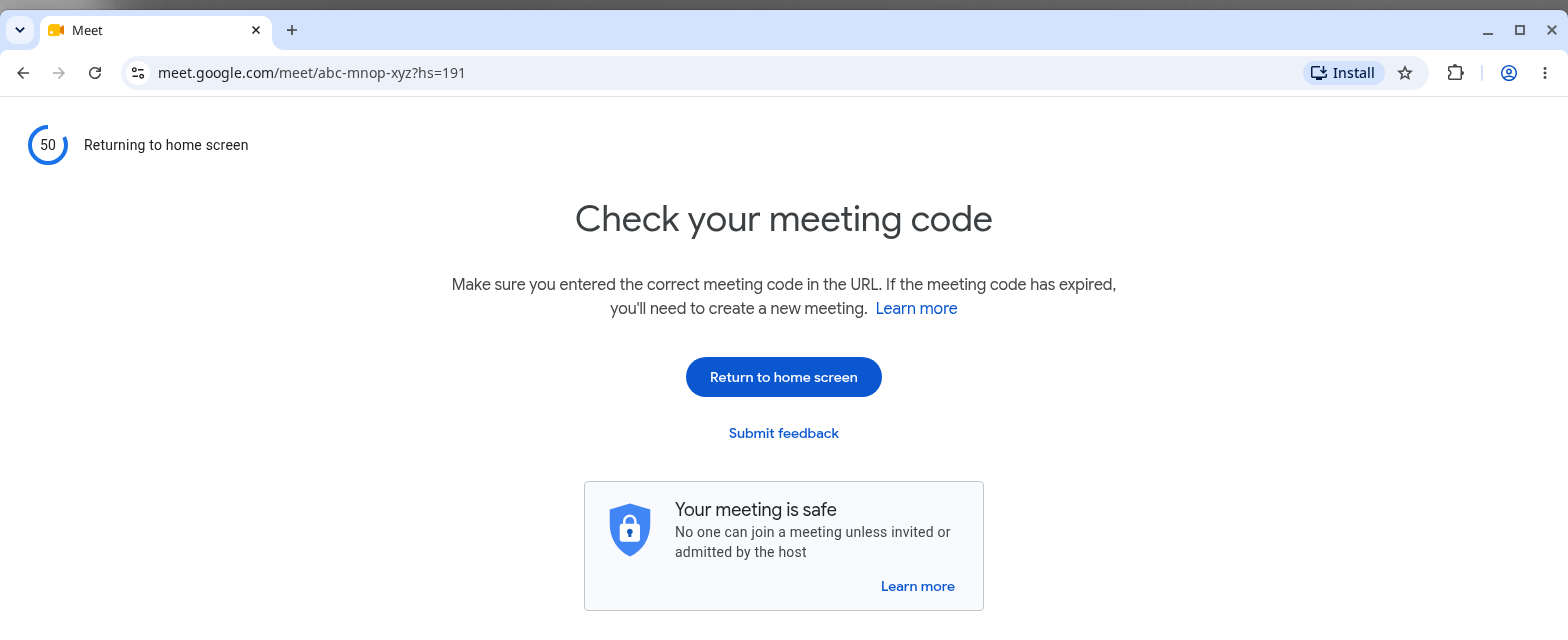
“Check your meeting code” Error
This means the code is wrong or has expired. Look for a typo first (codes are easy to mistype), or open the original link instead of typing it. If the code has expired, ask the host to create a new meeting.
You Can’t Create a New Meeting
You must be signed in to a Google account to create a meeting. If you use a work or school account and can join meetings but can’t create them, your admin may need to turn Meet on for you. Ask your IT team.
“Your meeting is full”
Meetings created by a personal Google account are limited to 100 participants. Work and school accounts can have higher limits, depending on the Google Workspace edition. And if you need to talk to a really big audience, a webinar may be a better fit. Here’s the difference between a webinar and a virtual meeting.
Your Scheduled Meetings Don’t Show Up
Only meetings scheduled in Google Calendar appear on meet.google.com and in the Meet app. Also, double-check that you are signed in to the right Google account. Many of us have more than one!
Camera or Microphone Not Working
Check that your browser has permission (see the screenshot above), close other apps that might be using the camera (like Zoom or Teams), and make sure you selected the correct device in the preview screen.
Network or Connection Errors
Update your browser to the latest version first. If you see a network or firewall error at work, the company network may be blocking the ports Meet needs, so contact your network admin. At home, a quick internet speed test tells you whether your connection is the real problem.
And if nothing works, there’s no harm in trying the other method: if the browser fails, try the app on your phone, and vice versa. Also, a little virtual meeting etiquette goes a long way, like joining a couple of minutes early so these issues don’t eat into the meeting.
Conclusion:
Hopefully, you now know exactly how to start or join a meeting in Google Meet.
Start one from meet.google.com, Gmail, Calendar, or the Meet app. Join with a link, a code, or even without a Google account. Just keep the free plan’s 60-minute group limit in mind, test your camera and mic before you join, and you’ll be fine. If you’re still deciding which tool is right for your team, our guide on choosing the right virtual meeting platform can help.
So, how do you usually join your Google Meet calls? With the link, or by typing the code?
Please let us know by commenting below and giving us a star rating to rate this post. And, if you have any questions or suggestions regarding this guide, feel free to contact us.
We’ll be happy to hear your thoughts, thanks.