
A few years ago, the only “assistant” in a virtual meeting was the colleague who agreed to take notes. Today, many meetings have an AI listening in.
It writes the notes, lists the action items, answers questions like “What did we decide about the budget?”, and sometimes even schedules the follow-up meeting by itself.
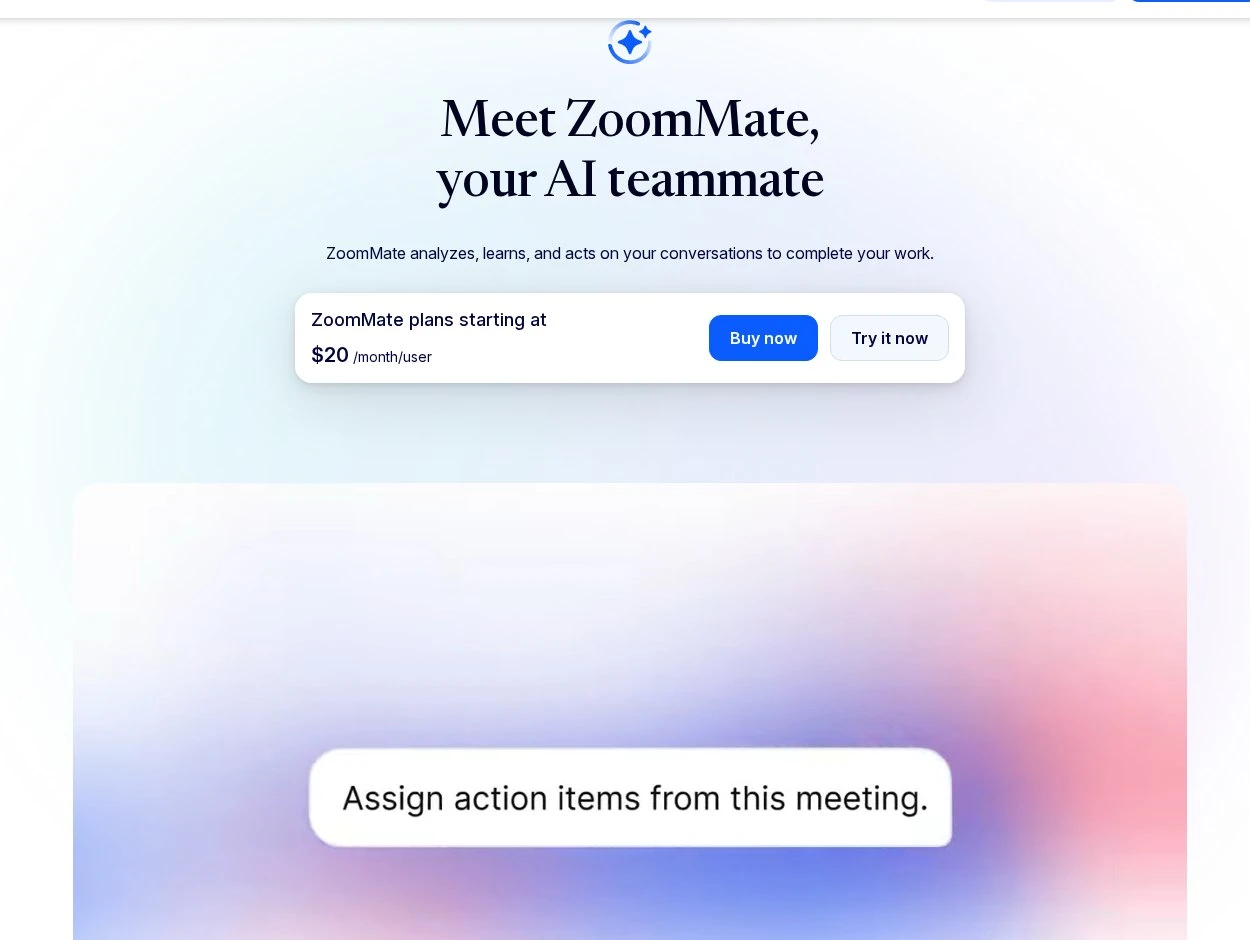
Zoom, Google, and Microsoft have all built these AI tools into their apps, and dozens of other companies sell AI note takers that join your calls. In 2026, Zoom even launched ZoomMate, an AI that goes beyond notes and acts on what was decided.
So, what exactly is an AI meeting assistant, and is it worth using one?
In this guide, we’ll explain what an AI meeting assistant is, how it works, the main types, what the built-in options from Zoom, Google Meet, and Teams can do, the real pros and cons, and how to decide if you should use one.
You’ll also get a simple step-by-step plan to start safely.
What Is an AI Meeting Assistant?
An AI meeting assistant is software that uses artificial intelligence to help you before, during, and after a meeting. It listens to the conversation, turns speech into text, and then uses a large language model (the same kind of AI behind chatbots) to understand and organize what was said.
You’ll also hear names like AI note taker, AI notetaker bot, or simply meeting AI. They mean roughly the same thing, although note takers usually focus on notes, while newer assistants can also take actions.
What Can an AI Meeting Assistant Do?
Depending on the tool, an AI meeting assistant can:
- Transcribe: Write down everything that is said, often with speaker names.
- Summarize: Create a short recap with key topics and decisions.
- List action items: Pick out tasks and who is responsible for them.
- Answer questions: Let you ask things like “What did Sara say about the deadline?” during or after the meeting.
- Catch you up: Give a quick summary if you join late.
- Take action: Draft follow-up emails, create tasks, or schedule the next meeting.
- Search across meetings: Find what was said in last month’s calls.
How Does It Work?
Most tools follow the same basic process. First, the assistant gets the meeting audio, either because it’s built into the meeting app or because it joins as a bot participant. Next, speech recognition turns the audio into a transcript. Finally, an AI model reads the transcript and creates the summary, action items, and answers.
That’s why audio quality matters so much. If the AI can’t hear clearly, the transcript has mistakes, and the summary will too.
What Are the Types of AI Meeting Assistants?
There are three main types, and the difference matters for privacy, cost, and convenience.
1. Built-In Assistants
These come with your meeting platform, like Zoom’s AI features, Gemini in Google Meet, and Copilot in Microsoft Teams. They don’t need a bot to join, they appear as a feature in the meeting window, and participants usually see a notice when they’re on.
2. Third-Party Bot Note Takers
Tools like Otter.ai and Fathom connect to your calendar and send a bot into your meetings. The bot shows up in the participant list, records, and sends you notes afterwards. Their big advantage is that one tool works across Zoom, Google Meet, and Teams.
3. Bot-Free and Desktop Note Takers
Some newer tools capture audio from your own computer, so no bot joins the call. Zoom’s My Notes, for example, works for Zoom, other meeting platforms, and in-person conversations, and Fathom offers a bot-free option in beta. These feel less intrusive, but you still need to tell people that AI notes are on.
Built-In vs Third-Party AI Meeting Assistants
Here’s how the two main approaches compare:
If your company already pays for Zoom, Google Workspace, or Microsoft 365, the built-in option is usually the safer first choice. If you meet on many different platforms, a third-party tool can be more practical. And if you host meetings and don’t want outside bots, read our guide on how to stop AI notetaker bots from joining your meetings.
Popular AI Meeting Assistants in 2026
Here are the main options and what they cost:
| Assistant | Works with | Free option | Paid option |
|---|---|---|---|
| Zoom AI (and ZoomMate) | Zoom; My Notes also works with other platforms | 3 meeting summaries and 3 My Notes uses per month | Included in Zoom Workplace Pro and higher; My Notes add-on $10 per month |
| Gemini in Google Meet | Google Meet | No | Google AI Pro ($19.99 per month) or eligible Workspace plans |
| Copilot in Microsoft Teams | Microsoft Teams | No | Microsoft 365 Copilot ($30 per user per month for enterprise) or Teams Premium for intelligent recap |
| Otter.ai | Zoom, Google Meet, Teams | 300 minutes per month, 30 minutes per conversation | Pro from $8.33 per user per month billed yearly |
| Fathom | Zoom, Google Meet, Teams | Unlimited recordings; advanced summaries for 5 calls per month | Premium $16 per month billed yearly |
Zoom AI and ZoomMate
Zoom no longer uses the “AI Companion” name for its everyday features. As Zoom explains in its ZoomMate announcement, meeting summaries, transcription, and chat compose are now simply built into Zoom Workplace. ZoomMate is a newer add-on that goes further: it searches across your Zoom and connected apps, and it can schedule follow-ups, create tasks, and draft documents from meeting context. Free Zoom users get summaries for 3 hosted meetings per month.
Gemini in Google Meet
In Google Meet, Gemini’s main meeting feature is Take notes for me. It writes the notes into a Google Doc, adds a summary and next steps, and emails the organizer when the meeting ends. It’s available with Google AI Pro and Ultra and many Google Workspace business plans.
Copilot in Microsoft Teams
Copilot in Teams can summarize the discussion, show who said what, suggest action items, and answer your questions during or after the meeting. Intelligent recap, which adds AI notes and tasks to the Recap tab, needs a Teams Premium or Microsoft Copilot license, according to Microsoft’s Meeting Recaps page. Copilot doesn’t work in meetings hosted outside your organization.
Want to try these features without paying? Our guide on how to get AI meeting summaries for free covers every free route.
Pros and Cons of AI Meeting Assistants
AI meeting assistants can save a lot of time, but they’re not perfect. Here’s a balanced look:
- Saves note-taking time
- Clear action items
- Easy catch-up for absentees
- Searchable meeting history
- Helps non-native speakers
- Can get facts wrong
- Privacy and consent risks
- Bots can annoy guests
- Costs add up per user
Where AI Assistants Help the Most
In our experience, AI assistants are most useful in recurring team meetings, client calls where you need an accurate record, interviews, lectures, and long workshops. Anyone who joins late or misses the call can read the summary in two minutes instead of watching an hour-long recording.
Where They Can Cause Problems
AI can misunderstand names, numbers, sarcasm, and mixed languages (for multilingual calls, see our guide on how to use live translation in video meetings). It can also make a confident-sounding summary of something nobody actually agreed on. And because it hears everything, it can create legal and privacy risks in sensitive meetings, like HR talks, medical discussions, or legal advice.
Should You Use an AI Meeting Assistant?
For most people, the answer is yes, as long as you use it in the right meetings and are open about it. Here’s a simple way to decide:
Use One If…
- You spend several hours a week in meetings and lose time writing notes.
- Your team often argues about what was decided.
- Colleagues in other time zones often miss meetings.
- You run interviews, trainings, or client calls that need a reliable record.
- Your company already pays for Zoom, Google Workspace, or Microsoft 365 plans that include AI.
Skip It (or Turn It Off) If…
- The meeting covers confidential topics like salaries, health, or legal matters.
- Participants haven’t agreed to AI notes, or your company policy doesn’t allow outside tools.
- It’s a casual chat where a recording would make people uncomfortable.
- You can’t check where the data is stored and who can see it. Our guide on how to secure your online meetings covers the basics.
Questions to Ask Before You Choose a Tool
- Where are the recordings, transcripts, and summaries stored, and for how long?
- Does the company use my meeting data to train its AI models?
- Who can see the notes: only me, my team, or every participant?
- Can I delete recordings and transcripts permanently?
- Does it work with the platforms I actually use?
- Does my company’s IT or privacy team approve it?
How to Start Using an AI Meeting Assistant?
If you’ve decided to try one, follow these steps to get good results from day one:
Step 1: Check What You Already Have
Look at your current plan first. Zoom Basic includes a few free summaries, and many work and school accounts already include Gemini or Copilot. Using a built-in tool means no extra bot and fewer privacy questions.
Step 2: Start with One Type of Meeting
Try it in your weekly team meeting before using it with clients. This gives you time to learn how the summaries look and how accurate they are.
Step 3: Tell Everyone at the Start
Say something simple like “I’m using AI notes today, is everyone okay with that?” Built-in tools show a notice too, but saying it out loud builds trust.
Step 4: Speak Clearly and Name Action Items
Use a good microphone (it’s worth taking a minute to test your camera and microphone first), avoid talking over each other, and say tasks clearly, like “Action item: Rahim will send the report by Friday.”
Step 5: Review Before You Share
Always read and correct the summary before you send it to anyone. Check names, numbers, and decisions.
Step 6: Save and Organize the Notes
Store summaries in a shared folder or project tool so they’re easy to find later. If you also want full transcripts from recordings, see our guide on how to turn meeting recordings into transcripts, notes, and action items.
Conclusion
We hope this guide has helped you understand what an AI meeting assistant is and whether you should use one.
In short, an AI meeting assistant listens to your meeting, writes the transcript, and turns it into summaries, action items, and answers. Built-in tools like Zoom AI, Gemini in Google Meet, and Copilot in Teams are the easiest and safest place to start, while third-party tools like Otter and Fathom work across all platforms.
We recommend using an AI assistant for regular team meetings and long calls, keeping it off for sensitive conversations, and always telling people when it’s on. Used this way, it’s one of the most useful virtual meeting platform features you can have today.
Do you use an AI meeting assistant, or do you prefer taking notes yourself? Please let us know by commenting below and giving us a star rating to rate this post. And if you have any questions or suggestions, feel free to contact us. We’ll be happy to hear your thoughts, thanks.