
Have you ever tried to buy a webcam and got lost between words like PTZ, 4K, IR, gimbal, and 360-degree?
Don’t worry! You’re not the only one.
Webcams have changed a lot since the days of blurry 480p cameras, and today they power almost all of our virtual meetings, online classes, and live streams.
The problem is that “webcam” now covers a lot of very different devices.
One sits hidden in your laptop’s top bezel, one clips on your monitor, one turns and zooms by itself, and one sits in the middle of a meeting table and sees everyone at once.
Some aren’t even webcams at all, like your phone or a mirrorless camera that you turn into one.
In this guide, I’ll explain the different types of webcams with pictures, one by one. For each type, you’ll see what it is, how it works, who it’s best for, real example models, and its pros and cons.
After that, we’ll compare built-in and external webcams and quickly cover the specs (resolution, lens, and connection) that apply to every type.
So, let’s get started.
What is a Webcam and How Does it Work?
A webcam (short for web camera) is a small digital video camera that sends live video to a computer, TV, tablet, or meeting room system. You use it for video calls, online classes, streaming, recording tutorials, and in some cases, unlocking your computer with your face.
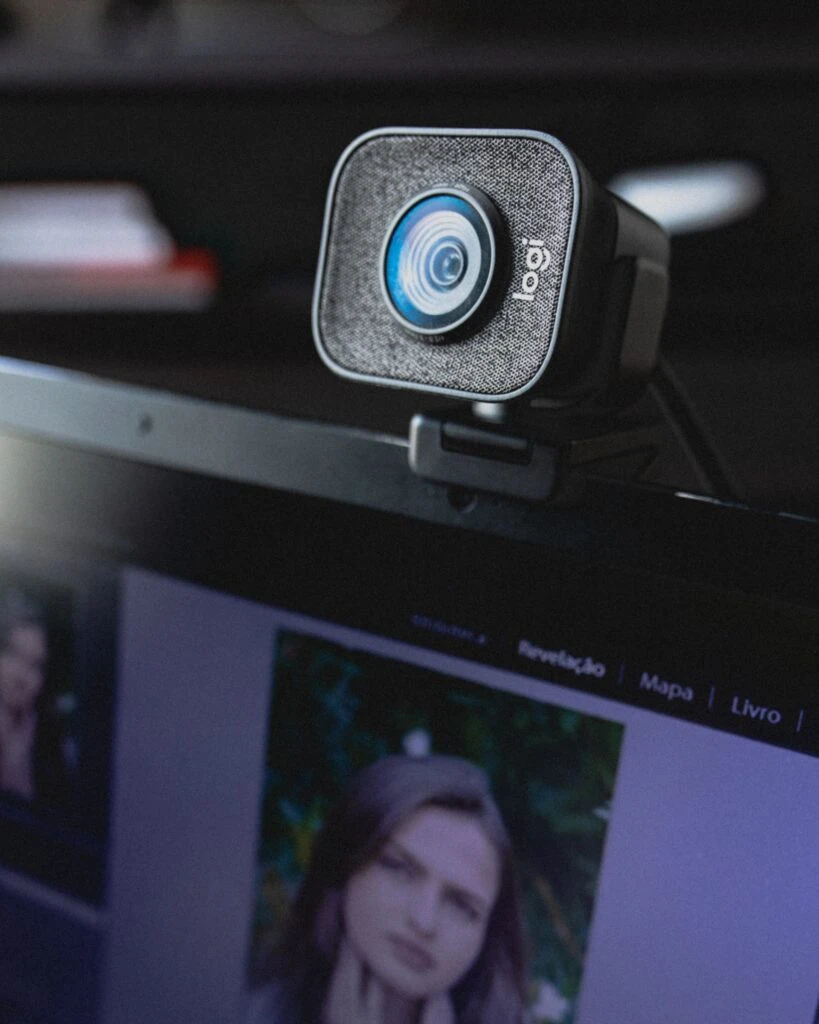
Inside, every webcam does the same basic job. The lens focuses light onto an image sensor, the sensor turns that light into a digital signal, and a small image processor cleans it up (exposure, color, noise, and HDR) before sending the video to your device.
Most webcams today follow the USB Video Class (UVC) standard. That’s why you can plug a webcam into Windows, macOS, ChromeOS, or Linux and use it in Zoom, Microsoft Teams, or Google Meet without installing a driver. Software like Logi Tune or OBSBOT Center is only needed for extra controls.
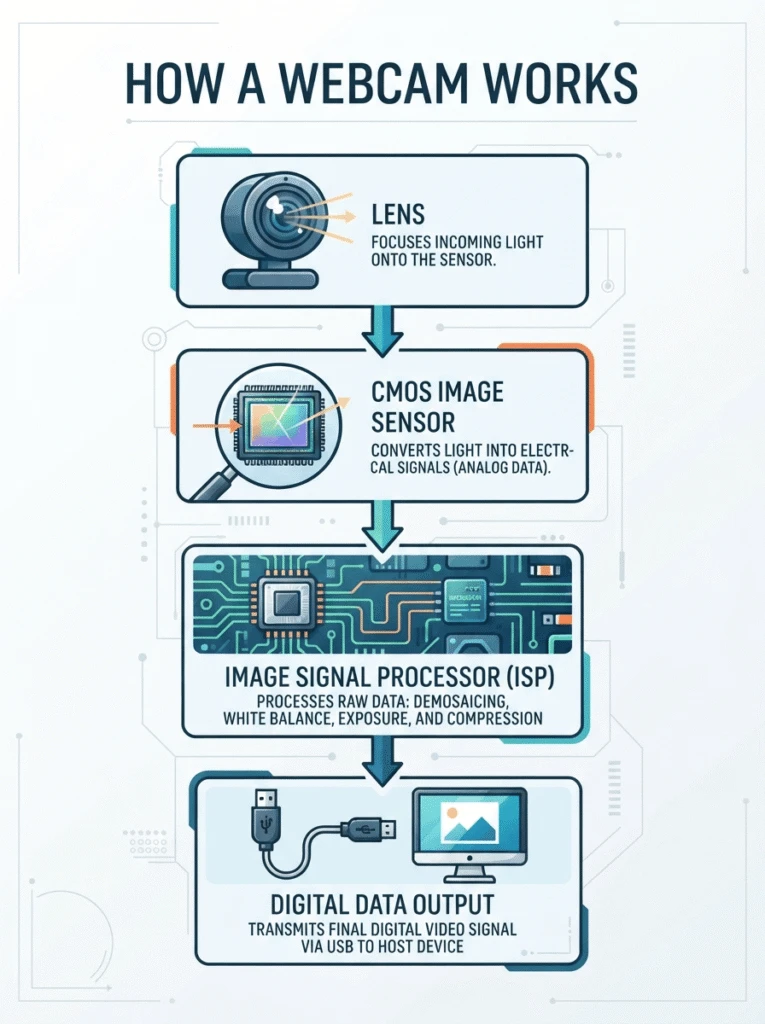
Newer webcams also do some of the work with AI. They can frame you automatically, follow you around the room, or blur your background on the camera itself.
On Windows 11, Windows Studio Effects can add background blur, eye contact, and automatic framing using the NPU (neural processing unit) in Copilot+ PCs, and Microsoft says it now works with compatible external cameras too.
What are the Different Types of Webcams?
There are 12 main types of webcams you’ll find in 2026. I’ve grouped them by how they’re built and what they’re made for, so each type covers a different job and they don’t overlap:
- Personal webcams: built-in, external USB, 4K and streaming, IR (Windows Hello), and AI-tracking webcams
- Devices you turn into a webcam: smartphones and mirrorless or DSLR cameras
- Special-purpose cameras: document cameras
- Meeting room cameras: PTZ cameras, all-in-one video bars, 360-degree cameras, and wireless or network cameras
Now let’s look at each one with a picture.
1. Built-in Webcams

A built-in webcam is the small camera that comes inside your device. You’ll find it in the top bezel of almost every laptop, above the screen of all-in-one PCs like the iMac, in some office monitors, and on the front of tablets and phones.
It’s wired straight to the device’s motherboard, so there’s nothing to plug in or set up. Older laptops used 720p cameras, but most new laptops now ship with 1080p or better. For example, the MacBook Air and MacBook Pro now use a 12MP Center Stage camera that keeps you in the frame and supports Desk View, and many Windows laptops add a privacy shutter and an infrared sensor for face login.
The catch? You can’t move it. The camera looks up at you from desk height unless you raise your laptop on a stand, and its small sensor struggles in dim rooms.
Best for: Students, remote workers, and anyone who joins a few calls a week from a laptop.
Popular examples: Apple MacBook Air (12MP Center Stage camera), Microsoft Surface Laptop, Lenovo ThinkPad X1 Carbon, and Apple iPad (landscape front camera).
- Free, already in your device
- No cables or setup
- Very portable
- Many new models have AI framing and privacy shutters
- Fixed position and unflattering low angle
- Small sensor, weaker in low light
- Can’t be upgraded
2. External USB Webcams
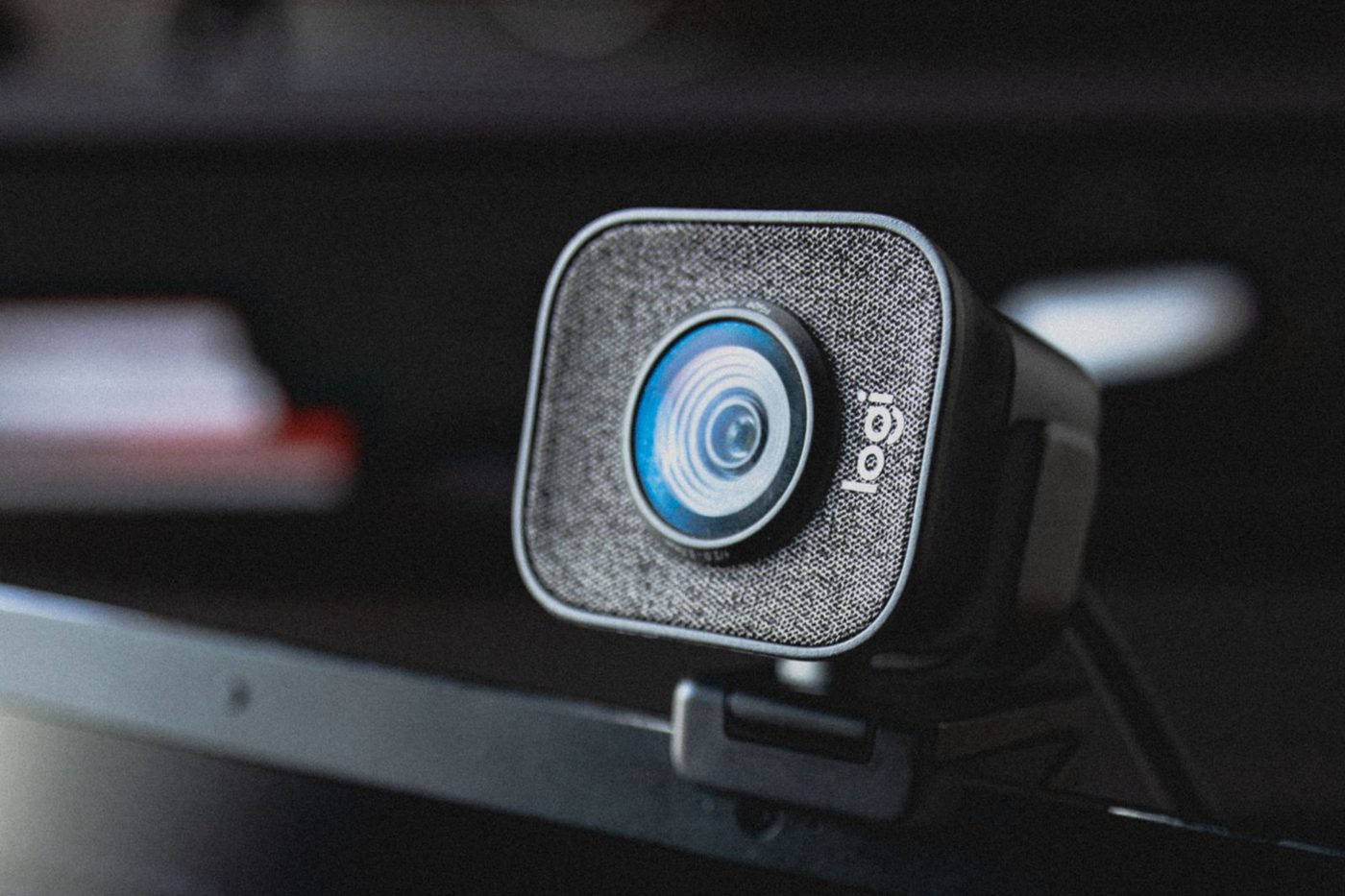
An external USB webcam is a separate camera that connects to your computer with a USB-A or USB-C cable. This is the classic webcam most people picture: a small camera with a hinged clip that sits on top of your monitor or laptop screen.
Because it follows the UVC standard, it’s plug-and-play on almost any computer. Most models also have a 1/4-inch tripod thread under the clip, so you can move the camera to a desk stand at eye level, which looks much more natural on calls.
A good 1080p USB webcam is usually a big step up from a laptop camera, with a larger sensor, autofocus, and better microphones. If you want to compare specific models, see our best video conferencing webcams guide.
Best for: Home offices, desktop PCs without a camera, and anyone who wants a clear upgrade over their laptop camera.
Popular examples: Logitech C920 series, Dell Pro Webcam, and Anker PowerConf C200.
- Plug-and-play on Windows, Mac, ChromeOS, and Linux
- Better image than most laptop cameras
- Can be moved to eye level
- One more thing to carry and plug in
- Built-in mics are usually basic
- Needs a free USB port
3. 4K and Streaming Webcams
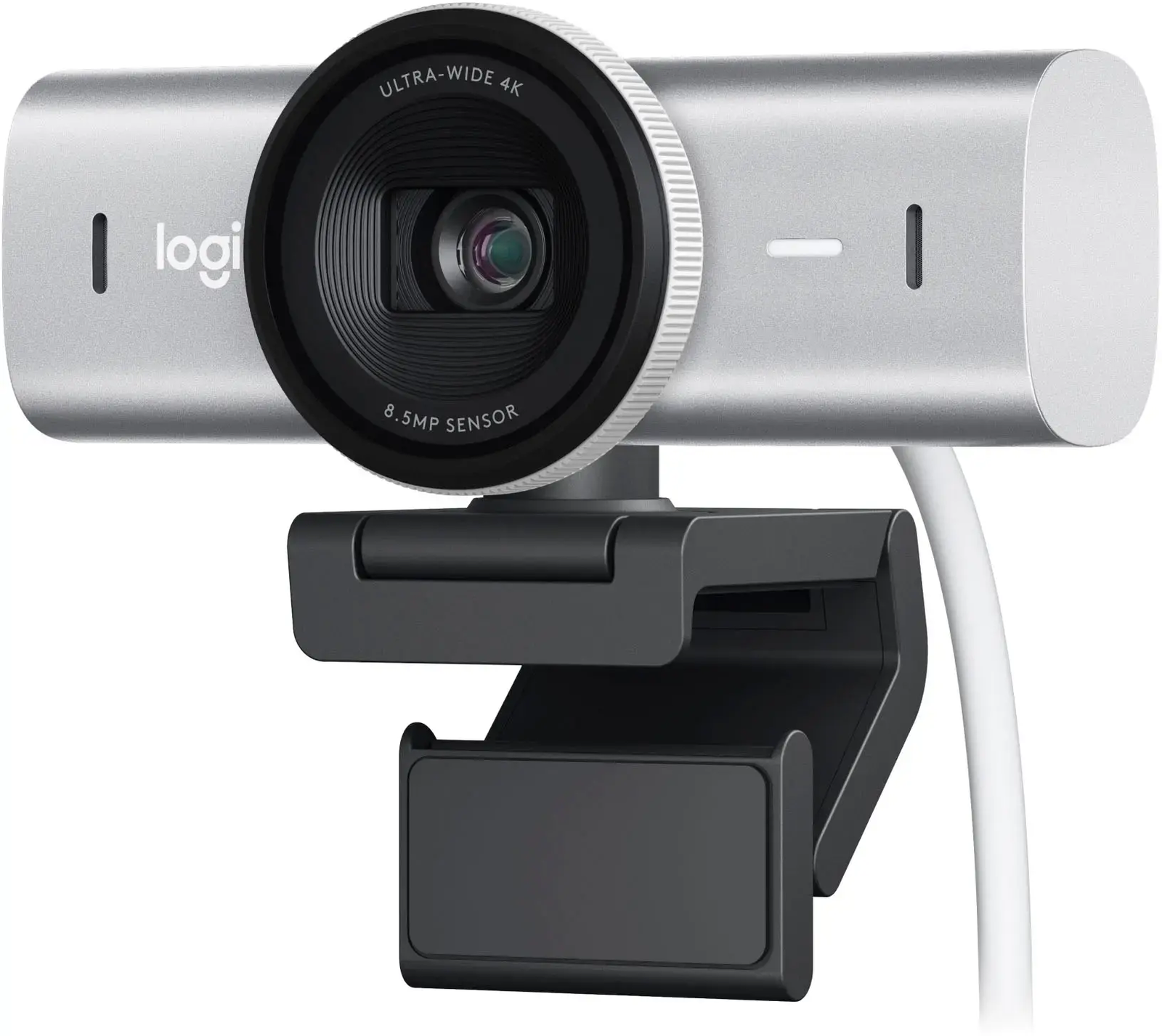
4K and streaming webcams are premium external webcams built for people who care about picture quality. They use larger sensors, record up to 4K (3840 x 2160), and often support 60 frames per second and HDR for smoother motion and better contrast.
Here’s something many people don’t know: Zoom, Teams, and Meet usually send 1080p or less, so a 4K camera won’t look four times sharper on a normal call. The real benefit is the extra detail, which keeps the image sharp when the camera zooms in or crops to frame you, and gives YouTubers and streamers a cleaner recording.
Streaming models usually add manual controls for exposure, white balance, and focus through software, so you can lock your look and keep it the same every day.
Best for: Content creators, streamers, coaches, and professionals who are on camera every day.
Popular examples: Logitech MX Brio, Elgato Facecam 4K, and Insta360 Link 2C.
- Sharp image with room to crop and zoom
- Better low-light and HDR performance
- Manual controls for a consistent look
- Meeting apps rarely show full 4K
- Needs a fast USB port (USB 3.0 or USB-C)
- Uses more computer power when recording
4. IR Webcams with Windows Hello
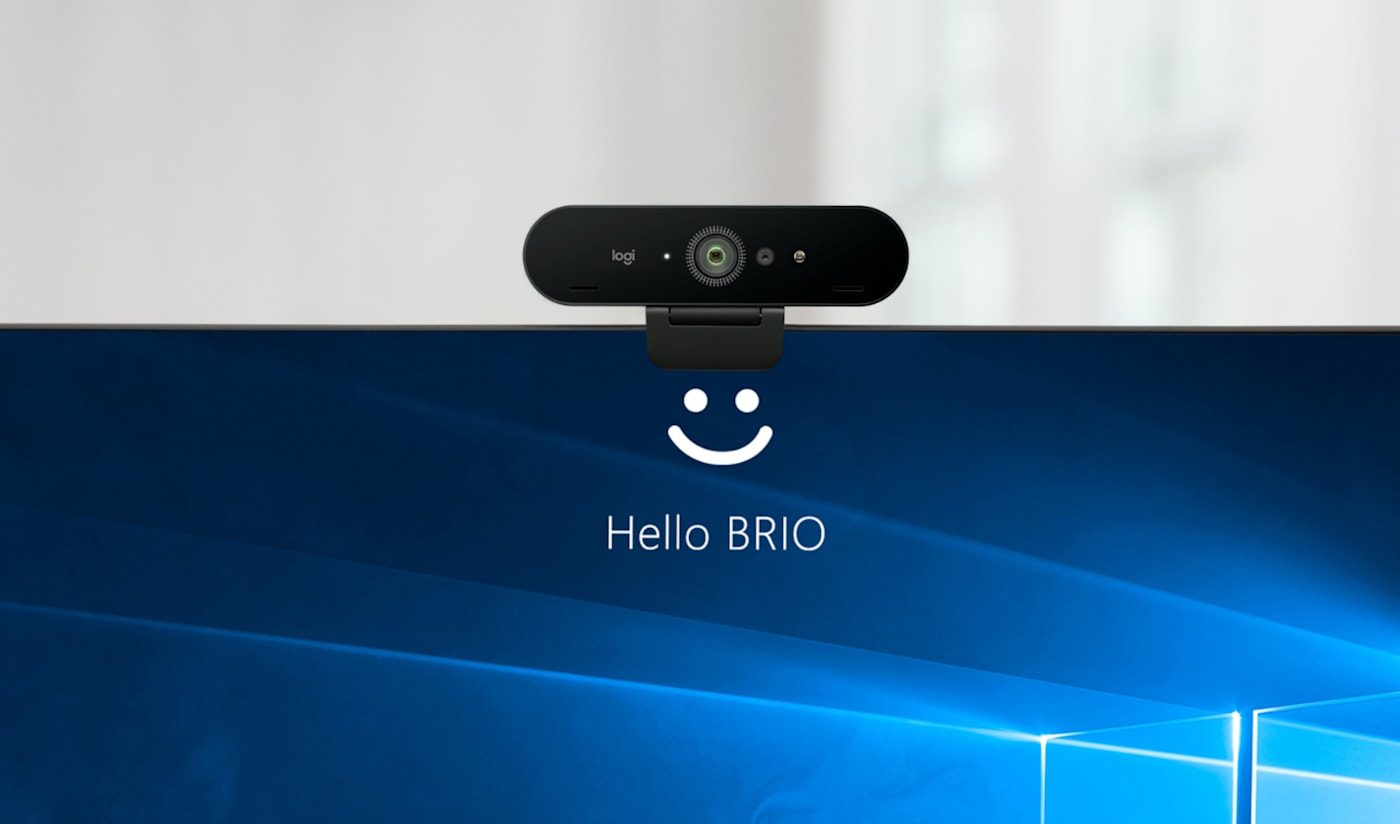
An IR (infrared) webcam has a normal color camera plus an infrared camera and IR light. The infrared part builds a depth map of your face, which lets you sign in to Windows 11 with Windows Hello just by looking at the screen.
Because it reads your face with infrared instead of a flat picture, it works in the dark and can’t be fooled by a photo. You can read how it works in Microsoft’s Windows Hello face authentication documentation.
Many business laptops already have an IR camera built in. If yours doesn’t, or you use a desktop PC, an external IR webcam adds the same face login. Mac users don’t need one, since macOS uses Touch ID instead.
Best for: Office workers and desktop PC users who sign in many times a day and want faster, more secure login.
Popular examples: Logitech Brio 4K and the IR cameras built into many business laptops from Dell, HP, and Lenovo.
- Face sign-in in about a second
- Works in the dark
- Harder to fool than a normal camera
- Windows only
- Fewer models to choose from
- Costs more than a basic webcam
5. AI-Tracking and Gimbal Webcams
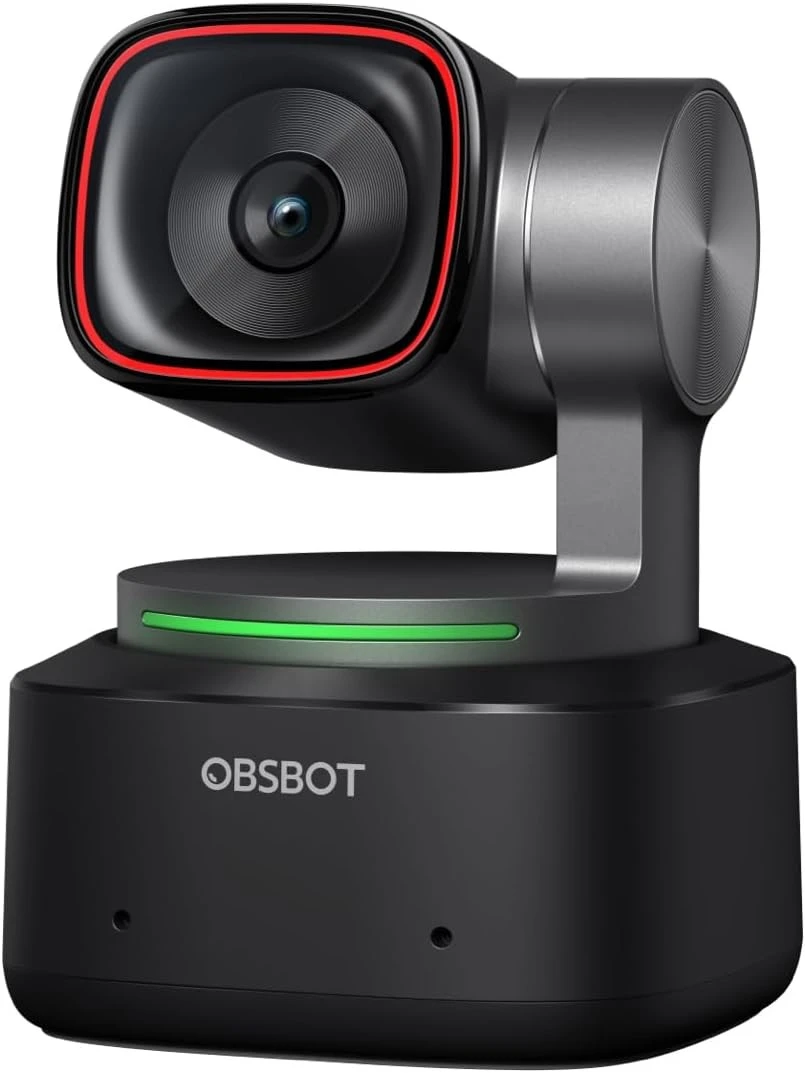
AI-tracking webcams use a small AI chip to find you in the picture and keep you in the frame. Some do it digitally by cropping a wide image, while gimbal models physically turn the camera with small motors (pan and tilt), like a mini PTZ camera for your desk.
This is very handy if you move while you talk. Teachers walking to a whiteboard, fitness coaches, and presenters can stay centered without touching anything. Many models also support gesture control, so you can raise a hand to zoom or start tracking.
Most of them also have desk view and whiteboard modes, so one camera can switch between your face and the notes on your desk.
Best for: Teachers, trainers, presenters, and anyone who stands up or moves around during calls.
Popular examples: OBSBOT Tiny 2, Insta360 Link 2, and OBSBOT Tiny 2 Lite.
- Keeps you centered as you move
- Gesture control and whiteboard modes
- Often 4K with good low-light sensors
- Tracking can follow the wrong person
- Moving parts can wear out
- Needs the brand’s app for full features
6. Smartphones Used as a Webcam
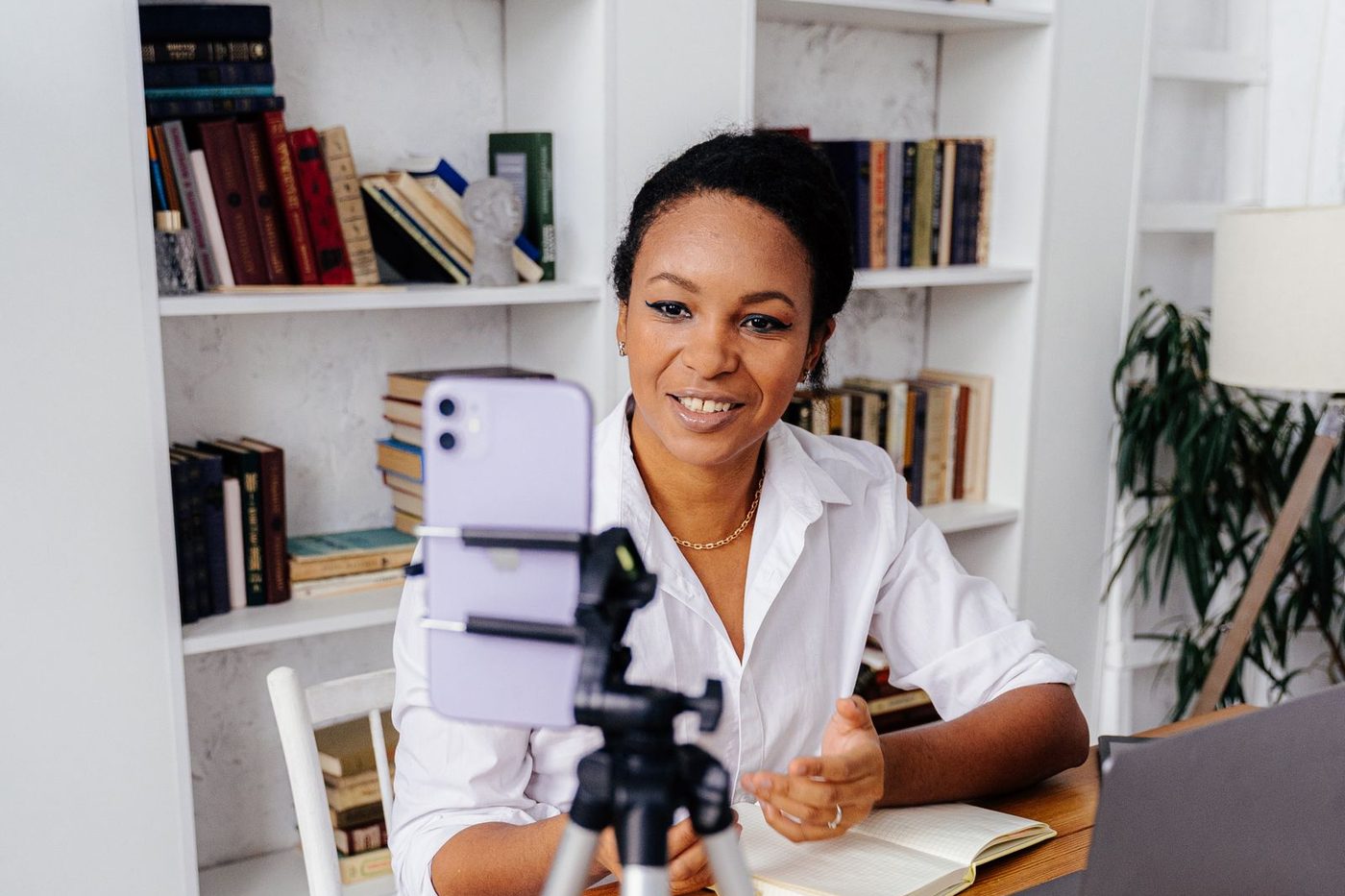
Your phone’s camera is often the best camera you own, and you can now use it as a webcam without any third-party app.
On a Mac, Continuity Camera lets a recent iPhone work as a wireless webcam, with Center Stage, Portrait mode, and Desk View. On Windows 11, you can link an Android phone (Android 10 or later) and turn on Use as connected camera in Settings. Google Pixel phones can also act as a plug-in USB webcam on any computer that supports UVC.
All you need is a small phone mount or tripod to hold it at eye level. I recommend keeping the phone on its charger, because streaming video drains the battery quickly.
Best for: Travelers, people who need a better camera only once in a while, and anyone on a tight budget.
Popular examples: Apple iPhone with Continuity Camera, Google Pixel in USB webcam mode, and Android phones through Phone Link on Windows 11.
- Uses a camera you already have
- Large sensor and great image quality
- Wireless option on Mac and Windows
- Needs a mount and power
- Your phone is busy during the call
- Calls or notifications can interrupt the video
7. Mirrorless and DSLR Cameras as Webcams
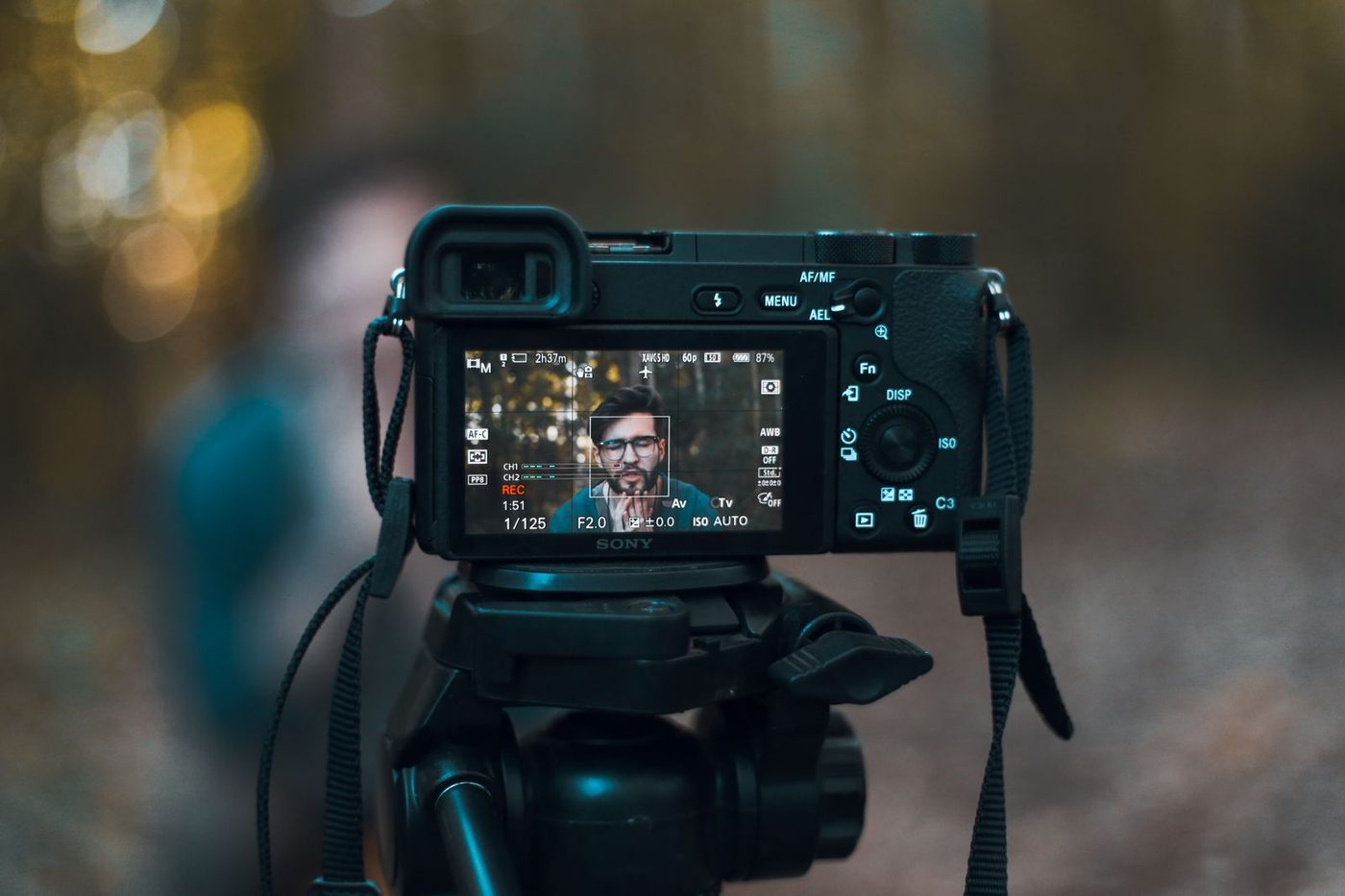
A mirrorless or DSLR camera can also work as a webcam, and it gives you the most professional look of any type here. The big sensor and real lens give you natural background blur, accurate skin tones, and clean video in dim rooms.
Many recent cameras, like the Sony ZV-E10 II, support UVC streaming over a single USB-C cable, so they show up just like a normal webcam. Others need the maker’s webcam software, such as Canon’s EOS Webcam Utility, or an HDMI capture card like the Elgato Cam Link 4K for the best quality.
You’ll also need a dummy battery (AC adapter) so the camera doesn’t shut off in the middle of a long call.
Best for: Streamers, podcasters, online course creators, coaches, and executives who want the best possible image.
Popular examples: Sony ZV-E10 II, Canon EOS R50, Panasonic Lumix G100D, and Fujifilm X-S20.
- Best image quality and natural background blur
- Interchangeable lenses
- Great in low light
- Expensive and bulky
- Needs extra gear (power adapter, capture card, mount)
- Longer setup than a USB webcam
8. Document Cameras (Visualizers)
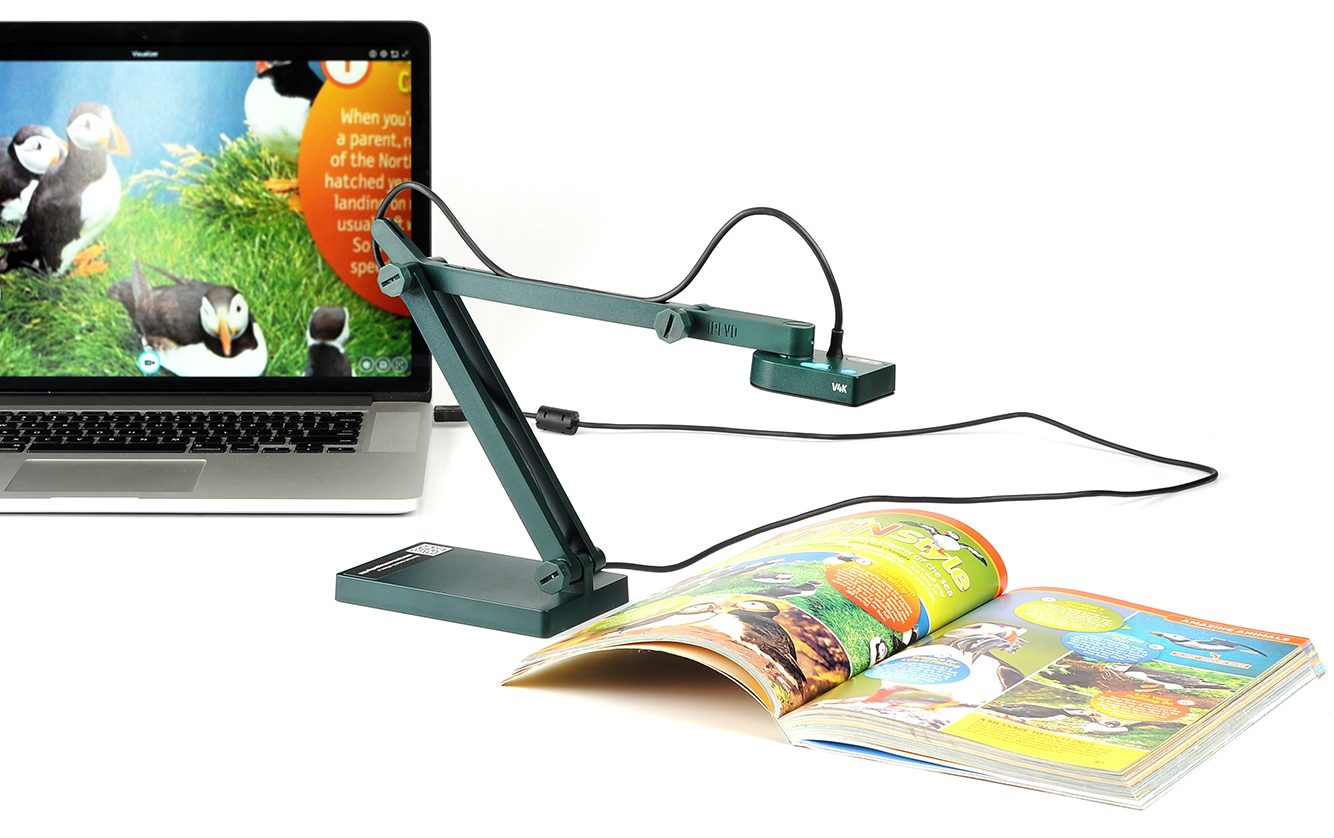
A document camera, also called a visualizer, is a webcam on a tall, bendable arm that points down at your desk. Instead of showing your face, it shows paper documents, books, math work, small objects, or science experiments to everyone in the call.
It works over USB like a normal webcam, so you can pick it as a camera in Zoom, Teams, or Meet, or share it as a second camera next to your face camera. Most models have a high-resolution sensor (often 8MP or 13MP) so small text stays readable, plus a built-in LED light.
If you teach online, this is one of the most useful tools you can add. You can read more ideas in our guide to the benefits of virtual meetings for students.
Best for: Teachers, tutors, trainers, product demos, and anyone who needs to show paper or objects.
Popular examples: IPEVO V4K, IPEVO VZ-X, and OKIOCAM S.
- Shows documents and objects clearly
- Plug-and-play USB
- Flexible arm for different angles
- Not meant for face video
- Takes space on your desk
- Needs good lighting to avoid glare
9. PTZ Cameras
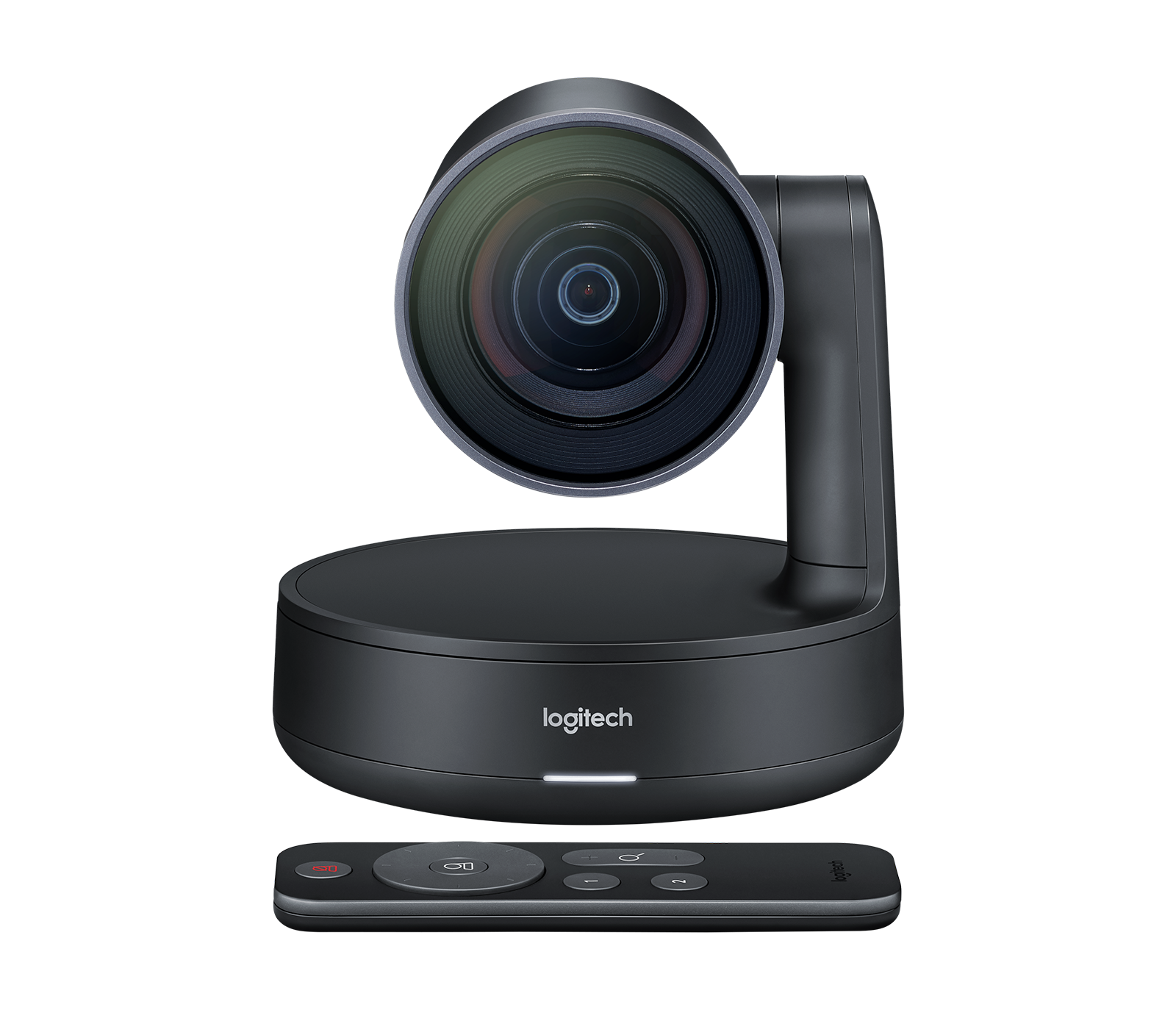
PTZ stands for pan, tilt, and zoom. A PTZ camera has motors that turn the camera left and right (pan), up and down (tilt), and a real optical zoom lens that can get close to someone across a large room without losing quality.
You control it with a remote, an app, or presets, and many newer models use AI to switch to whoever is speaking. They connect over USB for Zoom and Teams rooms, or over HDMI, SDI, and network (IP) for bigger rooms and live production.
PTZ cameras are usually paired with separate microphones and speakers. If you’re planning a full room, check our video conferencing setup requirements.
Best for: Large conference rooms, boardrooms, lecture halls, churches, and event streaming.
Popular examples: Logitech Rally Camera, PTZOptics Move 4K, and AVer CAM520 Pro3.
- Optical zoom for large rooms
- Presets and speaker tracking
- Can be mounted on a wall or ceiling
- Expensive
- Needs separate audio
- More setup than a desk webcam
10. All-in-One Conference Cameras (Video Bars)
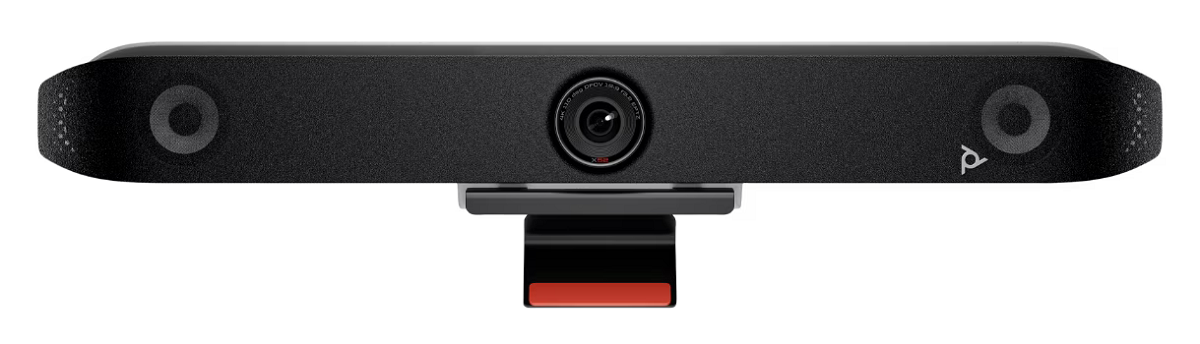
An all-in-one conference camera, often called a video bar, puts a wide-angle camera, a microphone array, and speakers in one long bar that mounts above or below a TV.
Some connect to a laptop over USB, while others run Microsoft Teams Rooms or Zoom Rooms on their own, so the room works without anyone bringing a computer. Most use AI to frame the group and zoom to the person talking.
Because everything is in one device, video bars are the easiest way to set up a small or medium meeting room. We compared the top models in our all-in-one video bar guide.
Best for: Huddle rooms and small to medium conference rooms.
Popular examples: Poly Studio X52, Logitech MeetUp 2, Logitech Rally Bar, and Jabra PanaCast 50.
- Camera, mics, and speakers in one device
- Clean, simple installation
- Many work without a PC (Teams Rooms or Zoom Rooms)
- Costs much more than a personal webcam
- Too small for very large rooms
- Hard to upgrade one part
11. 360-Degree Meeting Cameras
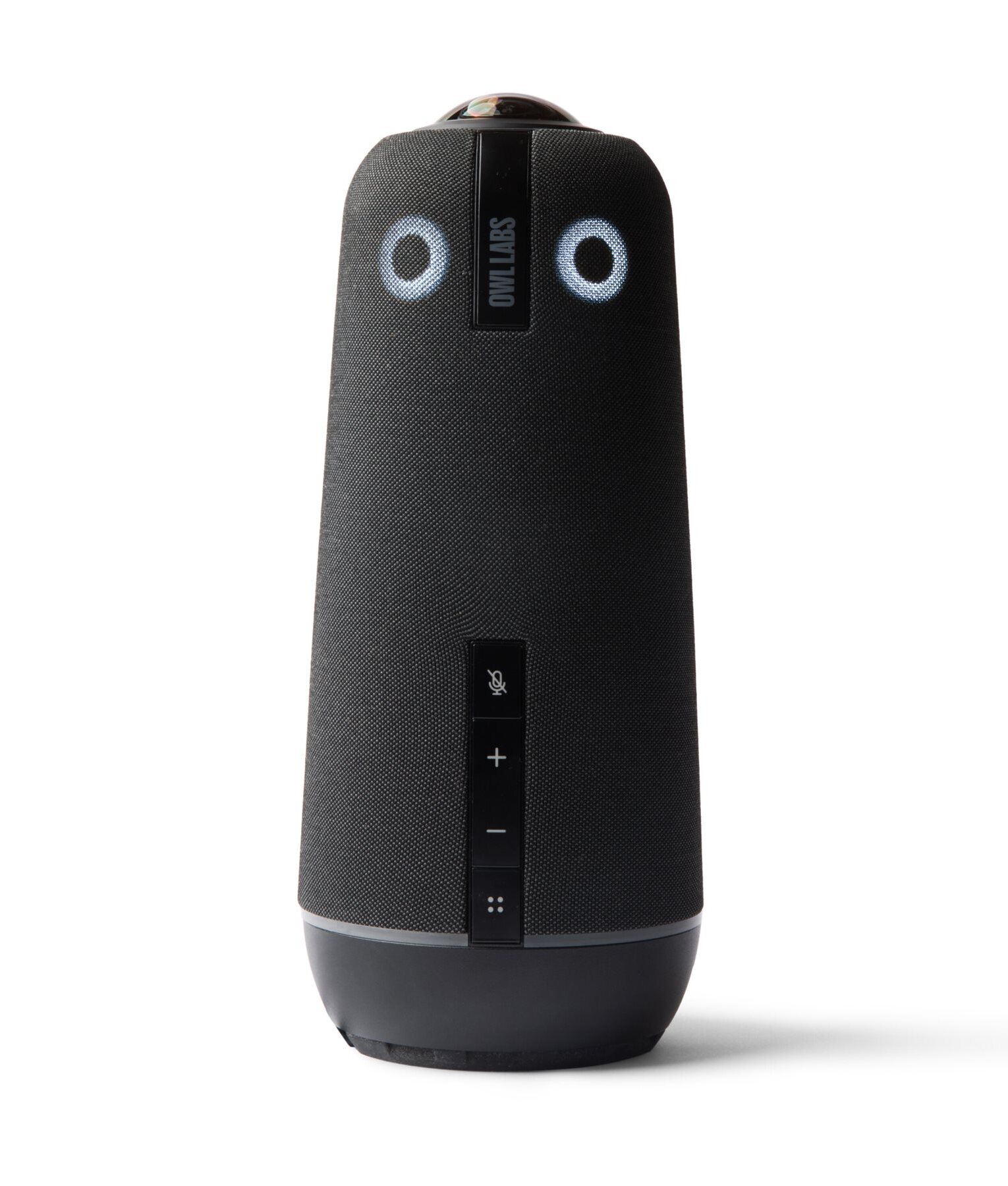
A 360-degree camera sits in the middle of the meeting table and sees the whole room at once. It uses one or more wide fisheye lenses to capture a full panoramic view, then shows a panoramic strip at the top plus close-ups of whoever is speaking.
This gives remote people a much better view of a round-table meeting, because nobody sits with their back to the camera. Most models also include a 360-degree microphone and speaker, so they work as an all-in-one device for the center of the table.
Best for: Small and medium rooms with a round or square table, and hybrid team meetings.
Popular examples: Owl Labs Meeting Owl 4+, Kandao Meeting Pro, and EMEET Meeting Capsule.
- Everyone at the table is visible
- Automatically focuses on the speaker
- Simple setup in the middle of the table
- Lower detail at a distance than a front camera
- Must sit in the middle of the table
- Not suited to long boardrooms
12. Wireless and Network (IP) Cameras
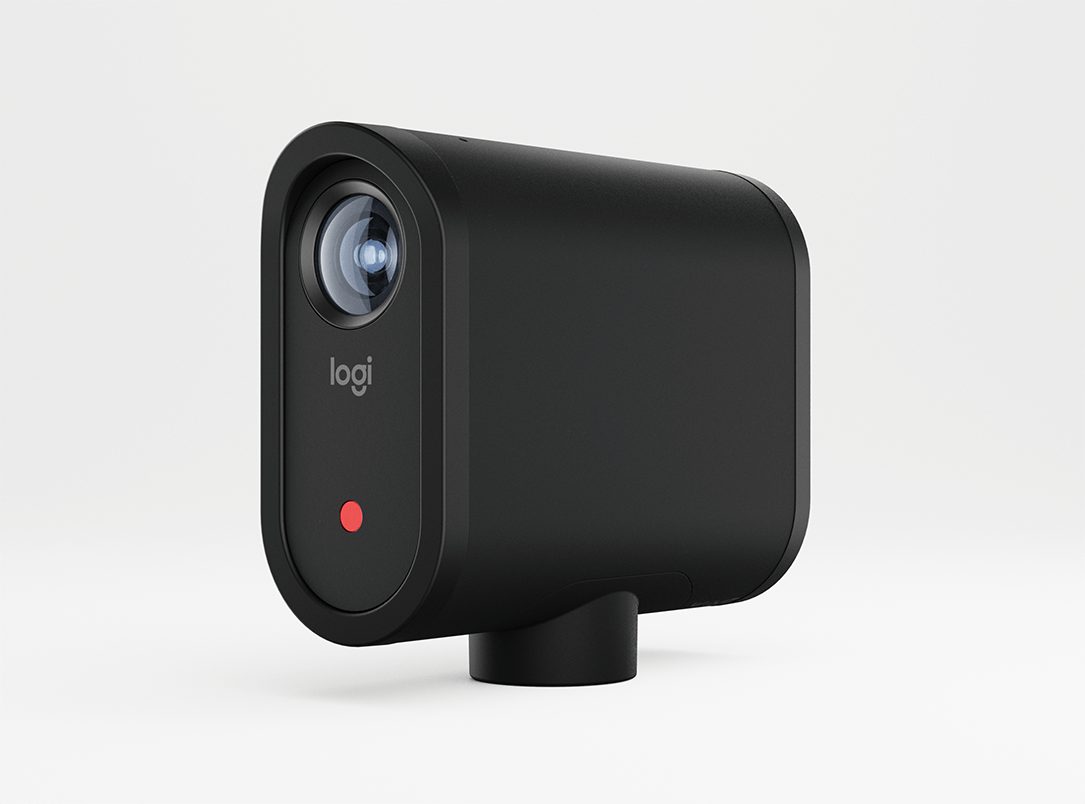
Wireless and network cameras don’t need a USB cable to your computer. Wi-Fi cameras send video over your wireless network, while IP cameras use Ethernet (often with PoE, power over Ethernet) and protocols like NDI or RTSP.
They’re great when the camera has to sit far from the computer, for example at the back of a classroom, across a stage, or on a tripod at an event. Some, like the Mevo Start, can also switch to a USB webcam mode when you need it.
One thing to keep in mind: true Bluetooth webcams don’t really exist, because Bluetooth is too slow for good video. And for daily meetings, I recommend a wired webcam, because Wi-Fi can add delay and drop frames.
Best for: Events, classrooms, live streaming, and rooms where cables are hard to run.
Popular examples: Logitech Mevo Start, PTZOptics network cameras, and wireless conference cameras with a USB receiver.
- Place the camera almost anywhere
- Easy multi-camera setups for streaming
- PoE models need only one cable
- Wi-Fi can lag or drop frames
- More setup than plug-and-play USB
- Battery life limits on wireless models
Built-in vs External Webcam: Which One Do You Need?
This is the first question most people ask, so here is a quick side-by-side look:
My take: if your laptop camera is 1080p and you mostly join short calls, it’s fine. If you’re on video every day, sit at a desktop, or care about how you look, I recommend an external webcam.
Other Ways to Group Webcams: Resolution, Lens, and Connection
You’ll also see webcams sorted by specs like resolution, lens, and connection. These aren’t separate types, because any type above can have them. Here is what they mean:
| Resolution | Pixels | What it’s good for |
|---|---|---|
| 720p (HD) | 1280 x 720 | Basic calls; mostly older laptops and budget webcams |
| 1080p (Full HD) | 1920 x 1080 | The sweet spot for Zoom, Teams, and Meet |
| 1440p (2K / QHD) | 2560 x 1440 | Sharper cropping and streaming |
| 4K (UHD) | 3840 x 2160 | Creators, AI framing, and digital zoom |
You may see 8K webcams online, but there are no mainstream 8K webcams for meetings, and no meeting app would send that much detail anyway.
| Lens or focus | How it works | Best for |
|---|---|---|
| Fixed focus | Focus is set at the factory for a normal desk distance | Budget webcams and laptops |
| Autofocus | Focuses automatically when you move or hold up an object | Most people; showing products or notes |
| Wide-angle (90 to 120 degrees) | Captures more of the room or several people | Small groups and huddle rooms |
| Fisheye or panoramic (180 to 360 degrees) | Very wide lenses, often stitched together | 360-degree and panoramic meeting cameras |
| Optical zoom | Lens elements move to get closer without losing detail | PTZ cameras in large rooms |
| Connection | Typical use |
|---|---|
| USB-A / USB-C (UVC) | Plug-and-play personal webcams and video bars |
| HDMI or SDI | PTZ and production cameras, often with a capture card |
| Wi-Fi | Wireless streaming cameras and phones |
| Ethernet (IP, PoE, NDI) | Network PTZ cameras in rooms, churches, and events |
Finally, some webcams are certified for a platform, like Microsoft Teams certified devices or Zoom and Google Meet certified hardware. Certified cameras are tested for image quality and compatibility, so they’re a safe choice for offices.
Which Type of Webcam Should You Choose?
Here is a quick cheat sheet to match a webcam type to how you work:
| If you… | Choose this type |
|---|---|
| Join a few calls a week from a laptop | Built-in webcam |
| Want a cheap, clear upgrade for your desk | External USB webcam (1080p) |
| Stream, record videos, or present every day | 4K streaming webcam or mirrorless camera |
| Want face login on a Windows desktop | IR webcam with Windows Hello |
| Move around or teach at a whiteboard | AI-tracking or gimbal webcam |
| Need a better camera only sometimes | Your smartphone |
| Show books, papers, or objects | Document camera |
| Set up a small or medium meeting room | All-in-one video bar or 360-degree camera |
| Equip a large boardroom or hall | PTZ camera |
| Place a camera far from the computer | Wireless or network (IP) camera |
Whatever type you pick, good lighting and a camera at eye level matter as much as the camera itself. For more tips, read our virtual meeting etiquette guide.
Conclusion:
Hopefully, this guide has given you a clearer idea of the different types of webcams and which one fits you best.
For personal use, it mostly comes down to four choices: your built-in camera, an external USB webcam, a 4K or AI-tracking webcam, or a phone or mirrorless camera you already own. For meeting rooms, think about the room size and table shape: a video bar or 360-degree camera for small rooms, and a PTZ camera for big ones.
If you’re ready to buy, our ultimate guide to the best video conferencing webcams compares the top models in detail.
So, which type of webcam are you using right now? Please let us know by commenting below and giving us a star rating to rate this post. And, if you have any questions or suggestions, feel free to contact us. We’ll be happy to hear your thoughts, thanks.
FAQs
Below are answers to some additional frequently asked questions about webcam types: