
Imagine a meeting where your client speaks Spanish, your developer speaks Japanese, and you speak English. A few years ago, you needed a human interpreter or a lot of patience. Today, your meeting app can translate for you while people talk.
Google Meet can now translate speech in real time in a voice like the speaker’s, Microsoft Teams has an AI Interpreter, and Zoom can show captions in dozens of languages. But each one works differently, and most of them need a paid plan.
So, which option should you use, and how do you turn it on?
Don’t worry!
In this guide, we’ll show you how to use live translation in video meetings, step by step, in Google Meet, Zoom, and Microsoft Teams.
You’ll also learn the difference between translated captions and speech translation, which plans you need, what you can do on a free account, and how to get the most accurate translations.
So, let’s get started.
What Is Live Translation in Video Meetings?
Live translation means the meeting app turns what someone says into another language while the meeting is happening. There’s no need to wait for a recording or a transcript. There are two main types.
1. Translated Captions
The app listens to the speaker, writes their words as captions, and then translates those captions into the language you choose. You read along at the bottom of the screen while still hearing the original voice.
Translated captions are built on top of normal live captions. If you haven’t used captions yet, start with our guide on how to turn on live captions in Zoom, Google Meet, and Teams.
2. Speech Translation (Speech-to-Speech)
This is the newer and more impressive type. The app translates the speaker’s voice into spoken audio in your language. You hear the translation over (or instead of) the original voice, almost like having a personal interpreter in your ear.
Google Meet calls this Speech Translation, and Microsoft Teams calls it Interpreter. Both can even make the translated voice sound like the original speaker.
Translated Captions vs Speech Translation
Here’s a quick comparison of the two types:
In practice, many people use both together. Google Meet, for example, can show captions in the same language as the translated audio you’re hearing, so you can read and listen at the same time.
Which Meeting Apps Offer Live Translation?
Here’s what each platform offers and which plans you need:
| Platform | Translated captions | Speech-to-speech translation | Who needs the paid plan |
|---|---|---|---|
| Google Meet | Yes, 69 languages | Yes, Speech Translation in 63 languages | Host of a scheduled meeting (Google AI Pro, AI Ultra, or eligible Workspace plans) |
| Zoom | Yes, 36 fully supported languages | No built-in voice translation | Host (Business Plus or Enterprise plans, or the Translated Captions add-on) |
| Microsoft Teams | Yes | Yes, Interpreter in 10 languages | Organizer for captions (Teams Premium or Copilot); each listener for Interpreter (Copilot) |
As you can see, live translation is not part of any free plan. If you’re still choosing a platform, our comparison of Zoom vs Google Meet vs Teams free plans explains what each free plan does include.
How to Use Speech Translation in Google Meet?
Google Meet’s Speech Translation detects the language each person speaks and translates it into your preferred language as they talk. When you speak, it translates your voice for others in a voice like yours.
What You Need
- An eligible plan: Google AI Pro (90 minutes per meeting), Google AI Ultra (8 hours per meeting), or Google Workspace Business Standard, Business Plus, Enterprise Standard, Enterprise Plus, or Frontline Plus (90 minutes per meeting).
- The right person on the plan: In a scheduled meeting, the host must have an eligible plan. In a direct Meet call, at least one participant needs it.
- Age and region: Participants under 18, and people in regions where the feature isn’t available, can’t be translated.
Google AI Pro costs $19.99 per month in the US, and you can compare the plans on the Google AI plans page.
Turn On Speech Translation
- Join your Google Meet meeting on a computer.
- At the bottom, hover over the Captions and translation button.
- Click Translate speech.
- If it’s your first time, select the language you want to hear translations in, then click Next.
- To let Meet translate what you say for other people, click Translate me.
A Speech Translation icon now appears on your screen, with text that tells you when you’re hearing a translation or being translated yourself.
Note: Other participants also need to turn on Speech Translation to hear translations. Meet shows them a notification asking if they want to turn it on.
Add Captions to Speech Translation
- Hover over the Captions and translation button.
- Click Translate speech.
- Click Turn on captions.
Captions will now appear in the same language as the translated audio you hear.
Turn Off Speech Translation
Hover over the Captions and translation button and click the Translating to [language] button.
If you only want to stop Meet from translating your own voice, open the Speech translation settings from the same button and, in the Translate my voice section, click Don’t translate me.
How to Turn On Translated Captions in Google Meet?
If you prefer reading instead of listening, use translated captions. They’re available on Google Workspace Business Standard, Business Plus, Enterprise Standard, Enterprise Plus, and Google AI Pro for Education.
- Join a meeting in Google Meet on your computer.
- At the bottom, hover over Captions and translation and click Turn on captions.
- In the drop-down menu on the left, select Translated captions.
- To change the language, use the same drop-down menu, or click More options > Settings > Captions, select Translated captions under Language, and choose the Translate from and Translate to languages.
You can also scroll up in the captions to review earlier parts of the conversation, as long as you were in the meeting with captions on.
Tip: Some languages are still rolling out or in beta, so translation quality may vary between language pairs.
How to Use Translated Captions in Zoom?
Zoom doesn’t translate voices, but its translated captions work well for multilingual meetings and webinars. Only the host needs the right license. The host must be on a Zoom Workplace Business Plus, Enterprise Essentials, Enterprise Plus, or Enterprise Premier account, or have the Zoom Translated Captions add-on.
Step 1: Set Up Language Pairs (Host)
Before the meeting, the host turns on translated captions in the Zoom web portal settings. Sign in, go to Settings > Meeting > In Meeting (Advanced), and turn on Translated captions. Then, choose which speaking languages can be translated into which caption languages. These are called language pairs, and participants can only pick from the pairs the host allows.
Automated captions also need to be enabled, because translated captions are built on them.
Step 2: Turn On Captions (Participant)
- Join the Zoom meeting or webinar from the desktop app or web app.
- In the meeting controls toolbar, click Show Captions. If you don’t see it, click More first.
- Captions appear above the toolbar. By default, English is the speaking language.
Step 3: Set the Speaking Language
If the speaker isn’t talking in English, click the up arrow next to Show Captions, open the Caption language menu, and select the language being spoken. This only fixes the source language, it doesn’t translate anything yet.
Step 4: Choose Your Translation Language
- Click the up arrow next to Show Captions.
- Under Captions and translation, enable Translation and select the language you want.
- Click Save.
Each participant can choose their own translation language, and Zoom remembers your choice for future meetings.
Note: On the free Zoom Basic plan, you can still use automated captions in the spoken language. Zoom’s captions help page lists all supported caption languages.
How to Use Live Translation in Microsoft Teams?
Teams gives you two options: live translated captions and the Interpreter agent for speech-to-speech translation.
Use Live Translated Captions
According to Microsoft’s live captions guide, translated captions are part of Teams Premium and Microsoft Copilot. If the meeting organizer has one of these licenses, everyone in the meeting can use translated captions. If only some participants have a license, only they will see the Translate to option.
- In your meeting controls, select More actions.
- Select RTT, then select Turn on.
- Hover over the RTT pane and turn on the Live Captions toggle.
- In the RTT pane, select More options > Open caption settings.
- Make sure the Meeting spoken language is correct.
- Hover over Translate to and choose your language.
Use Interpreter for Speech-to-Speech Translation
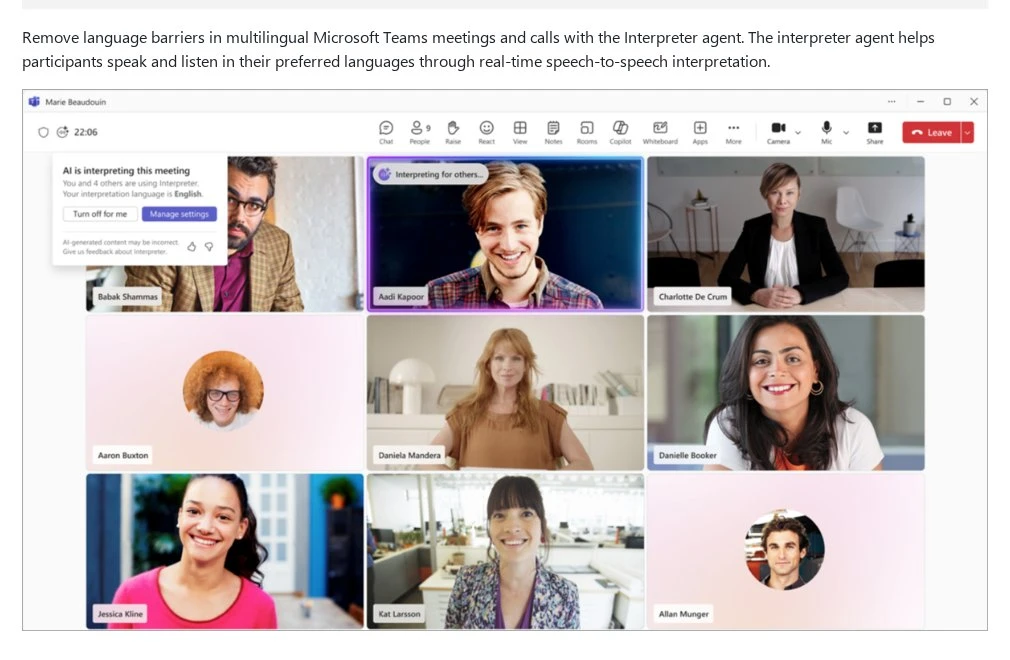
The Interpreter agent translates speech into each participant’s preferred language in real time. It needs a Microsoft Copilot license for each person who uses it, which includes 20 hours of interpretation per person per month. It currently supports English, Spanish, Portuguese, Japanese, Simplified Chinese (Mandarin), Italian, German, French, Korean, and Taiwanese.
To turn on Interpreter on desktop:
- Select More actions in your meeting controls.
- Select Language and speech > Interpreter > Turn on for me.
- Choose your language from the Listen to meeting in drop-down menu.
- Adjust the Balance volume slider to hear more of the original or the interpreted audio.
- Under Choose your voice when interpreted, pick Simulate my voice or an automated voice.
- Select Turn on.
Interpreter works in meetings with up to 1,000 participants and in 1:1 Teams calls. It isn’t supported in ad-hoc meetings, town halls, webinars, or Teams Free meetings. Guests and anonymous attendees can’t use it either.
Translated Captions in Town Halls
For large events, organizers can preselect caption languages in the meeting options under Engagement > Translate attendee captions. They can choose up to six languages, or ten with Teams Premium. If you’re planning a bigger event, also read our guide on how to host a free webinar step by step.
Can You Get Live Translation for Free?
Honestly, not inside the meeting apps. Zoom Basic, free Google Meet, and Teams Free don’t include translated captions or speech translation. But you still have a few useful options.
- Use live captions in the spoken language: All three free plans offer live captions, which help people who understand a language better when they can read it.
- Join a host who has a paid plan: In Google Meet, Zoom, and Teams, a licensed host or organizer can make translated captions available to everyone, even free users.
- Share written materials: Send the agenda and slides before the meeting so people can translate them in advance.
- Use the chat: Typed messages are easier to translate with any translation app than fast speech.
Tips to Get More Accurate Live Translations
Real-time translation makes more mistakes than translating a recording or written text. Names, technical words, and the gender of nouns can come out wrong. These tips, based on Google’s and Microsoft’s own advice, make a big difference.
- Speak one language at a time: If you’re bilingual, stick to one language so the app doesn’t get confused.
- Use short, clear sentences: Pause often and avoid slang or complicated terms.
- Wait for the translation to finish: Both Meet and Teams show an indicator while a translation is playing. Wait until it disappears before you reply.
- Don’t talk over each other: Use the raise hand button so only one person speaks at a time.
- Use a good microphone and stable internet: Poor audio and weak connections lower translation quality.
- Set the right spoken language: In Zoom and Teams, a wrong spoken language setting produces nonsense captions.
- Back it up visually: Share your screen, put key numbers in the chat, and use slides with clear text.
These habits are also simply good meeting manners. Our guide on virtual meeting etiquette covers more of them.
What Are the Limitations of Live Translation?
- Recordings don’t keep translations: Google Meet Speech Translation isn’t available in recordings or live streams, and Teams recordings only capture the original audio.
- Translated transcripts can disappear: In Teams, translated transcripts are only available live. After the meeting, the transcript shows the original language.
- There’s a delay: Translations arrive a few seconds after the speaker, which makes quick back-and-forth discussions harder.
- Conference rooms are limited: In Google Meet, people in a Meet hardware conference room can hear translations but won’t be translated themselves.
- It’s not a certified interpreter: For legal, medical, or contract discussions, a professional human interpreter is still the safer choice.
If some people join from a meeting room and others from home, see our guide on how to run a hybrid meeting so remote people are not left out.
Conclusion:
Hopefully, this guide has helped you learn how to use live translation in video meetings.
In short, Google Meet offers both Speech Translation and translated captions, Zoom offers translated captions for licensed hosts, and Microsoft Teams offers translated captions plus the Interpreter agent. None of these are included in free plans, but a licensed host can often share the feature with everyone in the meeting.
I recommend starting with translated captions, because they’re easier to follow and help everyone, then trying speech translation for conversations where people don’t share any common language. Live translation is quickly becoming one of the most valuable features of a virtual meeting platform.
Have you tried live translation in your meetings yet? Please let us know by commenting below and giving us a star rating to rate this post. And if you have any questions or suggestions, feel free to contact us. We’ll be happy to hear your thoughts, thanks.