
Do you look grainy, dark or slightly out of focus on every Zoom call?
That’s usually the built-in laptop camera. Small sensors struggle in normal room light, and they sit at an angle that looks up your nose.
A good external webcam fixes most of it. Zoom works with any standard USB webcam, and many models are certified for Zoom and Teams.
When I set up a desk for video calls, the camera is the first thing I change, before lights or mics.
In this guide, I’ll walk you through the features that matter on Zoom and the 6 best webcams for Zoom meetings in 2026!
If you’re equipping a meeting room rather than a desk, video conferencing webcams and conference cameras cover bigger spaces. Here, I’ll focus on one person at a desk on Zoom.
Let’s get it started!
What Makes a Webcam Good for Zoom?
For Zoom, a good webcam gives you a sharp 1080p or better image, keeps your face exposed in uneven light, focuses quickly and plugs in without drivers. Built-in mics are a bonus, not the main reason to buy.
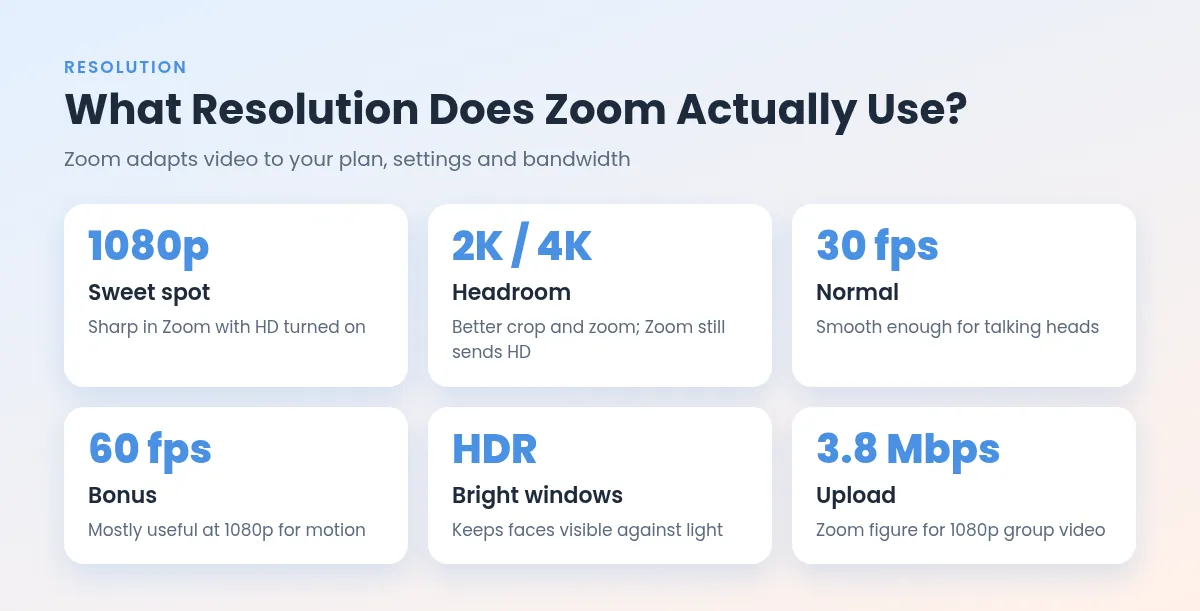
Zoom adapts video quality to your settings and connection. Its bandwidth guidance lists about 3.8 Mbps upload for 1080p group video, so a 4K webcam mostly helps with cropping, zoom and low light.
How Many People Should the Webcam Cover?
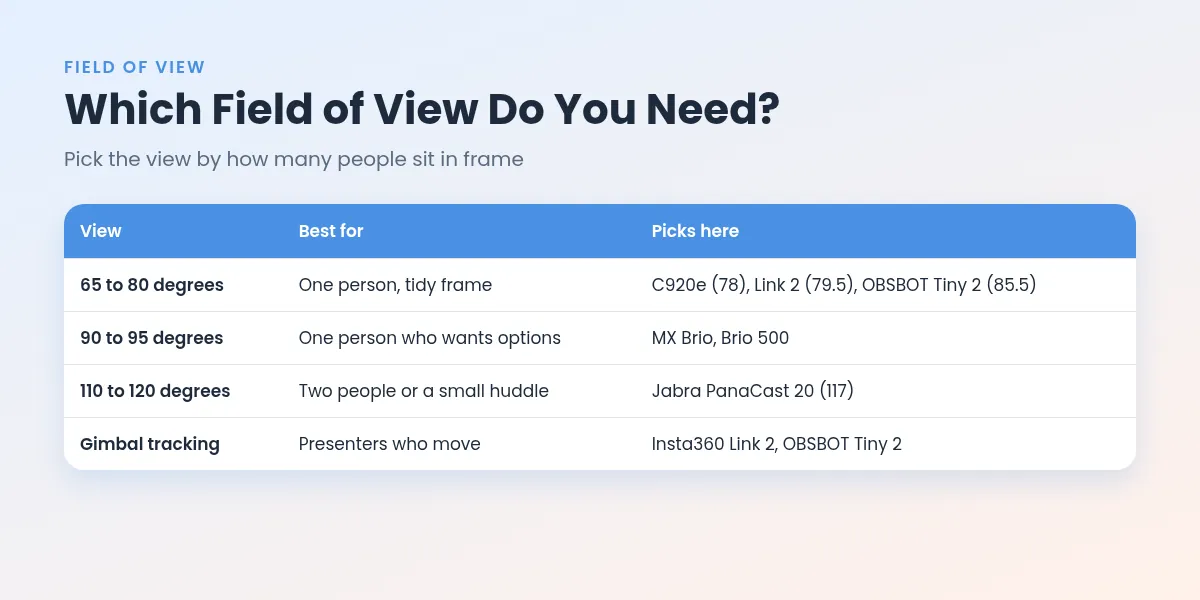
Most webcams on this list are designed for one person. If two people share the desk, look for a view of about 110 degrees or more.
Essential Features to Look for When Buying a Webcam for Zoom Calls
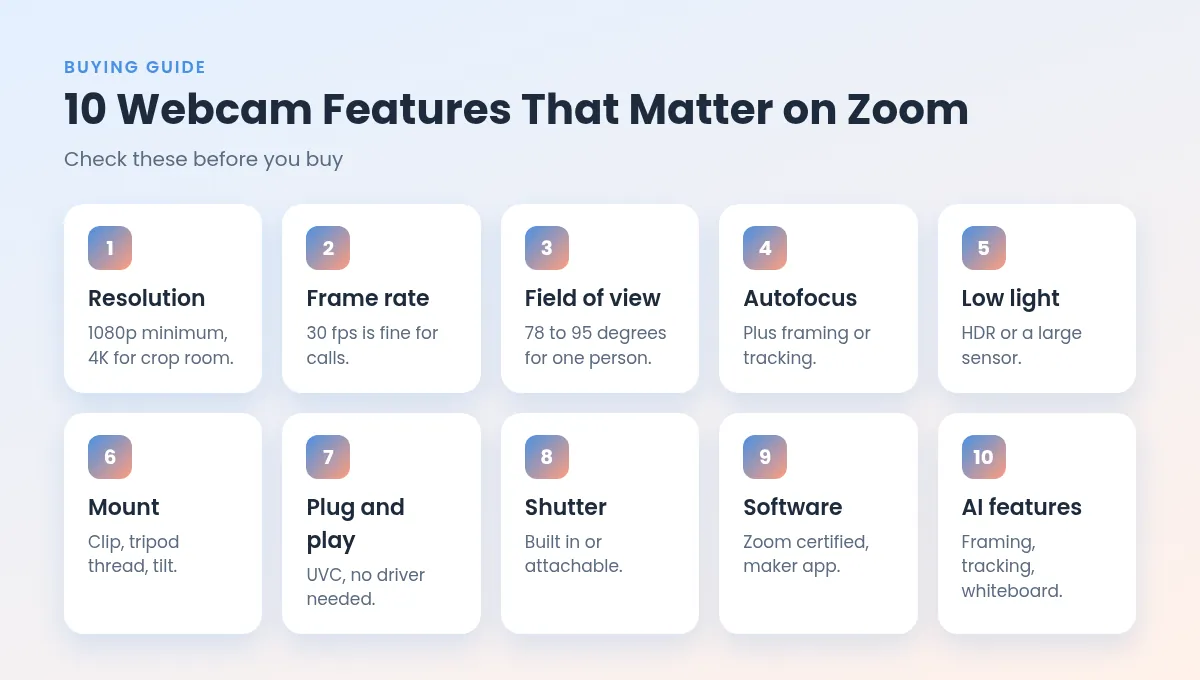
Camera Resolution
Choose 1080p as a minimum. 2K and 4K webcams add detail that helps when the camera crops or zooms, even though Zoom sends HD video.
Frame Rate
30 fps is smooth for talking. 60 fps at 1080p helps if you demo products or move a lot.
Field of View (FOV)
A 78 to 95 degree view frames one person well. Wider lenses show more of the room, which isn’t always what you want.
Autofocus & Face Tracking
Autofocus keeps you sharp when you lean in. Face tracking or auto-framing keeps you centred if you move in your chair.
Low-Light Performance
Larger sensors and HDR handle dim rooms and bright windows better. Look for HDR, STARVIS or 1/2-inch and larger sensors.
Adjustable Mounting and Angle
A good clip fits laptops and monitors. A 1/4-inch tripod thread lets you put the lens at eye level.
Plug-and-Play Compatibility
Standard USB webcams work with Zoom on Windows, macOS and ChromeOS without drivers. Check you have the right port: USB-C, USB-A, or USB 3.0 for some 4K models.
Privacy Shutter
A built-in or attachable shutter is the simplest privacy control. Gimbal cameras often point down when idle instead.
Platform Compatibility & Software
Zoom or Teams certification means the camera has been checked with that platform. Maker apps like Logi Tune, Jabra Direct or OBSBOT Center add presets and image controls. You can also find add-ons in the Zoom App Marketplace.
AI Features
Auto-framing, tracking and whiteboard modes are useful for teachers and presenters, and those features show up across different webcam types.
Best Webcams for Zoom Meetings in 2026
These six cover every budget and use case, from a 4K webcam with AI framing to a dependable 1080p business webcam.
Logitech MX Brio
Specifications
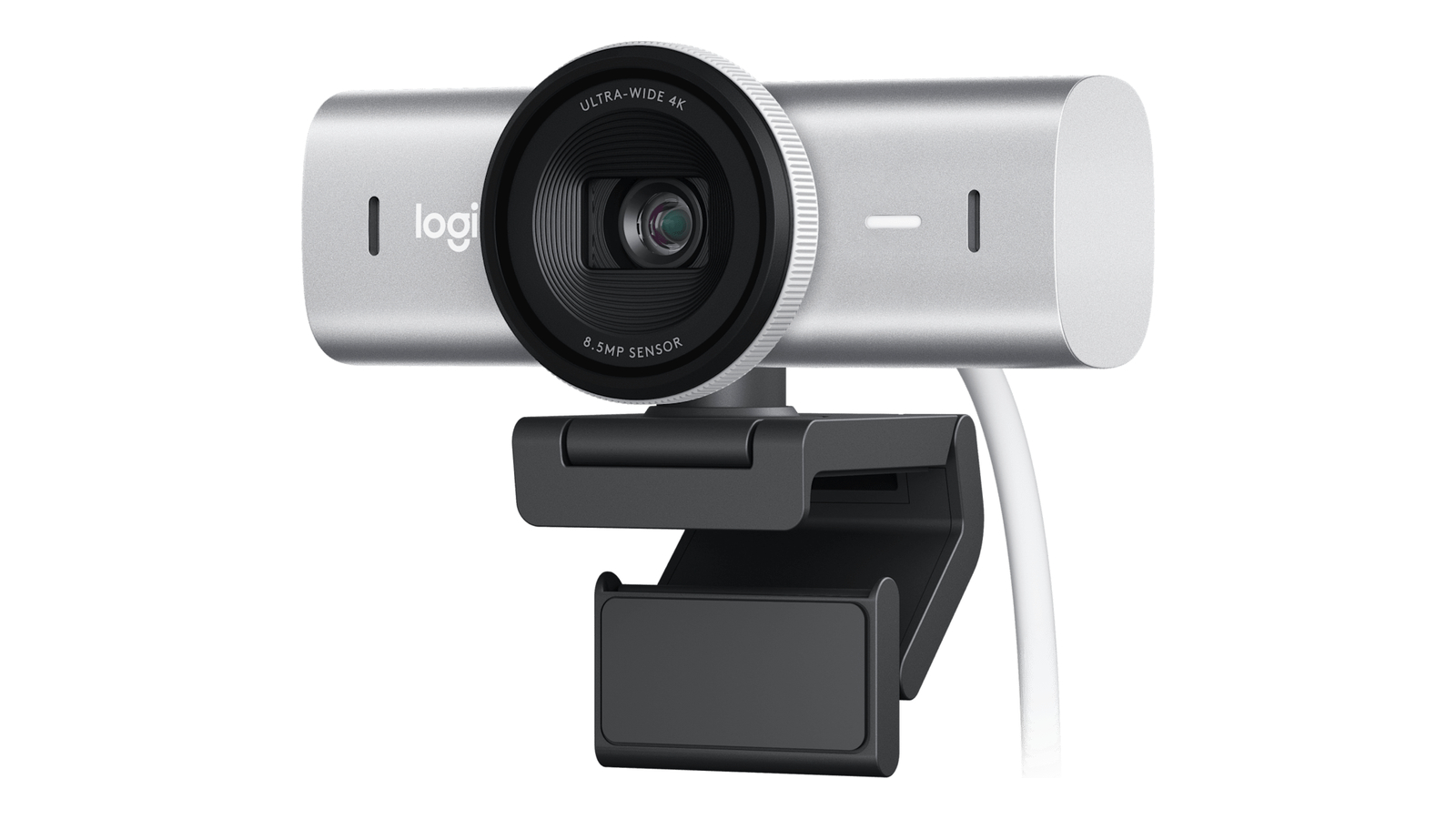
Brand: Logitech | Resolution: 4K at 30 fps, 1080p at 60 fps | Sensor: 8.5 MP Sony STARVIS | Field of view: 90, 78 or 65 degrees, 4x digital zoom | Low light: RightLight 5 with HDR | Mics: Dual beamforming, AI noise reduction | Privacy: Built-in shutter | Connection: USB-C (USB 3.0) | Certified: Microsoft Teams, Zoom, Google Meet
Why I Picked the Logitech MX Brio?
The Logitech MX Brio is the webcam I recommend first for Zoom. Its 8.5 MP Sony STARVIS sensor handles dim rooms well, and RightLight 5 balances faces against bright windows.
You get 4K at 30 fps or 1080p at 60 fps, three field-of-view presets and Show Mode, which tilts down to show your desk. It’s certified for Zoom, Teams and Google Meet.
Plan for a USB-C port with USB 3.0, because there’s no USB-A cable in the box.
Who It’s For?
It’s for executives, presenters and anyone who spends hours a day on Zoom and wants the best picture from a standard webcam.
- Large Sony STARVIS sensor
- 4K30 or 1080p60
- Built-in shutter
- Zoom certified
- Needs USB-C with USB 3.0
- 4K limited to 30 fps
Insta360 Link 2
Specifications
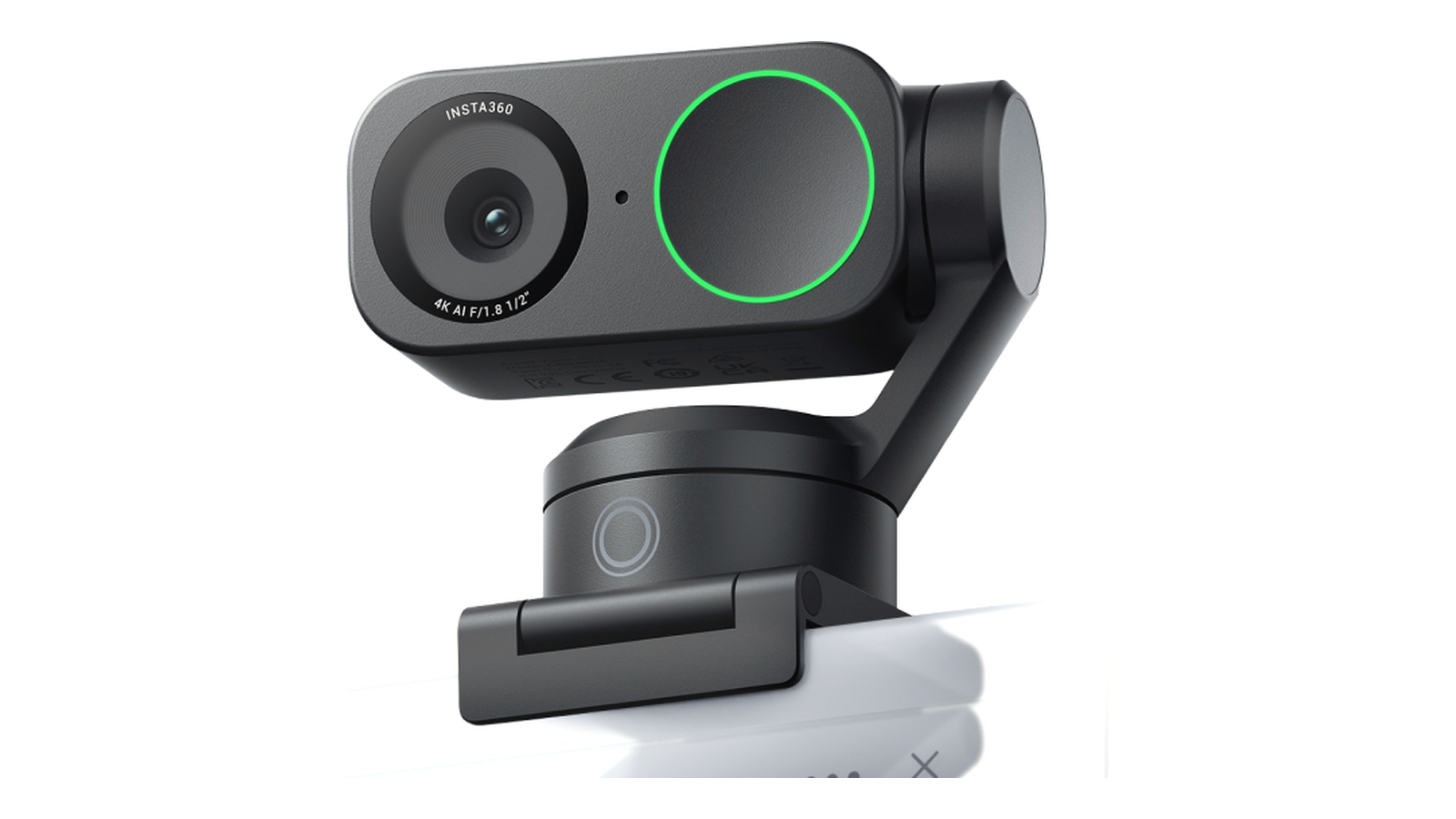
Brand: Insta360 | Resolution: 4K at 30 fps, 1080p at 60 fps | Sensor: 1/2-inch, f/1.8 | Field of view: 79.5 degrees diagonal | Gimbal: 2-axis with AI tracking | Modes: Smart Whiteboard, DeskView, portrait | HDR: In all modes | Mics: AI noise-canceling | Connection: USB-C (USB 2.0)
Why I Picked the Insta360 Link 2?
The Insta360 Link 2 sits on a 2-axis gimbal and follows you as you move, which is ideal for teachers and trainers on Zoom.
Smart Whiteboard mode corrects and enhances a physical whiteboard, and DeskView shows what’s on your desk. The 1/2-inch sensor with f/1.8 lens and HDR in every mode keeps the image clean.
The 79.5 degree view is narrow, so it’s a one-person camera.
Who It’s For?
It suits teachers, trainers and presenters who stand, move or write on a whiteboard during Zoom calls.
- AI tracking gimbal
- Whiteboard and desk modes
- HDR in all modes
- Large 1/2-inch sensor
- Narrow 79.5 degree view
- USB 2.0 connection
OBSBOT Tiny 2
Specifications
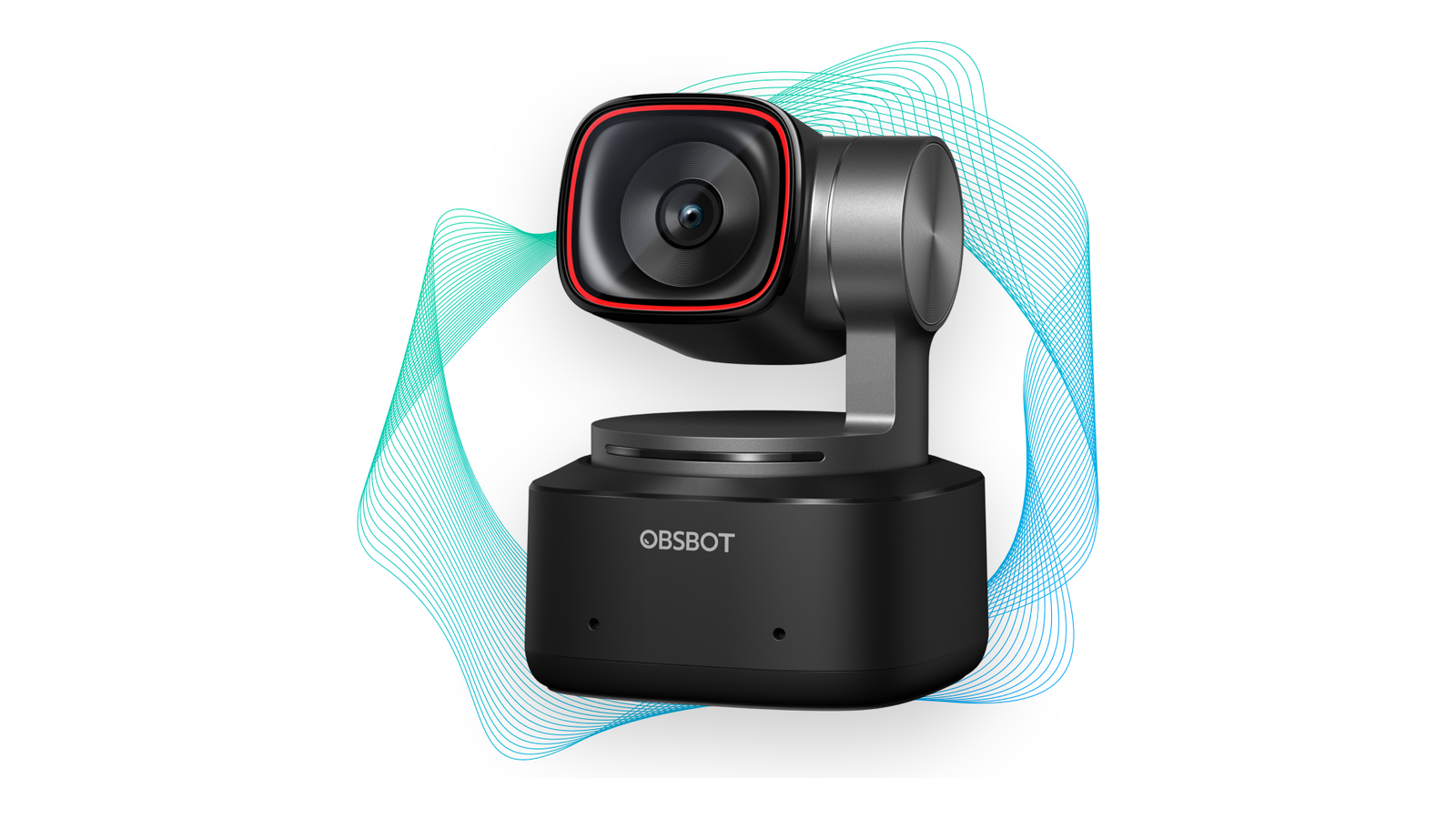
Brand: OBSBOT | Resolution: 4K at 30 fps, 1080p at 60 fps | Sensor: 1/1.5-inch, 50 MP, f/1.9 | Field of view: 85.5 degrees diagonal | Gimbal: Pan plus/minus 140, tilt -30 to +70 degrees | Autofocus: All-pixel PDAF | Control: Gesture and voice control | Mics: Dual omni with noise reduction | Connection: USB 3.0
Why I Picked the OBSBOT Tiny 2?
The OBSBOT Tiny 2 has the largest sensor in this guide, a 1/1.5-inch 50 MP chip with Dual Native ISO, which gives it a clear edge in dim rooms.
Its gimbal pans and tilts to track you, and you can control it with hand gestures or voice. All-pixel PDAF autofocus keeps you sharp when you lean in to show something.
OBSBOT doesn’t list a privacy shutter, so it points down when idle instead.
Who It’s For?
It’s for presenters, coaches and creators who move around or work in low light.
- 1/1.5-inch 50 MP sensor
- AI tracking gimbal
- Gesture and voice control
- Fast PDAF autofocus
- No privacy shutter listed
- Some effects need a strong PC
Logitech Brio 500
Specifications
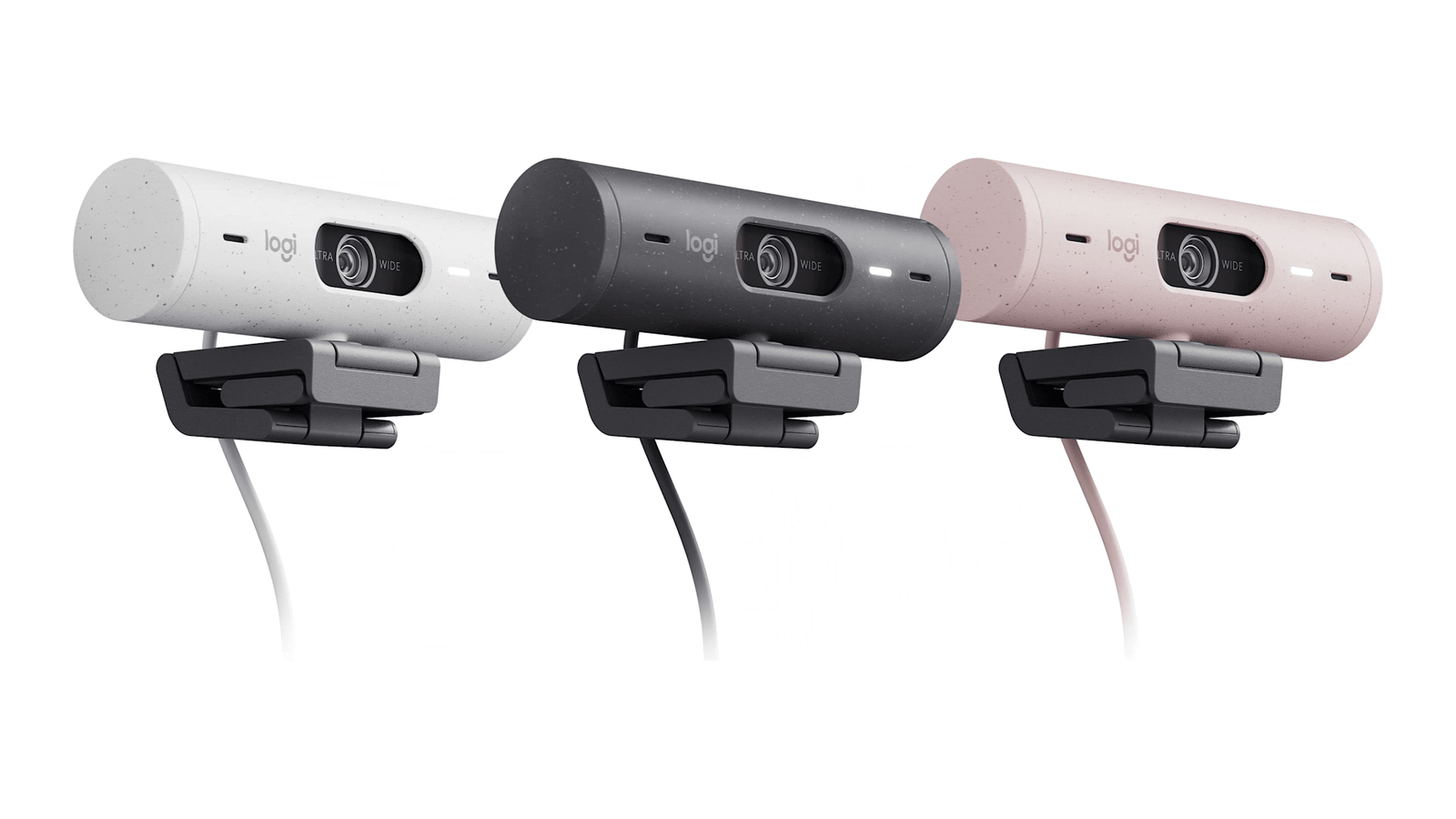
Brand: Logitech | Resolution: 1080p at 30 fps, 720p at 60 fps | Sensor: 4 MP | Field of view: 90, 78 or 65 degrees | Low light: RightLight 4 with HDR | Framing: Auto-framing in Logi Tune | Mics: Stereo, 1.22 m range | Privacy: Integrated shutter | Connection: USB-C
Why I Picked the Logitech Brio 500?
The Logitech Brio 500 is the sensible 1080p pick. RightLight 4 with HDR fixes backlit faces, and auto-framing in Logi Tune keeps you centred.
Show Mode lets you tilt it down to show a sketch on your desk, and the integrated shutter closes with a twist. It comes in three colours.
It’s USB-C only, so older PCs need an adapter.
Who It’s For?
It suits hybrid workers who want a clean 1080p Zoom image with good light correction at a mid-range price.
- HDR light correction
- Auto-framing
- Integrated shutter
- Three FOV presets
- 1080p30 maximum
- USB-C only
Jabra PanaCast 20
Specifications
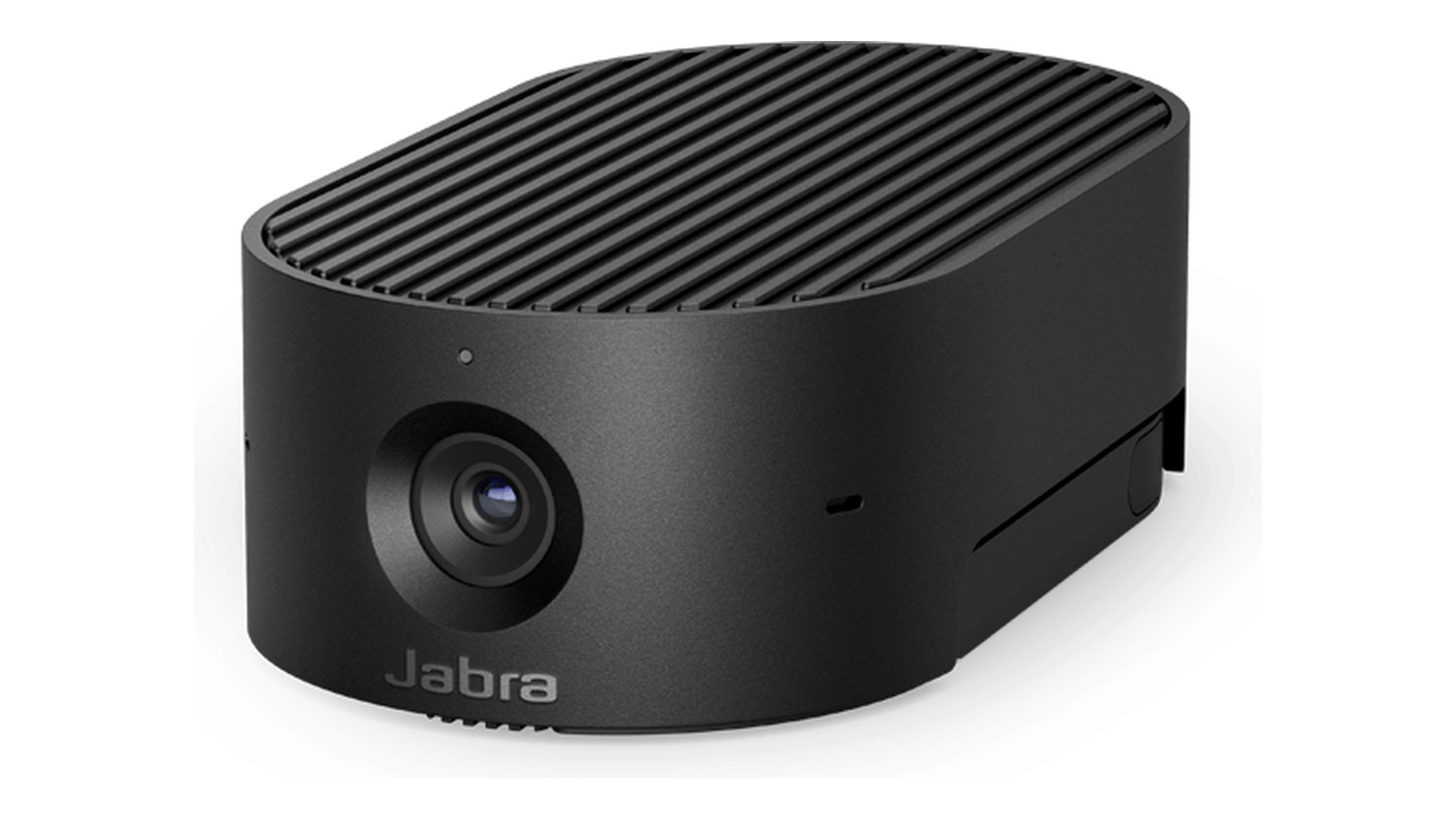
Brand: Jabra | Resolution: 4K at 30 fps | Sensor: 13 MP, 1/3.2-inch | Field of view: 117 degrees diagonal | Framing: Intelligent Zoom and picture-in-picture | HDR: Vivid HDR | Mics: 3 MEMS | Certified: Microsoft Teams, Zoom | Warranty: 2 years
Why I Picked the Jabra PanaCast 20?
The Jabra PanaCast 20 has the widest view in this guide at 117 degrees, so two people can share a desk on Zoom.
Intelligent Zoom frames you automatically, and picture-in-picture can show a desk area in a small window. It’s certified for Zoom and Teams and comes with a carry case.
The sensor is small, so give it good light.
Who It’s For?
It’s for corporate IT teams and people who share a desk or want one certified 4K webcam for home and office.
- 117 degree wide view
- Zoom and Teams certified
- Intelligent Zoom framing
- 2-year warranty
- Small 1/3.2-inch sensor
- Needs good light
Logitech C920e
Specifications
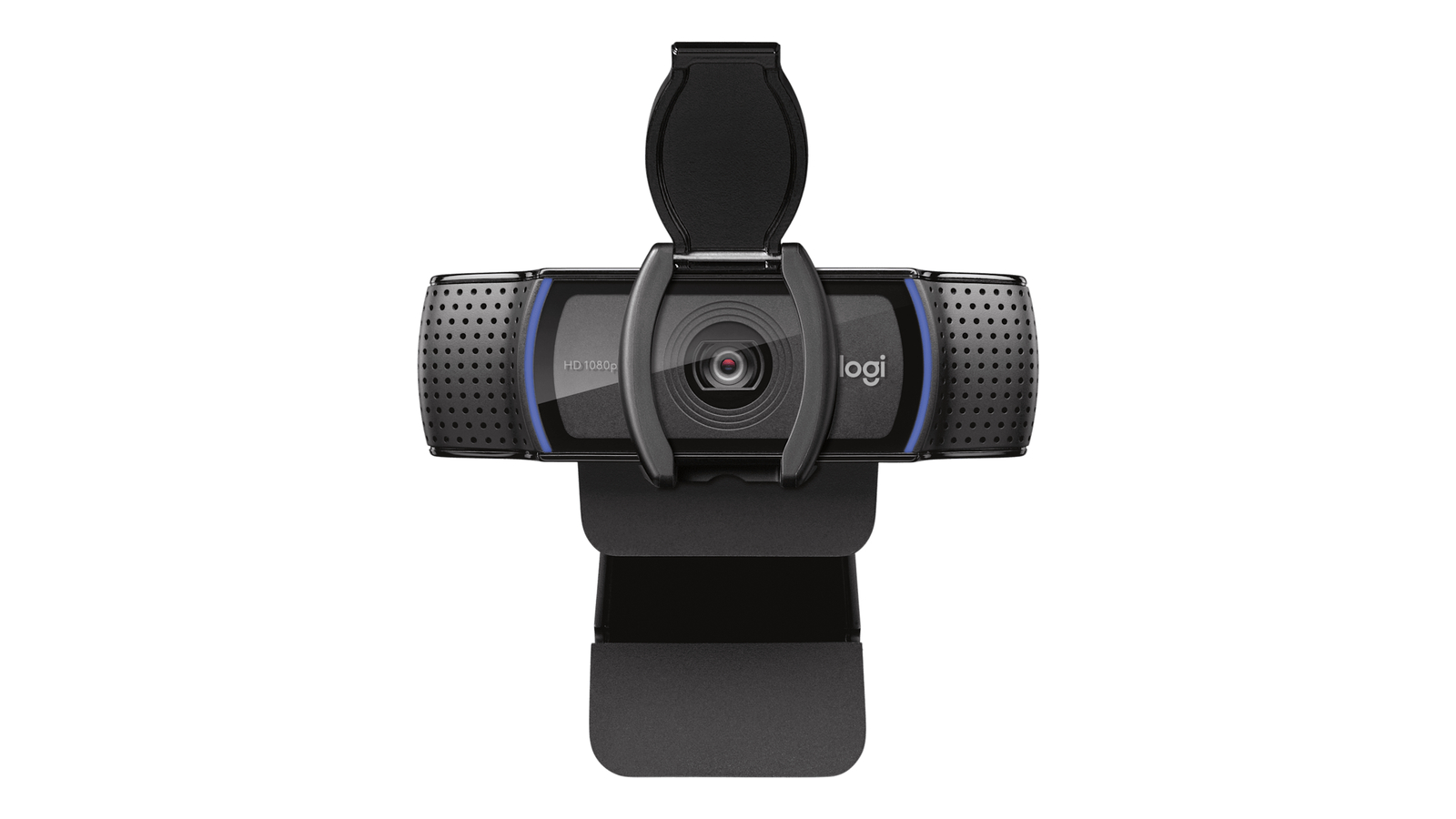
Brand: Logitech | Resolution: 1080p at 30 fps | Field of view: 78 degrees | Autofocus: Yes, glass lens | Low light: RightLight 2 | Mics: Stereo omnidirectional | Privacy: Attachable shutter | Connection: USB-A, 1.5 m cable | Warranty: 3 years; Teams and Zoom certified
Why I Picked the Logitech C920e?
The Logitech C920e is the dependable fleet webcam. It’s certified for Zoom and Teams, uses USB-A for older PCs and carries a 3-year warranty.
Image quality is a solid 1080p with autofocus and a 78 degree view. An attachable privacy shutter comes in the box.
There’s no HDR or 4K, so it’s a practical choice rather than an exciting one.
Who It’s For?
It’s for IT teams rolling out many identical webcams, and for older PCs without USB-C.
- Zoom and Teams certified
- USB-A for older PCs
- 3-year warranty
- Attachable shutter
- No HDR
- 1080p30 only
Comparing Zoom Webcam Equipment
How to Set Up a Webcam for Zoom?
Put the lens at eye level: clip the webcam on top of your monitor, or use a small tripod so you look straight into the camera.
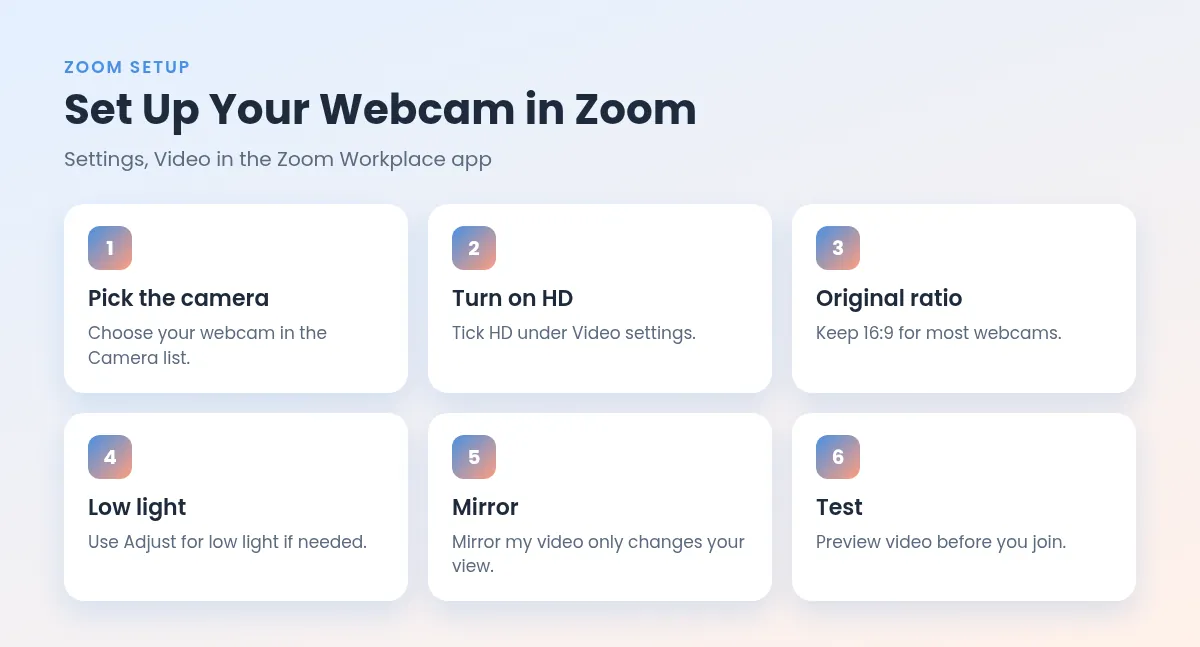
Zoom’s guide to changing settings in the Zoom app lists every option. For a full check, our guide on how to test your camera and microphone helps, and you can compare picks in our MX Brio vs OBSBOT Tiny 2 and Brio 500 vs C920e comparisons.
Conclusion:
For most people, the Logitech MX Brio is the best webcam for Zoom thanks to its STARVIS sensor, HDR and Zoom certification. If you move around or teach, the Insta360 Link 2 or OBSBOT Tiny 2 will follow you.
For two people at one desk, the Jabra PanaCast 20 gives you the widest view here, and the Logitech C920e remains the safe fleet choice.
What’s your biggest Zoom video problem: light, focus or framing? Tell me in the comments, and rate this guide if it helped.