
5 Best Virtual Meeting Platforms for Large Groups [Compared]

If you have ever scheduled a company all-hands, a big class, or a community event and only then noticed the meeting app caps you at 100 people, you already know the failure mode. The link works. The lobby fills. Then late joiners hit a wall.
Large-group capacity is a plan limit, not a soft suggestion. Free Zoom, Meet, Teams, and Webex plans still sit around 100 participants. Paid tiers raise that ceiling, and webinars or town halls change the model again when most people only need to watch.
On webinars and classroom sessions I’ve produced, the ticket I see most often is simple: the host booked the wrong product (a normal meeting instead of a webinar or a higher-capacity plan), and nobody checked the participant counter until showtime.
Below I compare five platforms that can actually host large groups in 2026: Zoom Workplace, Microsoft Teams, Google Meet, Webex, and GoTo Meeting. For each one you’ll see capacity, pricing shape, and the features that matter when the room gets crowded.
If you are still deciding meeting versus broadcast format, start with webinar vs virtual meeting. For free-plan trade-offs before you pay for headcount, see virtual meeting advantages and disadvantages.
I’ll walk you through it in order.
What is a Virtual Meeting Platform?
A virtual meeting platform is software that lets people meet over the internet with video, audio, chat, and screen sharing. Instead of everyone traveling to one room, each person joins from a laptop, phone, or meeting room device.
For small teams, almost any app works. For large groups, things change. You need more capacity, better controls for the host, and tools to keep hundreds of people engaged. If you’re new to the topic, our guide to virtual meetings explains the basics.
How Do Virtual Meeting Platforms Work?
When you schedule a meeting, the platform creates a unique link or meeting ID. People click the link, and the app connects them to the platform’s cloud servers, which receive everyone’s audio and video and send the right streams back to each person.
To save bandwidth, the servers don’t send every video to everyone. They send the active speaker in high quality and other people in lower quality, and adjust automatically when someone’s internet is slow. That’s how a meeting with hundreds of people can still run on a normal home connection.
Most platforms also offer a webinar or town hall mode for really big audiences. In that mode, only hosts and presenters are on video, and attendees watch and interact through chat, Q&A, and polls.
What Features Should Online Meeting Platforms Have for Large Group Meetings?
Here are the features I recommend checking before you choose a platform for big meetings:
- Enough participant capacity: Check the limit on the exact plan you’ll buy, not the highest plan in the ad.
- Webinar, town hall, or view-only mode: For audiences of 500 or more, a broadcast-style mode keeps things under control.
- Host controls: Waiting rooms, mute all, remove participants, and the ability to lock the meeting.
- Co-hosts: One person can’t present, watch the chat, and manage people at the same time.
- Breakout rooms: Split a big group into small discussions and bring everyone back together.
- Q&A, polls, and reactions: These keep a large audience involved without everyone unmuting.
- Recording and transcripts: Many people in a big meeting will want to watch it later.
- Live captions and translation: Very helpful for international and accessibility needs.
- Registration and reports: Useful for events, training, and anything you need attendance data for.
For a deeper look, read our guide on what features a virtual meeting platform should have.
What Are the Best Virtual Meeting Platforms For Large Group Meetings?
I chose these five platforms because they are reliable at scale, widely used, and have clear upgrade paths for bigger meetings and events. Prices are per host or per user and are shown for annual billing unless I say otherwise.
- Zoom Workplace (and Zoom Rooms): Best for large events and add-ons
- Microsoft Teams (and Teams Rooms): Best overall, especially for Microsoft 365 organizations
- Google Meet: Best for simple, browser-based large meetings
- Webex: Best for security-focused enterprises
- GoTo Meeting: Best for simple paid meetings
1. Zoom Workplace (and Zoom Rooms)
Zoom Workplace is still the first name most people think of for big online meetings, and for good reason. It handles hundreds of participants well, even on weak connections, and almost everyone already knows how to join.
For hybrid meetings, Zoom Rooms turns your conference rooms into one-touch Zoom spaces, so people in the office and at home join the same large meeting. For events beyond normal meetings, Zoom Webinars and Zoom Events add registration, branding, and big audiences.
Key Features for Large Groups:
- Up to 300 participants on Business, with Large Meetings add-ons for 500 and 1,000
- Breakout rooms, polls, Q&A, and reactions
- Gallery view with up to 49 videos per screen
- AI Companion meeting summaries on paid plans
- Zoom Rooms for conference rooms, Zoom Webinars for large audiences
Pricing and capacity: Free Basic plan: 100 participants and 40 minutes. Pro: $14.16 per user per month (100 participants). Business: $18.33 per user per month (300 participants). Large Meetings add-ons raise the limit to 500 or 1,000 and more. See the Zoom free plan limits for details.
- Excellent video quality at scale
- Very easy for guests to join
- Lots of add-ons for events
- Large Meetings add-ons cost extra
- Many features are split across add-ons
2. Microsoft Teams (and Teams Rooms)
Microsoft Teams is the natural choice if your organization already uses Microsoft 365. Meetings live right next to your chats, files, and Outlook calendar, and IT can manage everything in one admin center.
For bigger audiences, Teams town halls let you broadcast to up to 10,000 attendees. And in the office, Teams Rooms devices let a whole meeting room join with one tap. Teams Rooms Basic is free for up to 25 rooms, and Pro costs $40 per room per month.
Key Features for Large Groups:
- Up to 300 participants on Business plans and 1,000 on Enterprise plans
- Town halls for up to 10,000 attendees
- Breakout rooms, live captions, and Copilot recaps on supported plans
- Deep integration with Outlook, OneDrive, and SharePoint
- Teams Rooms for conference rooms
Pricing and capacity: Teams Essentials: $4 per user per month (300 participants). Microsoft 365 Business Basic: $7 and Business Standard: $14 per user per month (300 participants). Enterprise plans support up to 1,000 interactive participants. Also see our post on Microsoft Teams free features.
- Great value if you already pay for Microsoft 365
- Strong security and admin controls
- Town halls for very large audiences
- Can feel heavy for occasional guests
- 300-person limit on business plans
3. Google Meet
Google Meet is the simplest option on this list. People join from a browser with no download, which is a big help when you invite hundreds of guests from different companies or schools.
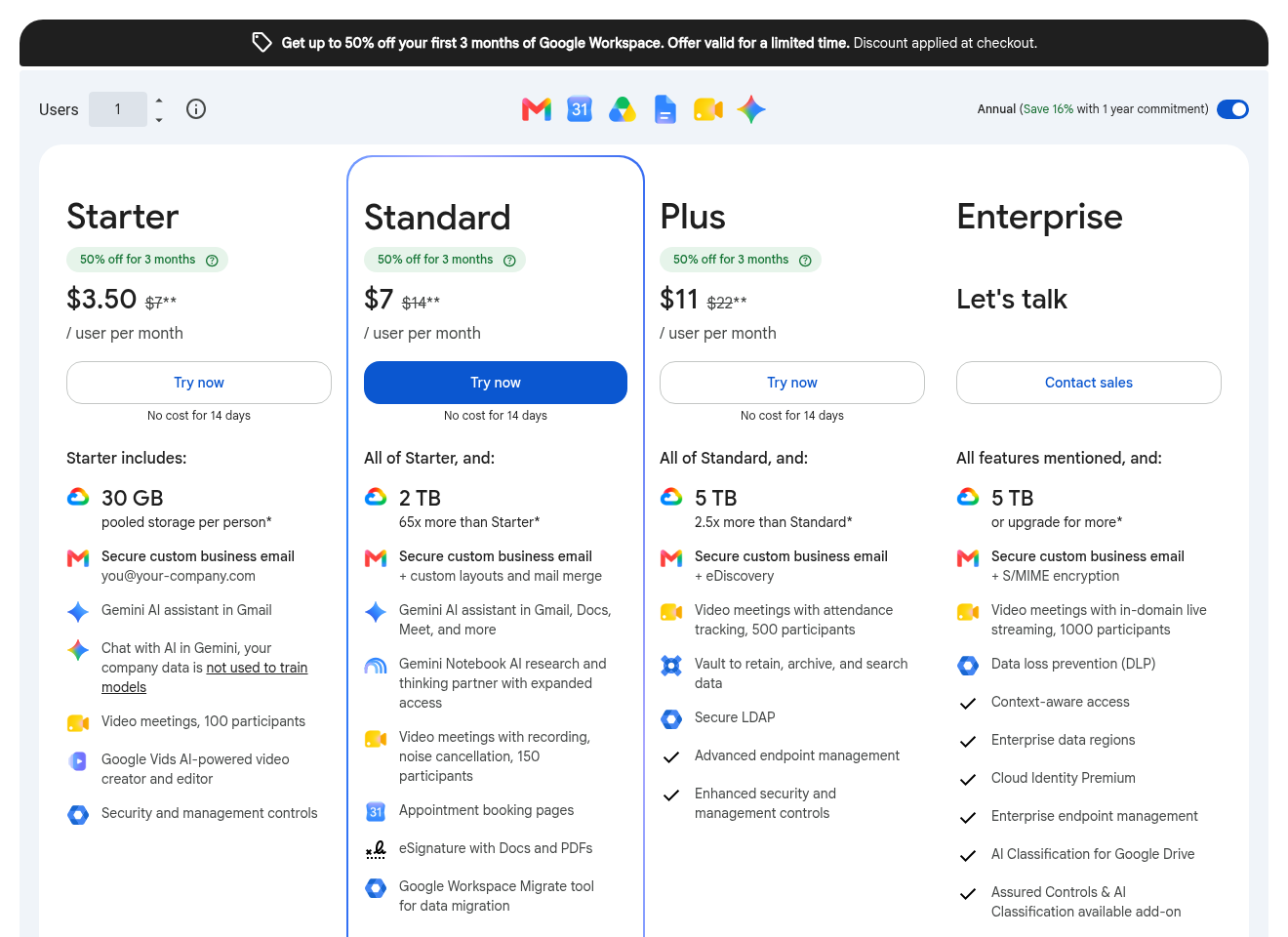
Capacity depends on your Google Workspace plan, and higher plans add recording, attendance tracking, and live streaming for even bigger audiences.
Key Features for Large Groups:
- Up to 500 participants on Business Plus and 1,000 on Enterprise
- Join from any browser, no install needed
- Breakout rooms, polls, Q&A, and hand raising on paid plans
- Gemini note-taking and translated captions on supported plans
- Live streaming on higher plans
Pricing and capacity: Free: 100 participants, 60 minutes for group calls. Workspace Business Starter: $7 (100 participants), Standard: $14 (150), Plus: $22 (500) per user per month on annual plans. Enterprise: custom (1,000). Read our post on the pros and cons of free meetings too.
- Easiest for guests to join
- Clean, simple interface
- Good value with Workspace
- You need Business Plus or higher for 500 people
- Fewer event tools than Zoom or Teams
4. Webex
Webex by Cisco is built for enterprises that care about security. It offers end-to-end encryption, strong admin controls, and FedRAMP authorization on certain plans, which is why many governments and banks use it.
It also has some of the best audio processing around, with advanced noise removal, plus Slido polls and Q&A built in for big meetings.
Key Features for Large Groups:
- Up to 200 attendees on Meet and Suite, 1,000 on Enterprise
- Slido polls and Q&A
- Advanced noise removal
- AI Assistant meeting summaries
- Webex Webinars and Events for larger audiences
Pricing and capacity: Free: 100 attendees, 40 minutes. Webex Meet: $144 per license per year (about $12 per month), up to 200 attendees. Webex Suite: $270 per license per year. Enterprise: custom, up to 1,000 attendees.
- Top security and compliance
- Excellent audio quality
- Slido engagement built in
- Only 200 attendees below Enterprise
- Interface can feel busy
5. GoTo Meeting
GoTo Meeting is a simple, reliable meeting app that’s been around for a long time. It doesn’t try to do everything, and that’s exactly why some businesses like it.
It’s priced per organizer, so you only pay for the people who host meetings, not for every attendee.
Key Features for Large Groups:
- Up to 150 participants on Professional and 250 on Business
- Enterprise plans for larger meetings
- Meeting lock, drawing tools, and keyboard and mouse sharing
- Unlimited cloud recording on Business
- Simple, clean interface
Pricing and capacity: Professional: $12 per organizer per month (150 participants). Business: $16 per organizer per month (250 participants). Enterprise: custom pricing and capacity.
- Simple and reliable
- Pay only per organizer
- Good for regular internal meetings
- Lower capacity than the others
- No free plan
Comparing Top Virtual Meeting Software




How to Set Up a Virtual Meeting Platform?
Once you’ve picked a platform, here’s how I recommend setting it up for a large group meeting:
- Choose the right plan: Count your expected attendees and add 10 to 20% extra. Buy a plan or add-on that covers that number.
- Create your account and install the app: Sign up, verify your email, and install the desktop app for the best host controls.
- Set your security options: Turn on the waiting room or lobby, require sign-in if needed, and stop attendees from sharing their screens.
- Schedule the meeting: Add a clear title and agenda, turn on registration if you need attendance data, and send the invite.
- Assign co-hosts: Give one or two people co-host rights to manage the chat, Q&A, and late joiners.
- Prepare engagement tools: Create your polls, breakout rooms, and slides before the meeting starts.
- Do a test run: Join from a second device to check audio, video, and screen sharing.
- Start early: Open the meeting 10 to 15 minutes early so you can fix any problems before people arrive.
For a smooth meeting, share a few virtual meeting etiquette rules with attendees at the start.
How to Set Up a Virtual Meeting Room?
If part of your large group joins from the office, set up your meeting rooms so they can join the same call properly. A room full of people around one laptop never works well.

- Pick a room system: Zoom Rooms and Microsoft Teams Rooms are the most common. Google Meet and Webex also offer room hardware.
- Choose certified hardware: An all-in-one video bar is the easiest option for small and medium rooms. See our guide to all-in-one video bar systems.
- Place the camera at eye level: Mount it just above or below the main display, so remote people feel like they’re looking at you.
- Cover the room with audio: Use the video bar’s microphones for small rooms, and add table or ceiling mics for larger ones.
- Use a wired network: Connect the room system with Ethernet. Check our video conferencing requirements for internet speeds.
- Set up the room account and license: Each room gets its own account, so people can book it in their calendar.
- Test with a real meeting: Sit at the far end of the table and make sure remote people can see and hear you.
Conclusion:
The right large-group platform depends on the stack you already run and how interactive the meeting needs to be. For most organizations already on Microsoft 365, I recommend Microsoft Teams first. Business plans cover hundreds of interactive participants, Enterprise reaches 1,000, and town halls cover the broadcast cases up to 10,000 view-only attendees.
If you want the broadest large-meeting add-on path and a join flow almost anyone knows, Zoom Workplace is still the safer standalone pick. Google Meet stays the easiest guest path in the browser. Webex is the stronger security-minded option. GoTo Meeting fits smaller paid meetings up to 250 people without a free plan underneath.
Whichever you choose, check the participant limit on the exact plan you will use on the day, then run a short dry run with co-hosts. That five-minute check prevents the 100-person wall mid-all-hands.
Which platform failed you last on capacity, and what did you switch to? Leave a comment or rating, or contact us if you want a second pair of eyes on the plan math.