

Zoom, Google Meet, and Microsoft Teams are the three apps most people reach for when they set up virtual meetings, and all three have a free plan. The catch is that “free” means something different on each one.
One ends every call at 40 minutes, another lets two people talk for 24 hours, and only one of them lets you record a meeting without paying.
So which free plan should you use? It comes down to how long your meetings run, how many people join, and whether you need recording, breakout rooms, or AI notes.
In this guide, I compare Zoom vs Google Meet vs Teams Free head to head, using the official limits each company publishes.
You’ll see the time limits, participant caps, recording rules, and free AI features side by side. Then I’ll give you a simple decision line for the most common situations. On the classes and webinars I’ve supported, the free-plan limit is usually what breaks a session first, not the audio or video, so that’s where I start.
If you want a wider look at free plans in general, read our guide on the free features and limitations of virtual meeting platforms. Here, I focus only on these three.
Zoom vs Google Meet vs Teams Free at a Glance
Here are the official free plan limits for all three platforms:
| Feature | Zoom Basic (Free) | Google Meet (Free) | Microsoft Teams (Free) |
|---|---|---|---|
| Group meeting length | 40 minutes | 60 minutes (3+ people) | 60 minutes |
| One-on-one call length | 40 minutes | 24 hours | 30 hours |
| Participants | 100 | 100 | 100 |
| Recording | To your computer | Not available | Not on the free plan (needs Microsoft 365) |
| Breakout rooms | Yes | Join only | No |
| Live captions | Yes | Yes | Yes |
| Free AI meeting summaries | 3 per month | No | No |
| Cheapest upgrade | Pro, $16.99/month | Google One 2 TB plan, $9.99/month | Microsoft 365 Personal, $9.99/month |
These numbers come from the Zoom pricing page and Zoom license comparison, Google’s Meet requirements page and premium Meet features list, Zoom’s meeting time limits article, and Microsoft’s Teams for personal use updates and Teams personal recording rules. Prices are US prices and can be different in your country.
Next, here’s what each free plan actually gives you, and then I’ll put them head to head.
What Do You Get with Each Free Plan?
Zoom Basic (Free)
Zoom Basic is the most feature-packed free plan, but it has the strictest time limit. Every meeting ends after 40 minutes, even if only two people are in it. In return, you get breakout rooms, a waiting room, local recording to your computer (Zoom calls it computer recording), automated captions, 3 editable whiteboards, and AI meeting summaries for 3 hosted meetings per month.
One thing to check if a call drops at 40 minutes: the limit follows the host’s account, not the guests’. So if a colleague with a paid license hosts, nobody gets cut off. Polls, co-hosts, cloud recording, and livestreaming are not part of the free plan. For the full list, see our posts on Zoom free plan features and Zoom free account limitations.
Google Meet (Free)
Google Meet’s free plan works right in your browser with any Google account, and it’s the simplest to use. One-on-one calls can last up to 24 hours, while meetings with 3 or more people end at 60 minutes. Google plays a chime at 50 minutes to warn everyone. If you’ve never hosted one, our guide on how to start or join a Google Meet meeting walks through the first screen.
The downside is that most extras are paid. Based on Google’s Meet features page, free users can join breakout rooms but can’t create them, and recording, polls, Q&A, and the Gemini note taker all need a paid plan. Anonymous joins are on that paid list too, so guests on a computer have to sign in with a Google account. You still get screen sharing, reactions, hand raising, live captions, and background effects for free. Our post on Google Meet free features and limitations has the full list.
Microsoft Teams (Free)
Teams Free is the free version of Teams for personal use, and it’s where Microsoft moved Skype users when Skype retired in May 2025. Group meetings last up to 60 minutes, and one-on-one calls between Teams users can last up to 30 hours. You get 5 GB of cloud storage, chat, communities, file sharing, and live captions, and guests can join from a link without a Teams account.
Recording is the part that trips people up. Teams for personal use added meeting and call recording in November 2025, and recordings stay in the cloud for 30 days. But Microsoft’s meeting controls page says only people with a Microsoft 365 Personal, Family, or Premium subscription can start one, so on a truly free account the Record button won’t work for you. Breakout rooms and AI recaps aren’t available either. You can read more in our post on Microsoft Teams free plan features and limitations.
Head-to-Head Comparisons
Comparing all three at once can be confusing, so I’ll put them against each other in pairs.
Zoom Free vs Google Meet Free
Our pick: Use Google Meet when your meetings run longer than 40 minutes or you mostly have one-on-one calls. Use Zoom when you need breakout rooms, free recording, or a few AI summaries, and you can keep meetings short.
Google Meet Free vs Teams Free
Our pick: These two are very close. Use Teams Free when you want longer one-on-one calls, built-in chat, and guests who can join without an account. Use Google Meet when everyone already lives in Gmail and Google Calendar, because scheduling from there takes one click.
Zoom Free vs Teams Free
Our pick: Teams Free wins on call length and chat. Zoom wins on hosting tools: breakout rooms, the waiting room, free local recording, and free AI summaries.
Which Free Plan Should You Use?
There’s no single winner here. The best free plan is the one that fits how you meet, so here’s my decision line for the most common situations:
For Long Group Calls: Google Meet or Teams Free
If your meetings usually go past 40 minutes, Zoom Basic will cut you off. Google Meet and Teams Free both give you 60 minutes for group calls, which is enough for most team meetings, classes, and family calls.
For One-on-One Calls: Google Meet or Teams Free
Meet gives you up to 24 hours and Teams Free up to 30 hours for one-on-one calls. Zoom still ends a two-person call at 40 minutes, so it’s the weakest choice for tutoring, coaching, or long chats with family.
For Classes and Workshops: Zoom Basic
Zoom is the only one of the three that lets free users create breakout rooms, and it also has a waiting room to control who comes in. That makes it the best free choice for teachers and trainers, as long as the session fits into 40 minutes. For more classroom-friendly options, see our list of the best live online classroom apps.
For Recording Meetings: Zoom Basic
Zoom Basic is the only one of the three that records on a free account, and it saves the file to your own computer. Teams for personal use records to the cloud for 30 days, but only with a paid Microsoft 365 plan, and Google Meet doesn’t record on a free account. For the details, read how to record Zoom meetings on a free account and how to record a Google Meet or Teams meeting.
For Free AI Meeting Notes: Zoom Basic
Only Zoom gives you built-in AI meeting summaries for free, with 3 hosted meetings per month. Meet and Teams need paid plans for their AI notes, so if free AI summaries matter to you, host those meetings on Zoom.
For Joining Quickly from a Browser: Google Meet or Teams Free
Google Meet runs fully in the browser, so there’s nothing to install; guests click the link and sign in with their Google account. Teams Free also works in a browser and lets guests join without any account, which helps when someone doesn’t use Google. In the classes I’ve run, the join step is where people get stuck most, so pick the app your guests already have an account for, especially older family members or first-time clients.
When Should You Upgrade from a Free Plan?
Free plans are fine for personal use and small teams, but you’ll feel their limits once you meet every day.
I recommend upgrading if:
- Your meetings often run past 40 or 60 minutes and you keep restarting calls.
- You need to record meetings regularly and keep the files for a long time.
- You want AI notes for every meeting, not just a few.
- You run meetings with more than 100 people.
- You need business features like admin controls, custom domains, or company branding.
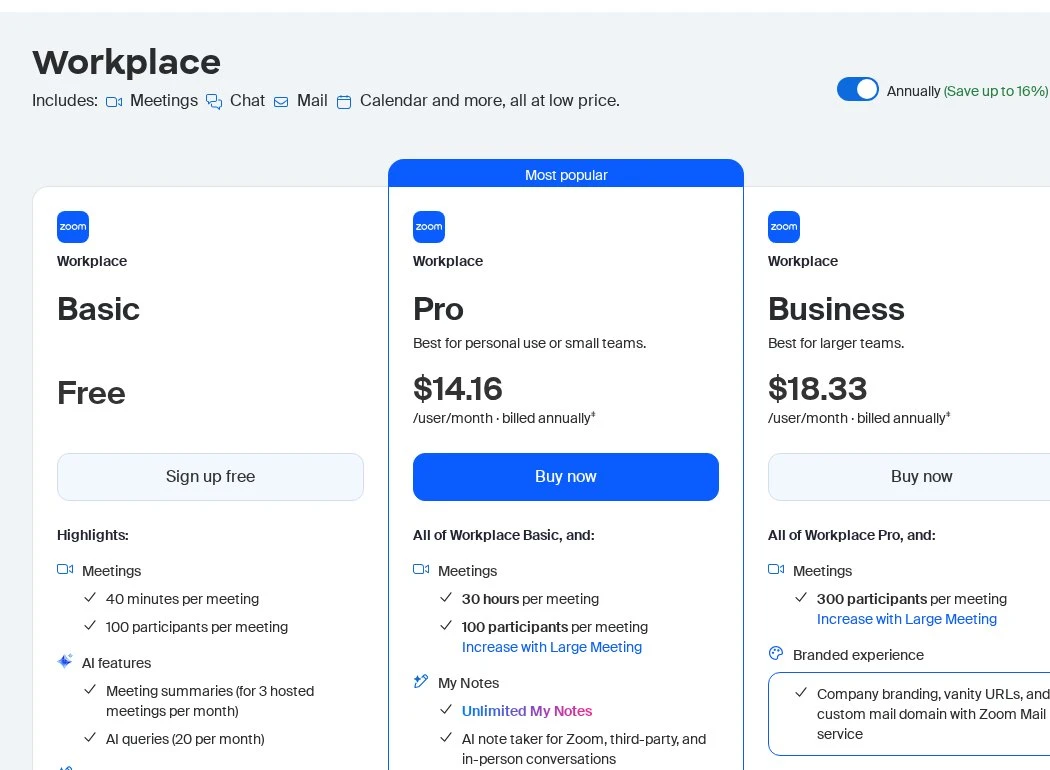
The cheapest upgrades are a 2 TB Google One plan ($9.99 per month; Google’s plans page now calls it Google AI Plus, and Google’s Meet help says the 2 TB tier is the Google One plan that gets premium Meet features like longer calls and recording, so check what’s included in your country before you buy), Microsoft 365 Personal ($9.99 per month, which gives Teams meetings up to 30 hours with up to 300 people and turns on recording), and Zoom Workplace Pro ($16.99 per month, or $14.16 per month billed yearly). If you’re weighing Google’s options, our Google One vs Google Workspace comparison explains the difference. And if you’d rather not pay at all, our lists of free online meeting platforms with no time limit and free Zoom alternatives have other options worth a look.
Tips to Get More Out of Any Free Plan
- Share an agenda before the call: Short, focused meetings fit easily within the time limits.
- Plan a restart link: If you might go over time, have a second meeting link ready so everyone can rejoin quickly.
- Test your setup first: Check your camera, mic, and internet before the meeting so you don’t waste minutes fixing problems.
- Share audio the right way: If you play a video, turn on computer sound when you start sharing, or your guests will see it in silence. Our guide on sharing your screen with audio shows where that switch is in each app.
- Mix platforms when it makes sense: Use Zoom for workshops with breakout rooms and Meet or Teams for longer calls.
- Keep meetings safe: Use passcodes and waiting rooms where available, and only share links with invited people. Our guide on joining a Zoom meeting safely covers the basics.
Conclusion
If you only remember one thing from this comparison, make it the time limit, because that’s what ends most free meetings early.
To sum it up, Zoom Basic gives you the most hosting tools, the only free recording, and the only free AI summaries, but every meeting stops at 40 minutes. Google Meet is the easiest to start from Gmail or Google Calendar and gives you 24-hour one-on-one calls, but most extras are paid. Teams Free gives you 60-minute group calls, 30-hour one-on-one calls, and guests who can join without an account, which makes it a strong pick for everyday calls.
For most people, I’d use Teams Free or Meet for everyday calls and Zoom Basic for short classes, workshops, or anything you need to record. All three are free, so start with the one your group already has an account for and switch only when a limit gets in the way.
Which free plan are you on right now, and which limit hit you first: the timer, recording, or breakout rooms? Tell me in the comments and leave a star rating for this post. If you have a question or a suggestion, you can contact us anytime.