


Someone sends you a Zoom link for a job interview, an online class, or a family call, and you just want to click it and get in.
Zoom is still one of the most popular virtual meeting apps in the world, and joining usually takes less than a minute.
But that popularity has a downside. Scammers copy Zoom invites and Zoom pages to trick people.
In one campaign reported by Malwarebytes, a fake Zoom meeting page played a glitchy call, showed an “Update Available” countdown, and quietly downloaded spying software onto Windows computers. Everything looked like a normal Zoom meeting.
Don’t worry!
In this guide, I’ll show you how to join a Zoom meeting safely on a computer, a phone, or straight from your web browser without installing anything.
You’ll also learn how to spot a fake Zoom link, what to do with a meeting ID and passcode, and how to check your camera and microphone before you go in.
So, let’s get started.
What Do You Need to Join a Zoom Meeting?
You don’t need a Zoom account to join a meeting as a guest. According to Zoom Support, you only need one of the following from the host:
- A meeting link, which usually looks like https://zoom.us/j/1234567890 or https://yourcompany.zoom.us/j/1234567890.
- A meeting ID, which is a 9, 10, or 11-digit number, plus a passcode if the meeting has one.
You also need:
- A computer, phone, or tablet with a camera and microphone (or a headset).
- A stable internet connection. Wi-Fi or a good mobile data signal is fine for most calls.
- Either the Zoom Workplace app or an up-to-date browser like Chrome, Edge, Firefox, or Safari.
Some hosts require you to sign in before joining, for example in company or school meetings. If you see a sign-in screen, use the account the host invited, or create a free Zoom account.
How to Spot a Fake Zoom Meeting Link Before You Click?
This is the most important step, so I’ve put it before the joining steps. Real Zoom meetings only open on Zoom’s own domains. Take five seconds to check the link before you click it.
A real Zoom link:
- Ends in zoom.us or zoom.com right before the first single slash, like zoom.us/j/… or company.zoom.us/j/….
- Comes from someone you know and were expecting a meeting from.
- Opens a page that asks to launch Zoom Workplace or join from your browser, nothing else.
Warning signs of a fake Zoom link:
- Look-alike domains, like the uswebzoomus.com address used in the scam above, or addresses that start with “zoom.us” but end with something else, such as zoom.us.[something].com. The real domain is the last part before the first slash, not the word “zoom” at the start.
- A page that asks you to download an update, a “Zoom installer”, or a file ending in .exe, .msi, .dmg, or .zip before you can join.
- A page that asks for your email password or Microsoft or Google login just to view the meeting.
- Urgent messages like “Your meeting is about to expire” or a surprise invite from someone you don’t know.
- Instructions to press keys and paste a command into Windows Run or Terminal to “fix” audio. Zoom never asks you to do that.
If you’re not sure, don’t click. Open zoom.us/join yourself and type in the meeting ID, or ask the host to confirm on a different channel, like a phone call. For a full checklist on fake links and uninvited guests, read our guide on keeping your online meetings secure.
How to Join a Zoom Meeting on a Computer?
The Zoom Workplace desktop app gives you all the meeting features, like gallery view, reactions, and backgrounds. Here’s how to join with it on Windows or Mac.
1. Install Zoom from the Official Website Only
If you don’t have Zoom yet, download it only from the official Zoom download center, or from the Microsoft Store or Mac App Store. Never install Zoom from a link inside an invite or from a pop-up that appears on a meeting page.
2. Join with the Meeting Link
- Click the meeting link in your email or calendar invite.
- Your browser asks to open Zoom. Click Open Zoom Meetings on Windows or Open zoom.us on a Mac.
- Enter your name if asked, then enter the passcode if the meeting has one.
- On the video preview screen, check that you look and sound right, then click Join.
- When asked, choose Join with Computer Audio.
3. Or Join with a Meeting ID
- Open the Zoom Workplace app.
- Click Join on the Home tab.
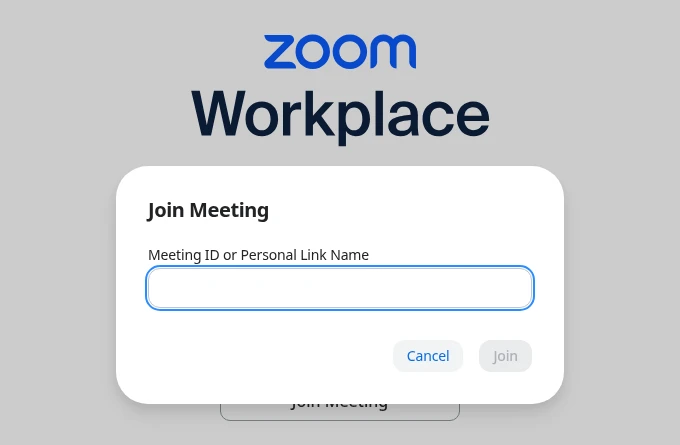
- Enter the meeting ID or personal link name and your display name.
- Choose whether to turn off your video or not connect audio, then click Join.
- Enter the meeting passcode if prompted, and click Join again.
If the host has turned on the waiting room, you’ll see a message saying the host will let you in soon. That’s normal, so just wait.
How to Join a Zoom Meeting from Your Browser Without Downloading?
Can’t install apps on your computer, like on a work laptop or a library PC? You can join with the Zoom Web App right in your browser. As Zoom explains, the Web App doesn’t need any plugins or downloads, though it has fewer features than the desktop app.
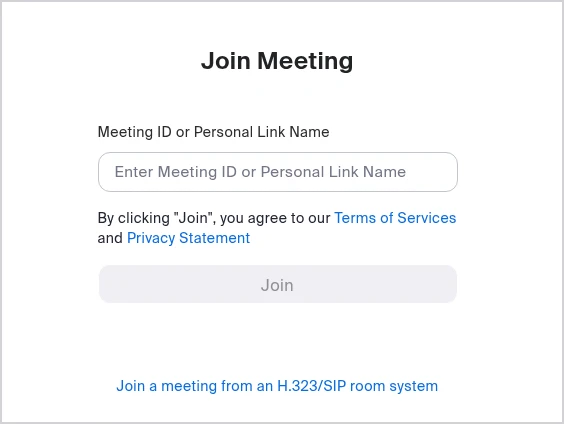
Join with the Link in Your Browser
- Click the meeting link. A pop-up asks you to open or download Zoom.
- Click Cancel in the pop-up.
- At the bottom of the page, click Join from your browser.
- Click Allow so Zoom can use your microphone and camera.
- Type your name, then click Join. Enter the passcode if asked.
Join with a Meeting ID in Your Browser
- Type zoom.us/join in the address bar yourself.
- Enter the meeting ID and click Join.
- Click Cancel on the open-app pop-up, then click Join from your browser.
- Allow your camera and microphone, enter your name and passcode, and click Join.
If you don’t see the Join from your browser link, the host may have turned it off, or the meeting uses end-to-end encryption, which needs the app. Also note that Zoom is rolling out an invisible CAPTCHA check for guests who aren’t signed in. If you’re flagged, you’ll be asked to sign in before you can join.
How to Join a Zoom Meeting on Your Phone?
On a phone or tablet, the Zoom Workplace app works best. Install it from the App Store or Google Play only.
- Tap the meeting link and choose to open it in the Zoom Workplace app. Or open the app and tap Join.
- If you tapped Join, enter the meeting ID and your name.
- Choose whether to join without audio or without video, then tap Join.
- Enter the passcode if asked.
- Allow Zoom to use your microphone and camera, then tap Join with Video or Join without Video.
You can also join from a mobile browser, but Zoom says the mobile web experience has limited features, so the app is the better choice for anything longer than a quick call.
Zoom App vs Browser: Which Is Safer and Better?
Here’s a quick comparison to help you choose:
Both are safe when you use the real Zoom website or official app stores. The real danger is a fake page pretending to be Zoom, not the browser itself.
Safety Checks Before and During Your Zoom Meeting
Before You Join
- Update Zoom from inside the app. Click your profile picture and select Check for updates. Never update from a website pop-up.
- Test your camera and mic. Visit Zoom’s test meeting at zoom.us/test, or follow our guide on how to test your camera and microphone before a video meeting.
- Check your background. Make sure nothing private is visible behind you, or blur or change your background.
- Use your real name so the host can recognize you in the waiting room.
During the Meeting
- Be careful with chat links and files. Don’t open files sent by people you don’t know, even inside a real meeting.
- Don’t share your screen with personal tabs open. Close email, banking, and chat windows first.
- Watch for recording notices. Zoom shows a notice when a meeting is recorded. If you don’t want to be recorded, you can say so or leave.
- Mute when you’re not talking to avoid background noise and echo.
If You Think You Clicked a Fake Link
- Close the page right away and don’t open any file it downloaded.
- Delete the file from your Downloads folder.
- Run a full scan with your antivirus, such as Microsoft Defender on Windows.
- Change important passwords, like email and banking, from a different device that you trust.
- If it’s a work device, tell your IT or security team immediately.
What If You Can’t Join the Zoom Meeting?
Here are the most common joining problems and quick fixes:
| Problem | Quick fix |
|---|---|
| “Invalid meeting ID” | Check the number with the host. Meeting IDs are 9 to 11 digits. |
| Wrong passcode | Copy it from the invite, since passcodes are case-sensitive. |
| Stuck in the waiting room | The host hasn’t let you in yet, or hasn’t started the meeting. |
| “This meeting is for authorized attendees only” | Sign in with the email address the host invited. |
| No Join from your browser link | Install the Zoom app, or ask the host to enable browser joining. |
| People can’t hear or see you | Allow camera and microphone access in your browser or device settings. |
If your sound or video still doesn’t work after you join, see our guide on how to fix common video call problems. And if you need to record the call later, here’s how to record Zoom meetings on a free account.
Conclusion:
Hopefully, this guide has made it easy for you to join a Zoom meeting safely on any device.
Remember the simple rule: check that the link really goes to zoom.us or zoom.com, never download “updates” from a meeting page, and install Zoom only from the official site or app stores. After that, joining from the app, your phone, or your browser takes just a few clicks. If you also use other apps, our guide on choosing the best virtual meeting platform is a good next read.
How do you usually join Zoom meetings, with the app or from your browser? Please let us know by commenting below and giving this post a star rating. If you have any questions or suggestions, feel free to contact us. We’ll be happy to hear your thoughts, thanks.