
Shopping for meeting room gear and seeing “video conference system” and “conference equipment” used as if they mean the same thing?
They overlap, but they aren’t the same. One describes a complete setup that runs the call, the other describes the individual devices you plug into a computer.
Getting it wrong costs money. Buy separate equipment for a busy shared room and IT ends up supporting a pile of cables. Buy a full Microsoft Teams Rooms system for one desk and you pay for features nobody uses.
In classrooms where I’ve run live sessions, the choice between the two decided how quickly a class could start every morning.
In this guide, I’ll explain the difference between a video conference system and conference equipment, and help you pick the right one for your room!
If you already know you need a room system, our Microsoft Teams Rooms guide is the next stop. Otherwise, let’s take it step by step.
What Is a Video Conference System?
A video conference system is a complete, integrated setup that runs video meetings in a room. It combines a camera, microphones, speakers, a display, a control panel and a computing unit, all set up to work together on one meeting platform.
Modern systems usually run Zoom Rooms, Microsoft Teams Rooms or Google Meet hardware. Older room systems used standards like H.323 and SIP to call each other directly.
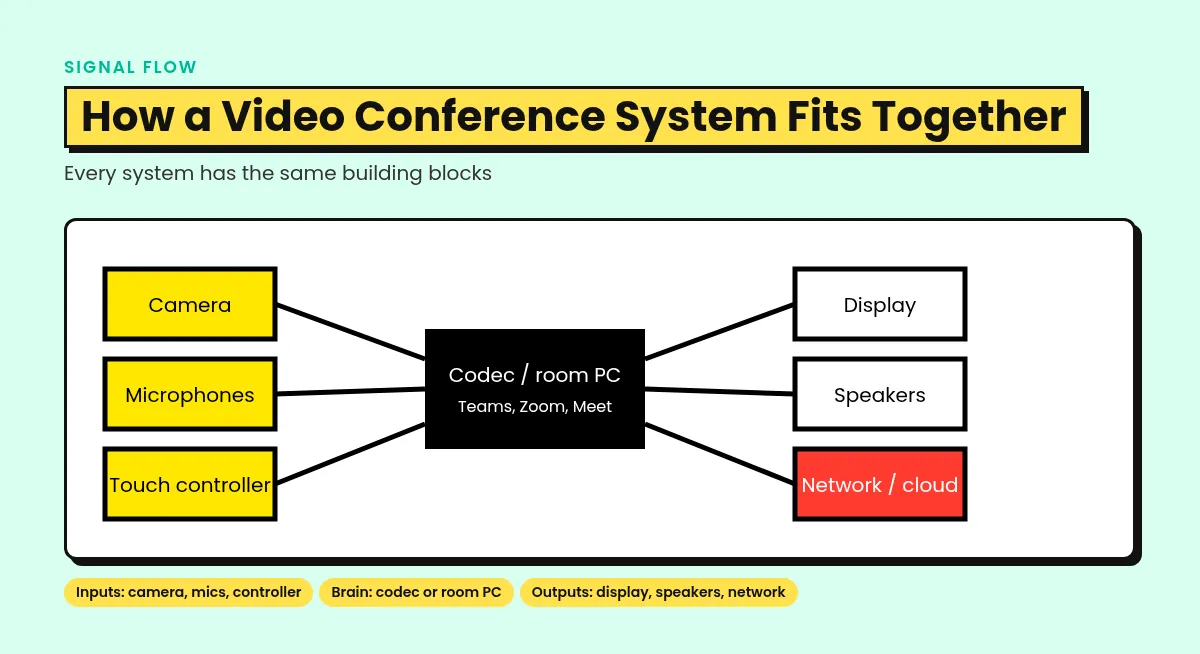
A video conference system typically includes:
- A codec or room PC: the computer that runs the meeting app and encodes video.
- A camera: a video bar, PTZ camera or multi-camera setup.
- Microphones: built into a bar, on the table or in the ceiling.
- Speakers: in the bar, a soundbar or ceiling speakers.
- A display: one or two screens, sometimes a touch board.
- A controller: a touch panel to join meetings with one tap.
What Is Conference Equipment?
Conference equipment is a broader term for the individual devices used in meetings. Some are for video, and many are audio-only. You usually connect them to your own laptop or PC, and the laptop runs the meeting app.
Common conference equipment includes:
- Webcams for one person at a desk.
- Speakerphones for small groups on audio or with a laptop camera.
- Headsets for calls in open offices.
- Conference phones for audio-only calls in meeting rooms.
- Displays and projectors for sharing content.
- Microphones and soundbars to improve room audio.
Our guides to video conferencing webcams and soundbars vs video bars cover the most common pieces.
Video Conference System vs Conference Equipment: Key Differences
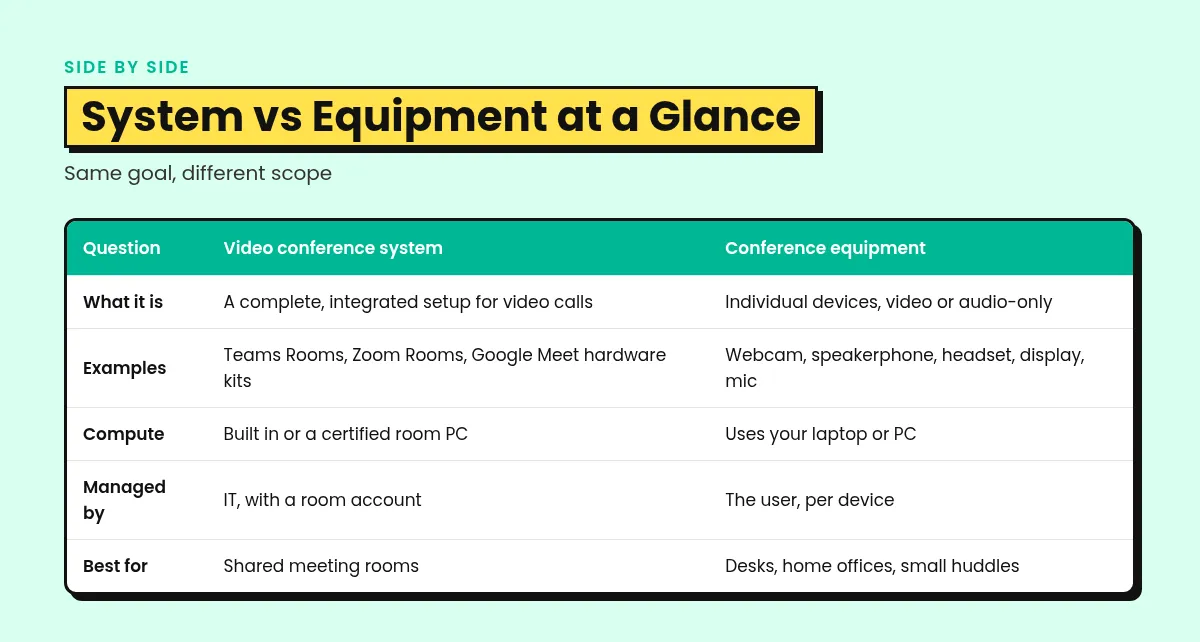
| Factor | Video conference system | Conference equipment |
|---|---|---|
| Scope | Complete room solution | Single devices |
| Who runs the call | The room system | Your laptop or PC |
| Setup | Planned install, room account | Plug in and go |
| Management | Central, remote device management | Per device, per user |
| Platform | Certified for one or more platforms | Usually works with any app |
| Cost | Higher upfront, lower support per meeting | Lower upfront, more user effort |
| Scale | Built for shared rooms | Built for people and desks |
Integration
A system is designed so every part works together and updates together. Equipment is mixed and matched, so you check compatibility yourself.
Who Starts the Meeting
With a system, anyone walks in and taps Join on the room panel. With equipment, someone has to bring a laptop, plug in and pick the right camera and mic.
Management and Support
Room systems are managed by IT through admin portals, so firmware and settings stay consistent. Equipment is usually managed by each user.
Cost Over Time
Systems cost more to buy, but they cut wasted minutes at the start of meetings and support tickets. Equipment is cheaper to start, and the hidden cost is time.
Types of Video Conference Systems
Systems range from one USB bar to a full modular room. The right type depends on room size and how the room is used.
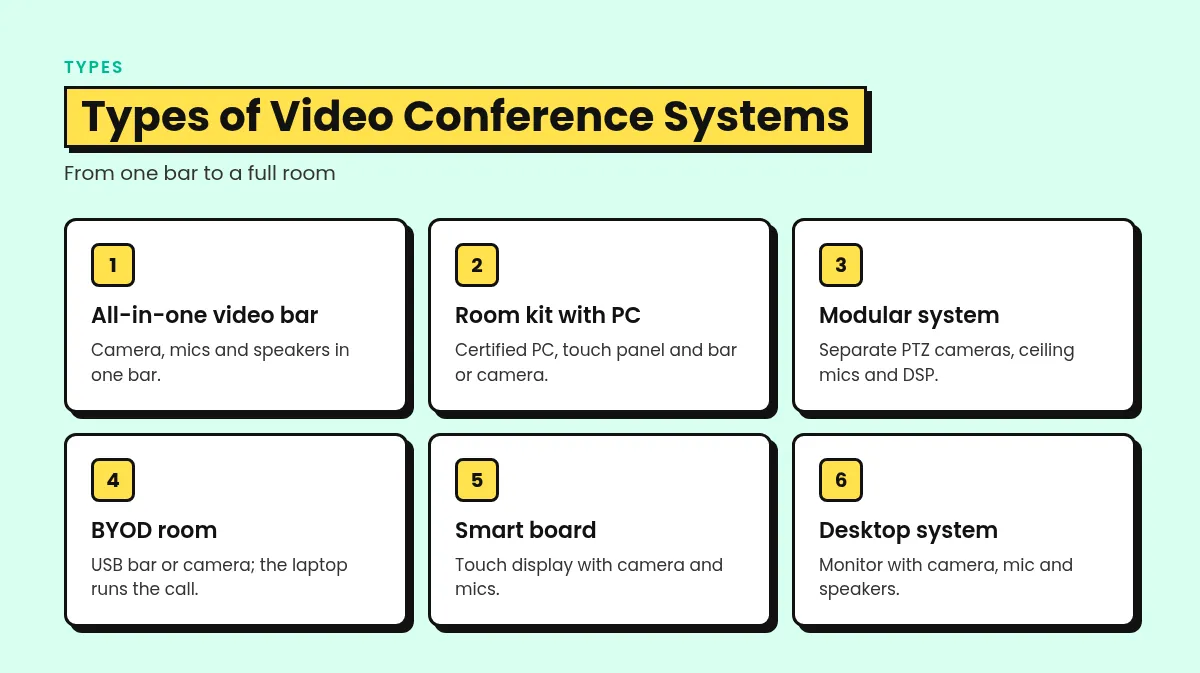
All-in-One Video Bars
A single bar with camera, mics and speakers. Many run Teams or Zoom on their own. The all-in-one video bar guide compares the main room options.
Room Kits with a Room PC
A certified small PC, a touch controller and a bar or camera. This is the most common Teams Rooms and Zoom Rooms setup.
Modular Systems for Large Rooms
Separate PTZ cameras, ceiling or table mics and a DSP. Our list of PTZ cameras covers the camera side.
BYOD Rooms
A USB camera or bar is left in the room, and people connect their laptop. It sits between equipment and a full system.
Which One Do You Need?
Use a video conference system when a room is shared and booked every day. Use conference equipment when one person or a small team meets from a desk or a home office.
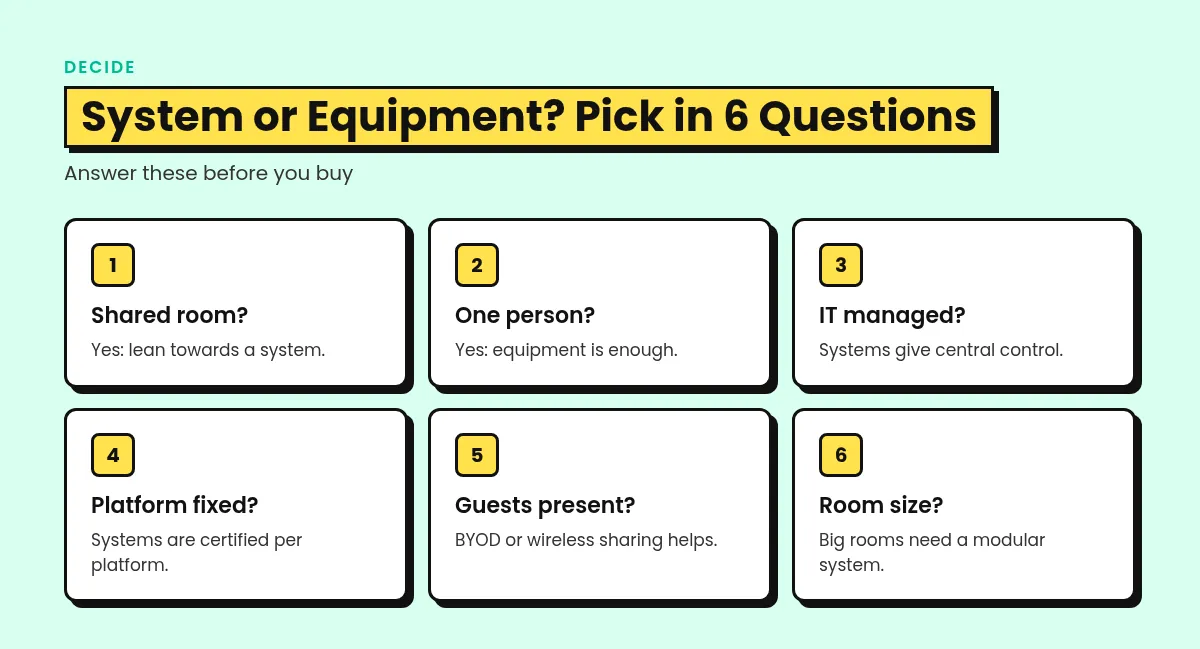
A simple decision line: if more than one person will use the same room every day, choose a system. If the device belongs to one person, choose equipment.
The ticket I see most often is a room set up with desk equipment that nobody knows how to start. If you’re on Microsoft 365, our explainer on the difference between Teams and Teams Rooms shows what the room account adds.
Is Software Part of a Video Conference System?
Yes. The meeting platform is part of the system. A room kit certified for Teams Rooms runs the Teams Rooms app, while a Zoom Rooms kit runs Zoom Rooms. The hardware may look similar, but the software decides how people join, share and control the meeting.
Conference equipment is usually platform-neutral. A USB webcam or speakerphone shows up as a standard camera or audio device, so it works in Zoom, Teams, Meet or a browser call without extra software.
This is why licences matter. Room systems often need a room licence or a device account, while equipment uses the licence of whoever is signed in on the laptop.
Common Mistakes When Choosing Between Them
Buying Desk Equipment for a Shared Room
A webcam and a small speakerphone work for one person, but in a shared room the far seats can’t be heard and nobody knows which laptop to use. Rooms used every day need a system or at least a BYOD bar.
Buying a Full System for a Personal Office
A one-person office doesn’t need a room controller and a room licence. A good webcam, headset or conferencing monitor does the job for far less.
Ignoring the Network
Both options depend on the network. Room systems should be on wired Ethernet with the platform’s ports allowed through the firewall. If video freezes, check packet loss and Wi-Fi before blaming the camera.
Mixing Platforms Without a Plan
If your company uses Teams internally but joins Zoom calls with clients, pick a system that supports both, or plan for BYOD so people can join from their laptops.
How to Plan Your Setup?
Start with the room, then the platform: measure the room, count seats and check which meeting platform your company uses.
Browser-based meetings use WebRTC, so a laptop with simple equipment can join most platforms without installs. Our guide on how to test your camera and microphone helps you check either setup.
Conclusion:
A video conference system is a complete, integrated setup that runs meetings in a room. Conference equipment is the individual devices, video or audio, that you connect to your own computer.
Choose a system for shared rooms used every day, and equipment for personal desks and home offices. Many companies use both.
Which part confused you most when you were buying meeting gear? Tell me in the comments, and rate this guide if it helped.